

Reblock Blast
Use Reblock Blast to prepare the current blast for reblocking.
Instructions
On the Grade Control menu, click Reblock Blast to display the Reblock Blast panel.
A smaller variant of this panel may be displayed if the blast solid or boundary strings are not present in the blast.
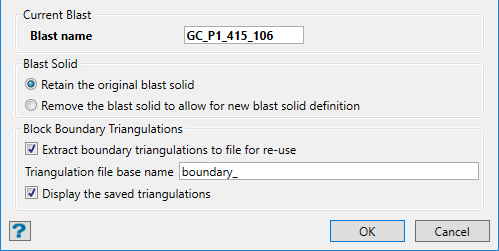
Blast Solid
Choose whether you want to Retain the original blast solid or Remove the blast solid to allow for new blast solid definition.
Block Boundary Triangulations
Extract original boundary strings for edit and re-use
Select this check box to edit the existing block boundary strings, i.e. the lines that were used to separate the grade blocks. You will be required to specify the design database and layer in which to store the boundary strings.
The layer name can either be manually entered, or selected from the drop-down list.
To create a new layer, enter the layer name. The layer name:
-
may contain up to 40 characters.
-
must begin with an alphanumeric character [0-9] or [a-z].
-
cannot include spaces.
-
can include hyphens [ - ], plus signs [ + ], underscores [ _ ], periods/dots [. ].
-
can include the special characters of ÁÂÃÀÇÉÊÍÓÔÕÚÜÑ that are used in the Spanish and Portuguese languages.
Click OK.
If you chose to remove the existing blast solid, then you will be required to register a new triangulation through using the Register Blast Solid option.
If you chose to editing the existing block boundaries, then the boundary strings displays as editable Vulcan objects in the specified layer.
