

Report from Washability Table
Use this option to generate reports from washability tables.
Instructions
On the Washability menu, click Report from Washability Table and a context menu prompts for a wash table source.
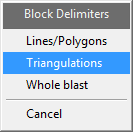
The wash table source can be selected in three ways:
Object attributes
There needs to be some objects loaded on the screen in order to use this option. After selecting Object attributes on the context menu, you will be prompted to select polygon/polyline with wash table attributes. Note that the objects must have had interpolated table added to their attributes. Once you select an object, the following panel is displayed.
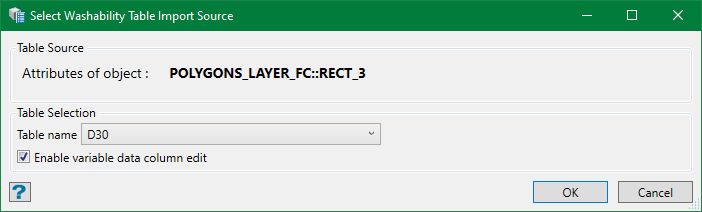
On the panel, you can see the wash table source (object attributes) in bold.
Table Selection
Table name
Select a table from the drop-down list whose value is named by horizon. If there are no tables with attributes, the drop-down list is empty.
Enable variable data column edit
Selecting this option allows the variable data columns in the next panel to be editable. However, it is recommended not to use this option unless really necessary.
Table store
After selecting Table store on the context menu, the following panel is displayed.
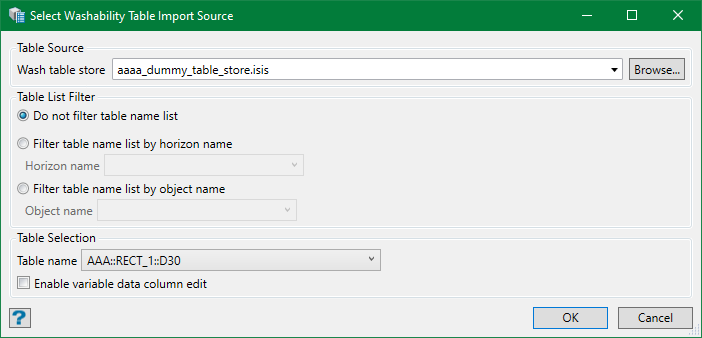
Table Source
Wash table store
Select a wash table store database from the drop-down list or browse from another directory.
Table List Filter
There can be hundreds and thousands of tables in the database. You can apply filters to narrow your search.
Do not filter table name list
This will list all the available tables in the wash table store database.
Filter table name list by horizon name
You can filter your list by horizon name. Selecting a particular horizon name will list only the tables related to that horizon.
Filter table name list by object name
You can filter your list by object name as well. Selecting a particular object will list only the tables related to that object.
Table Selection
Table name
Select a table from the drop-down list. The table list is a result of the filters applied as described in previous section.
Enable variable data column edit
Selection this option will allow the variable data column in the next panel to be editable. However, it is recommended not to use this option.
Import table
After selecting Import table on the context menu, the following panel is displayed. This section is similar to Table store except for the Table Source.
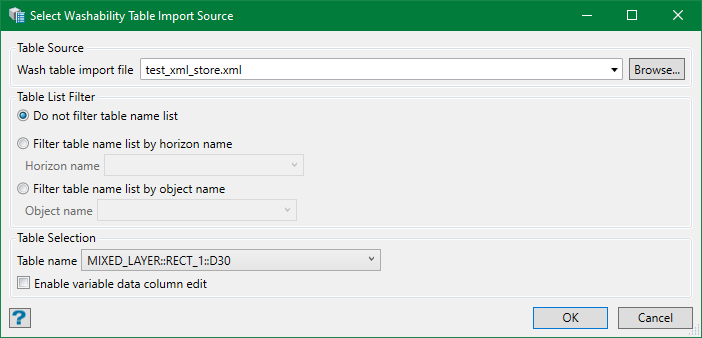
Table Source
Wash table import file
Select a wash table file from the drop-down list or browse from another directory.
After selecting one of these wash table sources, hit OK and the Report from Washability Table panel is displayed with table data prefilled based on the source selected. This panel is same for all the wash table sources.
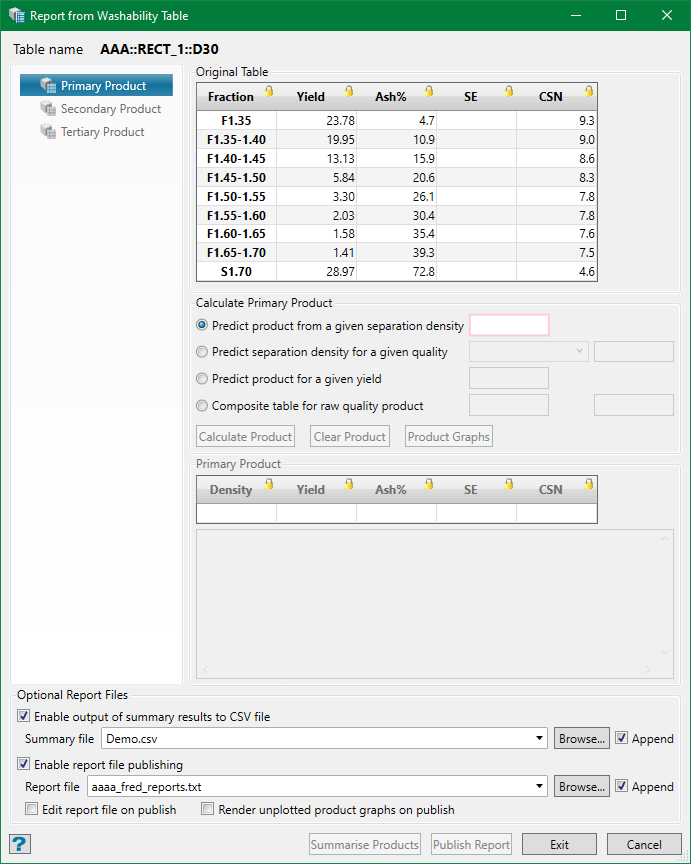
The panel is divided into three tabs:
-
Primary Product
-
Secondary Product
-
Tertiary Product
The Secondary Product is enabled only after you finish calculating product for the Primary Product. Similarly, the Tertiary Product is dependent on the Secondary Product.
Primary Product
Original Table
This displays the data for the table name selected. The yellow lock icons on the column header denote that the values are uneditable. If you selected the Enable variable column data edit option in the previous wash table source panel, then the variables like Ash% and CSN would be editable from the grid itself. In case you edit these values and want to revert to the original, press Reset .
Calculate Primary Product
There are four options to calculate primary product.
- Predict product from a given separation density — Enter the separation density (fraction) between the minimum and maximum value. Eg. 1.40
- Predict separation density for a given quality — Calculate product based on quality values. Eg. 7% Ash.
- Predict product for a given yield — Enter a yield value to calculate the product.
- Composite table for raw quality product — Enter raw relative density values first float fraction of table. These values are optional and will be defaulted to the value provided with the data (if present). If the data is not supplied, it is assumed to be the mid-point between 0 and the first fraction float density.
Calculate Product
Once you choose of the above options, th is button is enabled. Click on the button to produce the primary product report. An example with a separation density of 1.4 is shown below.
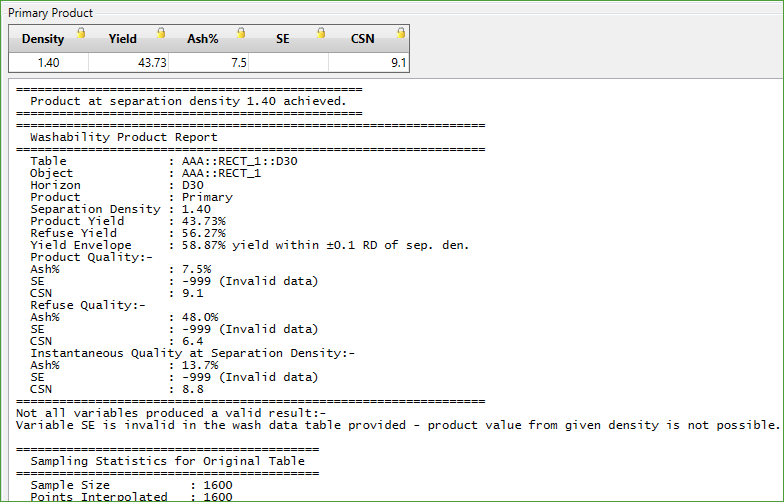
As soon as the product is calculated, the Secondary Product tab is enabled. Similarly, once you finish Secondary Product, the Tertiary Product tab is enabled.
Clear Product
Use this option to clear all the products. This also clears Secondary and Tertiary products if they have been defined.
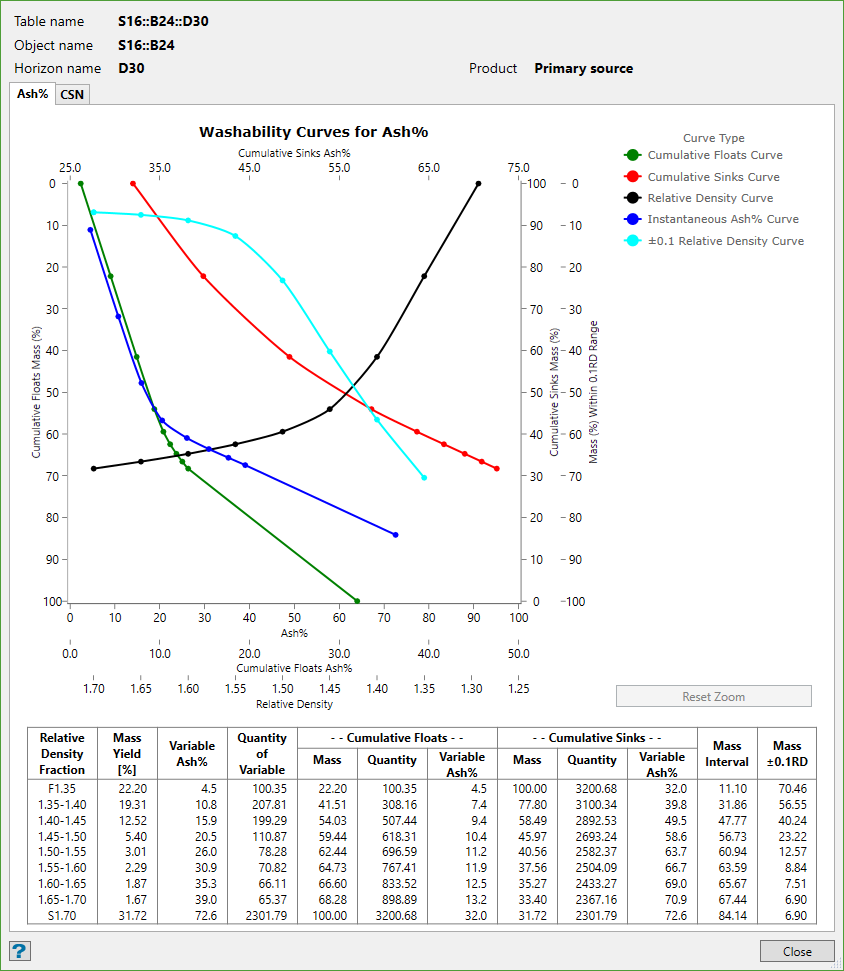
Product Graphs
This option draws the graph on the screen based on the product calculated. By default, the Maptek Chart style Washability Curve graphsis used.
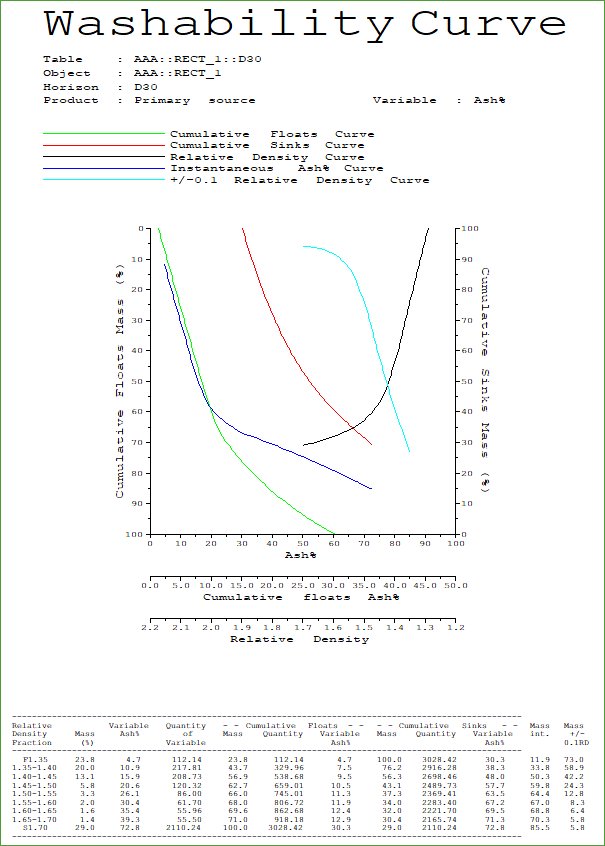
However, if you have chosen the old design object graphs in the Product Graph Settings, you will see the original standard graphs drawn on the screen. The graph keeps adding up if you choose a different option to calculate the products.
Optional Report Files
Enable output of summary results to CSV file
Selecting this option enables the Summarise Products button. You can now save the summary of the output results to a CSV file. Simply type in a filename to save to a new file or select a summary file from the drop-down list or browse from another directory. You can append the summary results to an existing file by checking on the Append option or overwrite the file by unchecking it.
Enable report file publishing
Selecting this option enables the Publish Report button. You can save the report results in a text file. Simply type in a filename to save to a new file or select a report file from the drop-down list or browse from another directory. You can append the report results to an existing file by checking on the Append option or overwrite the file by unchecking it.
Edit report file on publish
Selecting this option opens the report file in a text editor where you can make necessary changes before getting published.
Render unplotted product graphs on publish
Select this option to publish the product graphs on the screen without even using Product Graphs option.
Summarise Products
This is a non-exit button, which saves the summary of the output results to a CSV file. This button is enabled only when you check the Enable output of summary results to CSV file option.
Publish Report
This is an exit button which publishes report to a text file and displays on the screen if requested. The panel settings are remembered. This button is enabled only when you check the Enable report file publishing option.
Exit
This exits the panel but the panel settings are remembered. However, the reports are not published even if a file is selected.
Cancel
This is an exit button, which doesn't publish reports and doesn't remember panel settings either.
Note: The Secondary Product and Tertiary Product tabs are similar to the Primary Product tab and therefore function the same way.
