

Drag Label
Reposition a Block Label
The Drag Label option to drag (move) a block label to a new position. The block label must be on the current section.
Note: This option will place you in the current section view., that is, the current Dragline section will be placed in a cross-sectional 3D view.
Instructions
On the Dragline menu, point to Blocks, and then click Drag Label.
Once selected, you will be prompted to select a block label.
If a Dragline specifications file (.rsp) was not opened prior to selecting this option, then the Open Dragline Specification panel displays first.
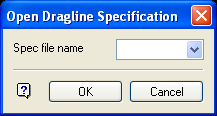
Open Dragline Specification panel
Spec file name
Enter, or select from the drop-down list, the <spec_file_id> part of the dragline specifications file name. The maximum size is 6 alphanumeric characters. Selecting a name from the drop-down list will open an existing specifications file. Entering a new name will create a new specifications file.
Click OK.
Select the label, and while holding down the mouse button, drag it to its new position. After releasing the mouse button, you will then be prompted to select another label to drag. Cancel, when finished dragging block labels.
