

Reserves
Calculate the Reserves of a Solid Model
Use the Reserves option to produce weighted average reserve reports for a specified number of triangulations against samples that are either derived from a database or an ASCII mapfile.
The triangulations are used to bound the regions in which to report the reserves. Each solid will have a total volume and a set of assay averages reported for it.
This option checks whether or not all the points lie in the selected triangulation(s). Only points in the triangulation(s) are selected to perform the reserve calculation. Both a weighted and an unweighted average of the data in the triangulation is calculated.
Instructions
On the Model menu, point to Triangle Solid, and then click Reserves.
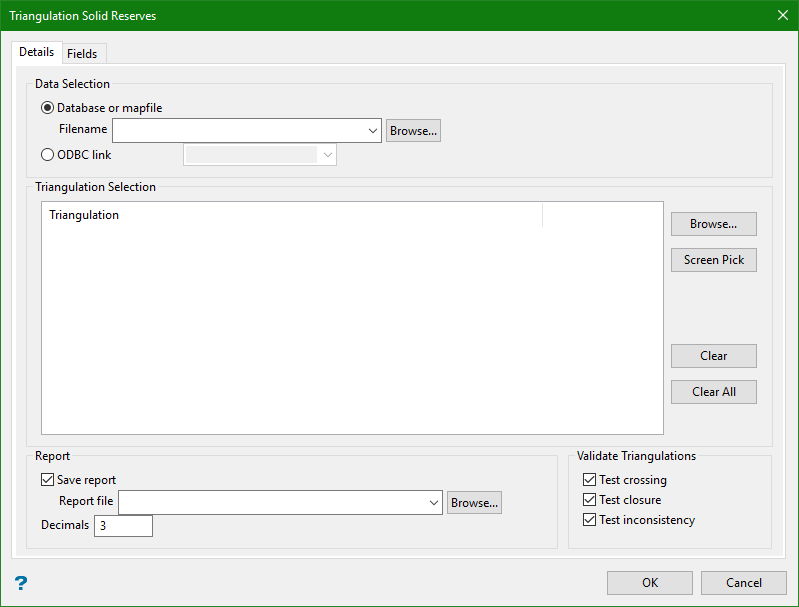
Data Selection
Select between a standalone database or mapfile, or an ODBC database link to a server.
Database or mapfile
Select a database or mapfile from the drop-down list if they are stored in the local directory, or click Browse to search for them if they are stored in another location.
ODBC link
Use the drop-list to select an ODBC database connection link.
Triangulation Selection
Browse button
Click to open an explorer window to search for the triangulations.
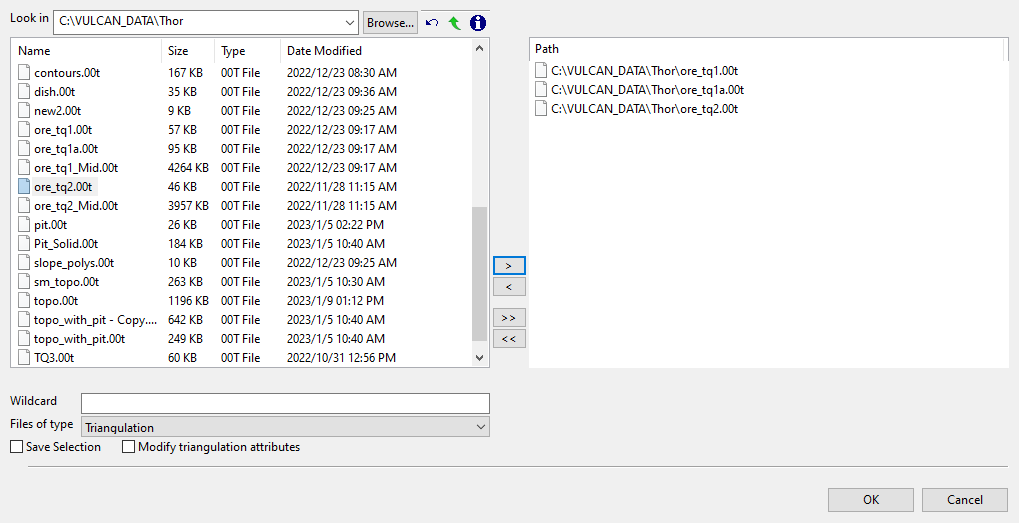
Follow these steps:
-
Select the desired triangulation file(s) from the file list, which shows all available files in the current working directory. You can select files from a different location by clicking Browse..., or use the
 buttons to go to the last folder visited, go up one level, or change the way details are viewed in the panel, respectively.
To highlight multiple list items at once, use the left mouse option in combination with the Shiftkey (this is for items that are adjacent in the list; for non-adjacent items, use the Ctrlkey and the left mouse option).
TipTo filter file names using wildcard characters, type in a pattern in the Wildcard field using
*for a multi-character and?for a single-character wildcard.If you would like to use a previously created selection file (
.sel) containing a list of desired triangulation files to load, choose Selection Files (*.sel) from the Files of type drop-down list.Move the items to the selection list on the right side of the panel.
- Click the
 button to move the highlighted items to the selection list on the right.
 - Click the
 button to remove the highlighted items from the selection list on the right.
 - Click the
 button to move all items to the selection list on the right.
 - Click the
 button to remove all items from the selection list on the right.
- Click the
-
Select the Save Selection checkbox if you want to save the selection list (the right side of the panel), to a nominated selection file (
.sel). Once this panel has been completed, a panel displays to save the selection file. Choose a selection file from the File Explorer to store the triangulation selection list to and click Save. To create a new file, enter the file name. -
Select the Modify triangulation attributes checkbox if you want to modify the current display attributes for the selected triangulation files. This option is recommended if you don't want to use the display settings from a previous Vulcan session. Once this panel has been completed, a new panel displays to alter the triangulation properties.
NoteAltering a triangulation's display attributes updates the modification date stamp (date modified).
The Modify triangulation attributes checkbox is not applicable to triangulation files that are currently loaded on-screen. Use the Model > Triangle Files > Properties... option to modify a loaded triangulation's display attributes.
-
Click OK to add the selected triangulations to the list. Alternatively, click Cancel to close the panel without adding the selected triangulations.
Screen Pick button
Click to select the triangulations from those already loaded on the screen.
Clear button
Clear the highlighted triangulations from the list.
Note: Select multiple triangulations by holding the Ctrl key down while selecting the desired triangulations.
Clear All button
Clear all triangulations from the list.
Save report
Select this check box to save the calculated reserves in a nominated file. You will need to enter the name of the resulting report file (a maximum size of 40 alphanumeric characters), as well as the number of decimal places (a default of 3) that you want to display in the report. The resulting file will be placed in your current working directory.
Validate Triangulations
The triangulation can be tested for crossing triangles, closures and topological inconsistencies by ticking the appropriate check box. If there are any inconsistencies, then the calculated reserves will be incorrect. You can use the Triangle Delete option to remove these inconsistencies. Refer to the Model > Triangle Utility > Check option for a further explanation on validation tests.
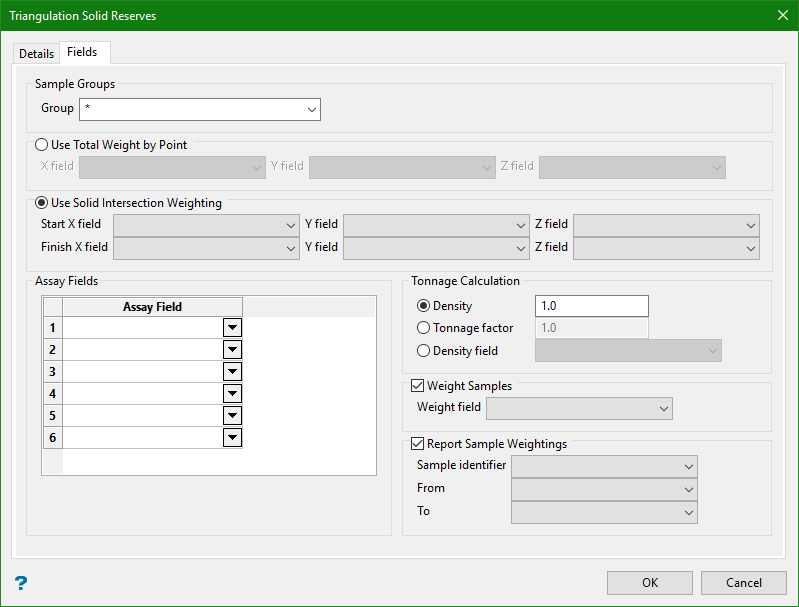
This tab allows you to specify how the reserves are to be reported.
Sample Groups
Enter the name of the groups (referred to as Objects in Isis ) to be used.
Note: Wildcards (* multi character wildcard and % single character wildcard) may be used to select multiple groups. Note that multiple groups apply only to databases (ASCII mapfiles consist of one group).
Samples can be treated as mid-points or segments.
Use Total Weight by point
Select this option to apply the same weighting to each point inside the solid when calculating assay averages. Specify the fields containing the X, Y and Z midpoint coordinates.
Use Solid Intersection Weighting
Select this option to use the length of the segment inside the solid as the weighting when calculating the assay averages. Specify the fields containing the start and finish X, Y and Z coordinates.
Assay Field
Up to 6 assay fields can be specified.
Density/Tonnage Factor/Density Field
A Density (a multiplier), Tonnage Factor (a divider) or a Density Field can be used.
Weight Samples
Weight field
Select this check box to use a weight field in conjunction with one of the above two options to calculate the final weight for each sample. For example, the segment length plus a field containing a density value can be combined to produce a total weight for that sample. Specify the field that contains the weight.
Report sample weightings
Select this check box to include in the report a list of samples used to calculate the reserves for each solid. The drillhole ID, the FROM and the TO fields must be specified as they contain the information identifying each sample.
Click OK.
