

Import Vulcan ASCII Triangulations
Instructions
On the File menu, click Import to display the Import panel.
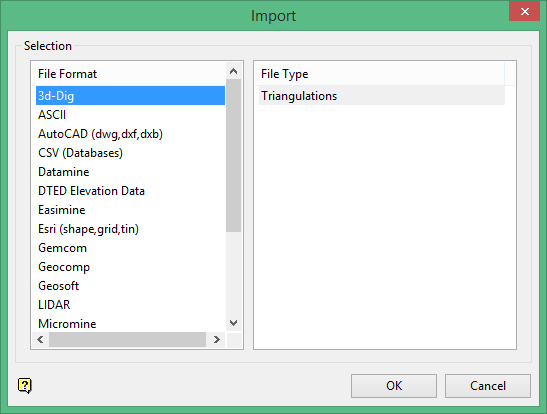
Click ASCII in the File Format column on the left.
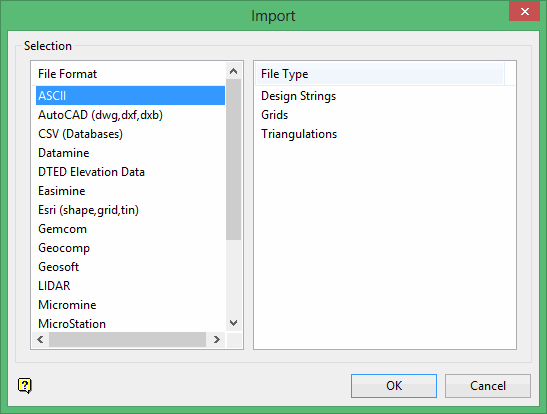
S elect Triangulations from the File Type field on the right side of the panel.
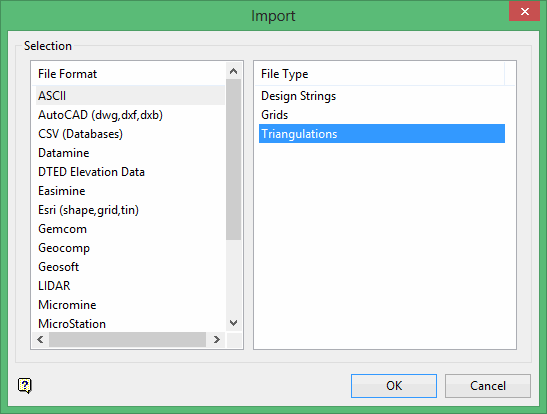
Click OK to display the Import Vulcan ASCII Triangulation panel.
All import triangulations use the default triangulation folder set in preferences, unless you have defined an alternate path.
Selection tab
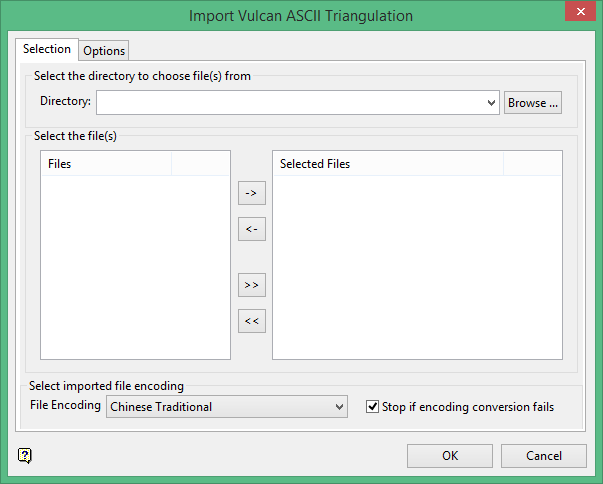
Select the directory to choose file(s) from
Select the files that you want to import by clicking the arrow buttons between the columns to add the file names to the right column.
The resulting Vulcan triangulations will be stored in the same directory as the original triangulation dump files. The triangulations will also inherit the names of the selected dump files but with an extension of.00t added to end of the file name. For example, if your triangulation dump file is named 'surface.asc', then the resulting file will be named 'surface.00t'.
Select the file(s)
-
To move a single file from one column to the other, click on the file name click the > or < button.
-
To move all files from one column to the other, click the >> or << button.
-
To move multiple files from one column to the other, hold the Ctrl key while clicking on the file names (or hold the Shift key to select a group of adjacent files). Once all the desired files are selected, click the > or < button.
Select imported file encoding
File Encoding
Select from the following:
-
UTF-8
-
Chinese Traditional
-
Chinese Simplified
-
Windows Encoding
If an encoding other than UTF-8 is selected, the ASCII or CSV file will be converted to UTF-8 before imported to Vulcan.
Stop if encoding conversion fails
Select this option is you want the importing process to stop if the conversion fails. If this option is not selected and the process fails, the importing process will continue with the original file.
Options tab
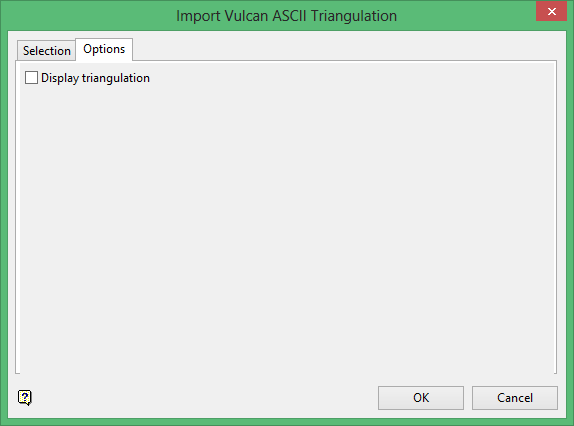
Display triangulation
Select this check box to display the triangulation on the screen once it has been imported into Vulcan.
Click OK.
Once the data has been imported, the Triangulation Attributes panel displays.
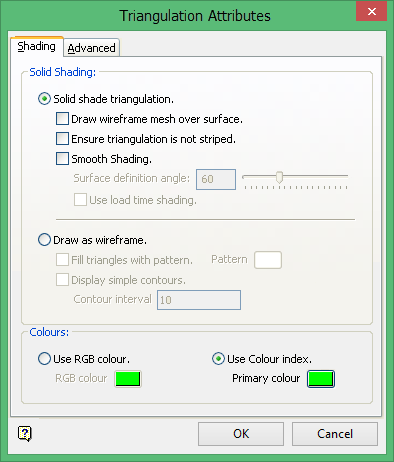
The Triangulation Attributes panel will allow you to specify display parameters, such as colour and shading, for the triangulation. Refer to Model > Triangle Utility > Attributes for more information on this panel.
