

Import MineSight Data
Instructions
On the File menu, click Import, then click MineSight in the File Format column on the left side of the Import panel, and select Design Strings for File Type on the right.
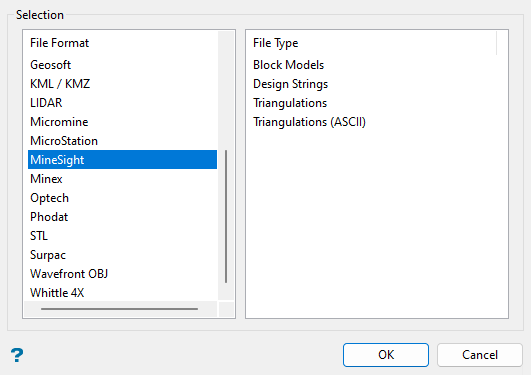
Click OK to open the panel used to import MineSight data.
The panel consists of two tabbed sections:
Selection tab
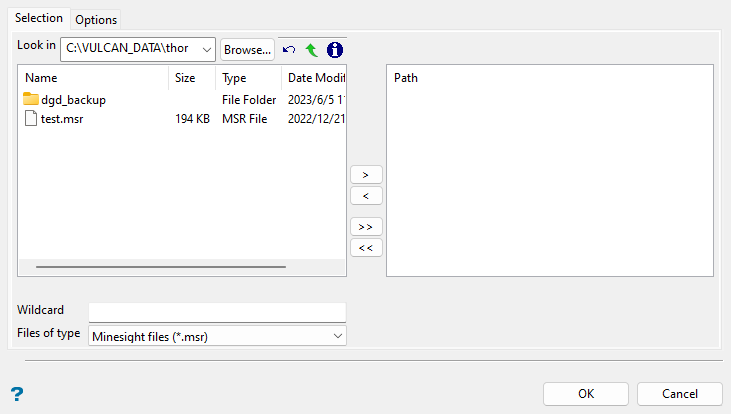
Select the MineSight files (.msr) that you want to import from the current working directory. Alternatively, click Browse... to select files from another location. Use the  icons to go to the last folder visited, go up one level, or change the way details are viewed in the window, respectively.
When using wildcard characters, type *> for multi-character and ?> for single character. To highlight multiple list items at once, use the left mouse option in combination with the Shiftkey (this is for items that are adjacent in the list; for non-adjacent items, use the Ctrlkey and the left mouse option).
Move the items to the selection list on the right side of the panel.
- Click the
 button to move the highlighted items to the selection list on the right.
 - Click the
 button to remove the highlighted items from the selection list on the right.
 - Click the
 button to move all items to the selection list on the right.
 - Click the
 button to remove all items from the selection list on the right.
Options tab
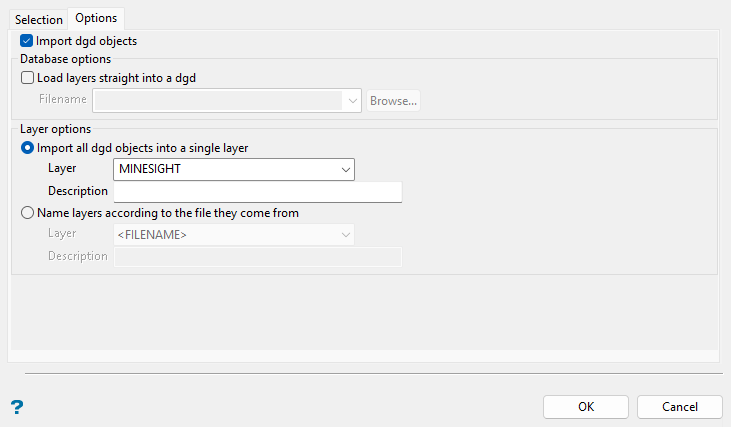
Use this section to specify the design database and layers for the imported design data.
Ensure that the Import dgd objects checkbox is enabled to import the design data from the selected MineSight files. Otherwise, design strings will not be imported.
Under Database options, select the Load layers straight into a dgd checkbox to load the contents of the selected MineSight files into a nominated design database. The drop-down contains the names of all design databases (.dgd.isis) found in your current working directory. You can also type in a new file name to create a design database. Click Browse... to select a design database from another location. If this checkbox is not selected, then the data will be imported into the currently open design database.
Under Layer options, select the Import all dgd objects into a single layer option to load the imported design data into a single layer. The default layer is MINESIGHT. The drop-down list contains the names of all layers found in the currently open design database. If you selected the Load layers straight into a dgd checkbox, then the drop-down list contains the names of all layers found in the nominated design database. If you select or type the name of an existing layer, you will need to confirm whether you want to load (append to) the layer or replace it, that is, overwrite its contents.
-
May contain up to forty characters.
-
Must begin with an alphanumeric character [0-9] or [a-z].
-
Cannot include spaces.
-
Can include hyphens [ - ], plus signs [ + ], underscores [ _ ], periods/dots [ . ].
-
Alternatively, select the Name layers according to the file they come from option to load the imported design data into layers named after the selected MineSight files. For example, if your MineSight files are named surface1.msr, surface2.msr, and surface3.msr, then the resulting layers will be named SURFACE1, SURFACE2, and SURFACE3. If you attempt to save the data to an existing layer, then you will need to confirm whether you want to load (append to) the layer or replace it, that is, overwrite its contents.
Note: Layer descriptions can be used to further describe the contents of the layers. A layer description can contain up to 80 alphanumeric characters (spaces are allowed). If a description is not entered, then a default description will be used instead. If the chosen layer already has an assigned description, then this displays when the layer is selected. Existing layer descriptions can be overwritten.
