

Drafting Sheet Editor: Title Block
Instructions
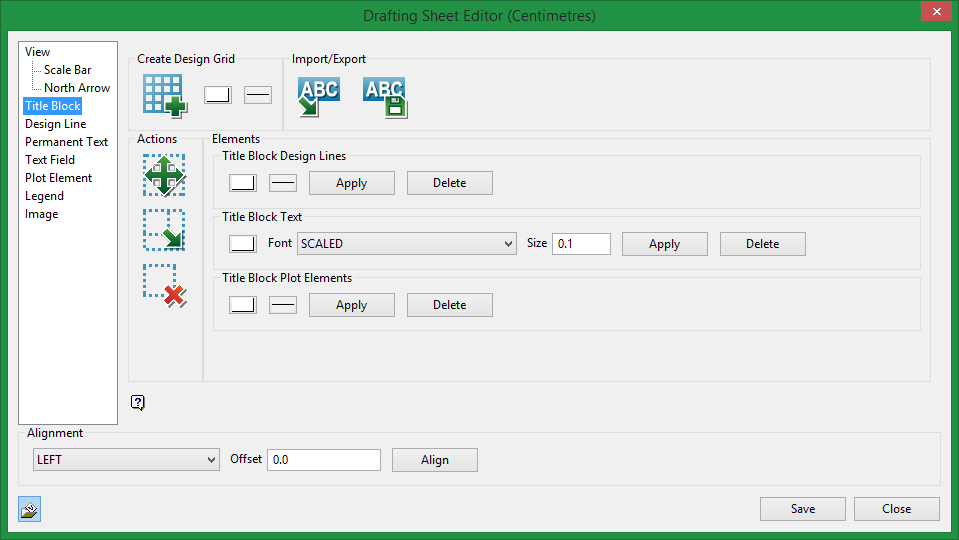
On the File menu, point to Drafting Sheets, then click Drafting Sheet Editor to display the following interface.
Create Design Grid

|
Create Design Grid. Click this icon, then click in the design sheet to indicate the lower left corner of the title block outline. |
Once the outline has been defined, the following pane displays:
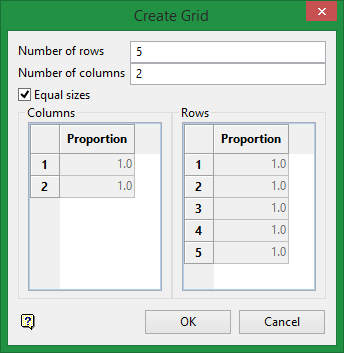
Enter the number of rows and columns of text you want to have.
Equal sizes
By default, the rows and columns are created equal in size. However, if you want to adjust the proportional size of a cell, then deselect Equal sizes and make adjustments to the appropriate cell. All adjustments can be seen in real-time on the screen.
Click OK when you are finished.
Import / Export

|
Import a saved title block to the current design sheet. |

|
Save the current title block. |
Actions

|
Click on the Move icon to move a box on a sheet. |

|
Click on the Resize icon to change the size of a box on a sheet. |

|
Click on the Delete icon to delete a box on a sheet. |
Elements
Title Block Design Lines
Allows you to make adjustments to all design lines at the same time.
Title Block Text
Allows you to make adjustments to all title block text at the same time.
Title Block Plot Elements
Allows you to make adjustments to all title block plot elements at the same time.
Related Topics
Was this page helpful?
