

Batch Print
Print Multiple Plot Files
Use the Batch Print option to print multiple plot files. Unlike the Print All option, which only prints out the loaded plot files, the Batch Print option to print out both loaded and unloaded plot files.
It is also possible to print multiple plot files through the Vulcan Explorer application. Right-click on the selected plot files and choose the Plot option from the displayed context menu.
Instructions
On the File menu, click Batch Print to display the Batch Print Plot Files panel.
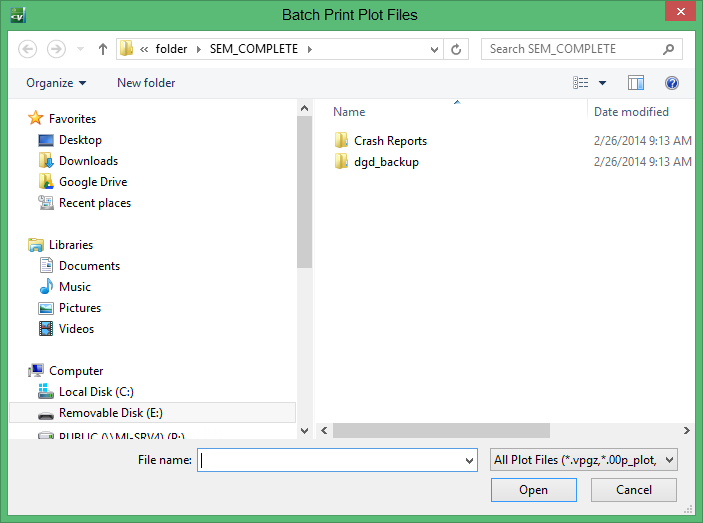
Use the Files of type drop-down list to limit the listed plot files to standard Vulcan plot files, contour plot files, and cross section plot files. You can also use the File Name field to limit the list of plot files. For example, typing 'thor*' will limit the list to all of the plot files that began with thor.
Use the mouse and the Shift key to select adjacent files and the mouse and the Ctrl key to select non-adjacent files.
Click Open.
The standard Windows Print panel is then displayed.
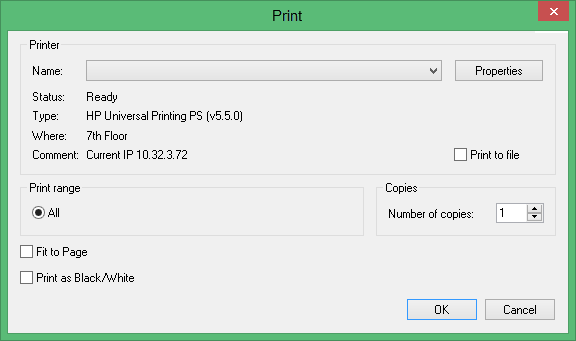
Note: All of the plots will be printed using the printer and page settings specified in this option.
