

Radiations
Calculate set out radiations
The Radiations option to calculate set out radiations from a nominated station (selected either graphically or by name from a list) to a selected object. The calculations can be stored in a report file. See Appendix A for an example.
Instructions
On the Survey menu point to UG Survey and then click Radiations to display the Traverse radiations panel.
Instrument Setup tab
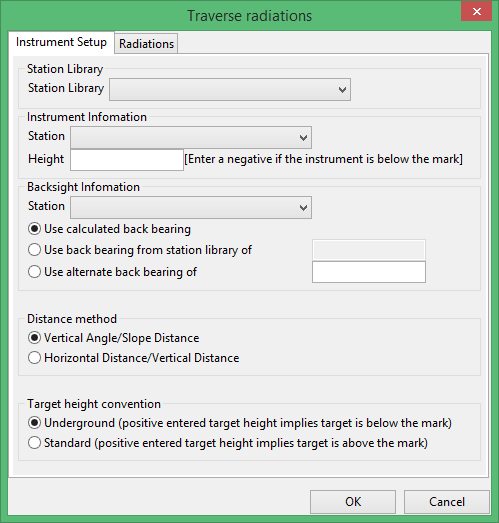
Station Library
Select a station library from the drop-down list.
Instrument Information
Station
Select an instrument from the drop-down list.
Height
Enter the instrument height.
Backsight Information
Station
Select the backsite station from the drop-down list.
Back bearing
Select from three choices of back bearing:
- Use calculated back bearing
- Use back bearing from station library of [Enter source].
- Use alternate back bearing of [Enter source].
Distance method
Select the distance method:
- Vertical Angle/slope Distance
- Horizontal Distance/Vertical Distance
Target height convention
Select which convention you are using:
- Underground (positive entered target height implies target is below the mark)
- Standard (positive entered target height implies target is above the mark)
Radiations tab
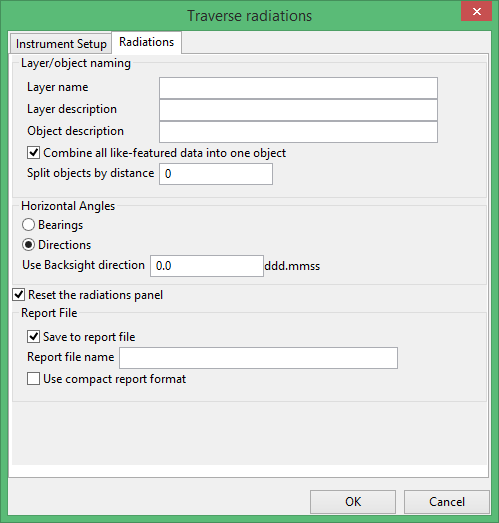
Layer/object naming
Enter the name (and optionally a description) of the layer in which the shots are to be stored and the name (and description) for each shot, that is, object name. The default object name is <instrument_station>. The default object description is 'Fieldbook shots from <instrument_station>.
Combine all like-featured data into one object
Select this option if you want the data to be input as a single object. They can be split into separate objects based on how far apart the objects are. A setting of 0 means that all data will be broken into separate objects.
Horizontal Angles
The angles can be true bearings or, more often, a direction based on the Face Left/Face right mean to the backsight for the first set of angles (taken from the Traverse panel). Directions is the default.
Report File
Select this option if you want to save the results to a report. Enter a report name and the report will be saved to the working directory.
