

Transfer
Transfer Structural Data
The Transfer option to transfer objects from the Stereonets or Rose Diagram Windows into the Primary Window. This is useful when you have a stereonet or rose diagram depicting specific areas in the pit, and want to display alongside the pit area its specific stereonet or rose diagram.
 Note
Note
You need to be in Stereonet or Rose Diagram view in order to use this option.
Instructions
- Select Geotech menu
- Select Analysis submenu
- Select Transfer option
The following panel displays.
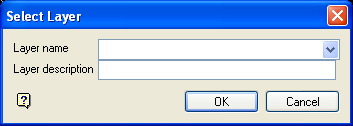
Select Layer panel
Layer name
Select the layer that will be used to store the transferred objects. All the objects selected for transferral will be placed in this layer, and moved to the Primary Window.
To create a new layer, enter the layer name. The layer name:
- may contain up to 40 characters.
- must begin with an alphanumeric character [0-9] or [a-z].
- cannot include spaces.
- can include hyphens [ - ], plus signs [ + ], underscores [ _ ], periods/dots [. ].
- can include the special characters of ÃÂÃÀÇÉÊÃÓÔÕÚÜÑ that are used in the Spanish and Portuguese languages.
Layer description
Enter a description to further describe the contents of this layer. The description can be up to 80 alphanumeric characters and may include spaces. If a description is not entered, then a default description will be used instead. If the chosen layer already has an assigned description, the description displays when the layer is selected. Existing layer descriptions can be overwritten.
Select OK.
The Rose Diagram or Structural Data Display panels are then displayed. Use these panels to make the objects visible, if necessary. The changes made through these panels are undone when the transfer is completed. Refer to the Set Up Rose Diagram and Set Up Stereonet options (under the Geotech > Display submenu) for information on these panels.
Once these panels have been completed, you will then be prompted to indicate a transfer reference point in the Stereonets Window, and a destination point in the Primary Window to ensure that the data is correctly located.
Once indicated, the Multiple Selection box displays. This allows you to select a category by which to select the objects to be transferred. Make sure that you click on everything to be transferred. Both the stereonet and the rose diagram consist of more than one layer.
Once selected, you are asked to confirm the transfer. Upon confirmation, return to the Primary Window to see your transferred data. The transferred objects may need to be moved and scaled alongside the 3D structural data. This can be done using the Design > Transformation > Translate and Design > Transformation > Scale options.
