

Highlight
Highlight Structural Data
The Highlight option to highlight and manipulate the visbility of structural data, represented by structural symbols or points, in either the Primary or Stereonets Windows. The structural data can be graphically changed, (for example shadowed in the other window/view).
You load all the bedding symbols into both the Primary and Stereonets Windows. In the Stereonets Window, you see a grouping of pole points. You can use the highlight option to view where they plot in the Primary Window.
Prerequisites:
Because the highlight option to select data in one window and highlight it in another, you must have the same data pre-loaded in both of the windows before attempting the procedure.
Note: As you will be prompted to pick one or more layers for highlighting, there must be a least one visible object in the layer(s) from which you are choosing.
Instructions
- Select Geotech menu
- Select Analysis submenu
- Select Highlight option
The following panel displays.
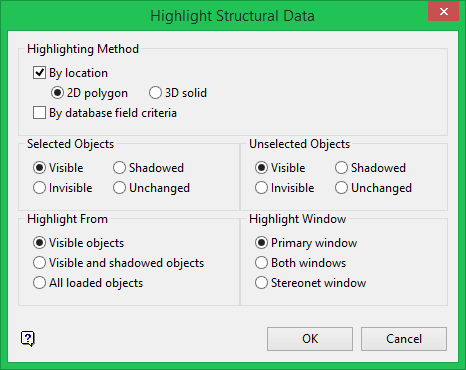
Highlight Structural Data panel
Highlighting Method
Structural data can be highlighted by location and/or by database field criteria.
By location
Select this check box to highlight by 2D polygon or 3D solid. The data to be highlighted will be limited to a nominated polygon or triangulation respectively. When this checkbox is ticked, you will need to specify whether to highlight by 2D polygon (the default) or 3D solid.
Highlighting by 2D polygon allows you to select a polygon in the Primary Window and limit the selection of structural data to in that polygon. Highlighting by 3D solid allows you to select a solid triangulation in the Primary Window and limit the selection of structural data to in that solid triangulation.
By database field criteria
Select this check box to specify criteria for the value of any fields in the database; the criteria must be met if the structural data is to be selected for highlighting.
The Selection Criteria panel displays once the Highlight Structural Data panel has been completed. The Selection Criteria panel will list all of the available fields in the structural database. You can then specify the values to be met for any of these fields in order to be highlighted. If this checkbox is not ticked, then the Limited Selection Criteria panel displays. This panel allows you to specify selection criteria for a subset of the fields only.
Selected Objects
Select one of the four methods under this heading to display the selected data (visible, invisible, shadowed or unchanged).
Unselected Objects
Select one of the four methods under this heading to display the unselected data (visible, invisible, shadowed or unchanged).
Highlight From
Select one of the three methods under this heading for highlighting (visible objects, visible and shadowed objects, or all loaded objects).
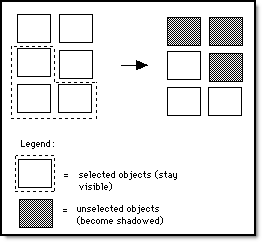
Figure 1: Selection and Highlighting
Highlight window
Select whether the highlighted will display in the Primary window, the Stereonet window, or both.
Select OK.
The following panel is then displayed. If the By database field criteria checkbox was ticked, then the Selection Criteria Entry panel displays instead.
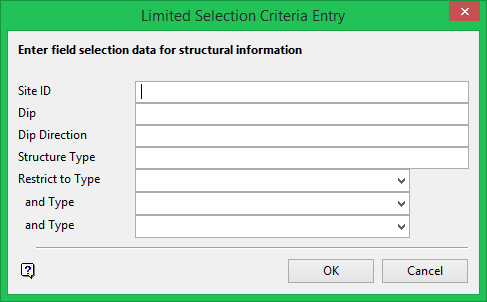
Limited Selection Criteria Entry panel
Selection criteria is specified through this panel in a similar way as through the Selection Criteria Entry panel. The only difference is that the type code can also be selected by description (only three).
Values can be entered as a range, for example 45-65, or as a single value, for example 65. If no values are entered, then it is assumed that no restriction is to be enforced.
Entered values will remain in the drop-down lists until removed. This means that the next time you enter selection criteria, you will need to check for unwanted selection values in each drop-down list. To remove a value for a field, move to the required field and space over the values that are there.
Select OK.
The highlighting process will begin once a layer has been chosen. Press the [Esc] key to cancel the process.
