

Update From Design
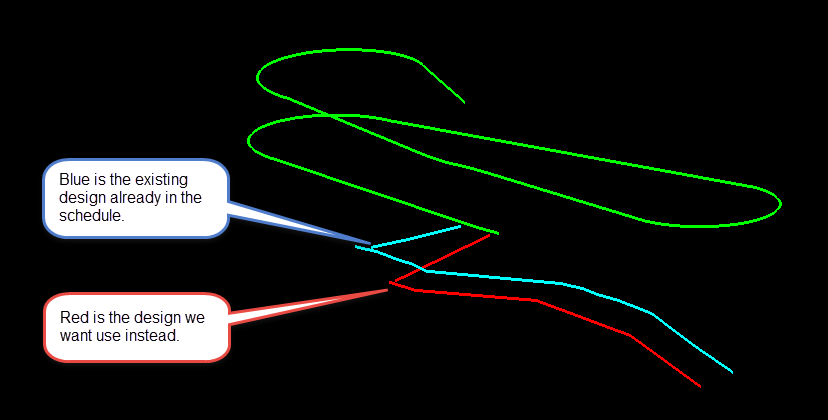
This function will allow you to update activities based on a new or modified design, while maintaining all schedule constraints, precedences, manual attribute values, and resource allocations.
Instructions
On the Gantt menu, click Update From Design.
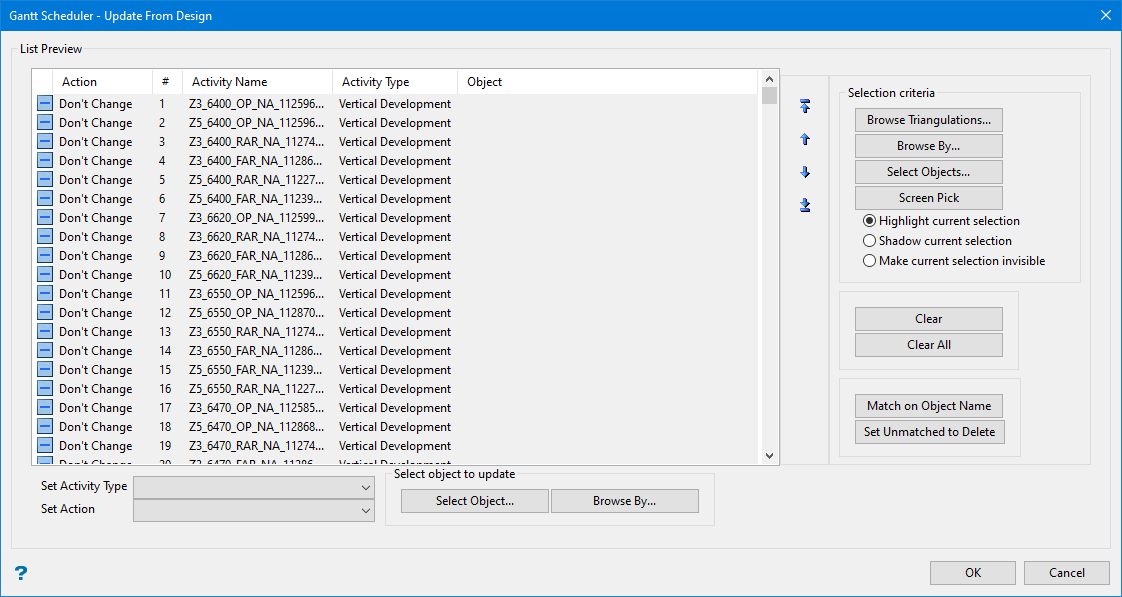
Note: Upon opening, the panel will list everything that is in the project, with the action set to Don’t Change by default.
Follow these steps:
-
Select the objects you want to change.
There are two ways you can select the objects that you want to change, pick the objects from the list, or use the Selection criteria buttons on the right side of the panel.
Selecting items from the list
To highlight multiple list items at once, use the left mouse option in combination with the Shiftkey (this is for items that are adjacent in the list; for non-adjacent items, use the Ctrlkey and the left mouse option).
Selection criteria buttons
-
Browse Triangulations - Limit selection to objects within a triangulation.
-
Browse By - Select from a list of eligible objects.
-
Select Objects - Select from objects loaded on the screen using the standard Selection Menu.
-
Screen Pick - Pick from objects loaded on the screen.
You can designate how selected objects appear on the screen by choosing to highlighting them, view them as shadowed objects, or by rendering them invisible. Note: these effects are temporary and will only last as long as the panel is displayed.
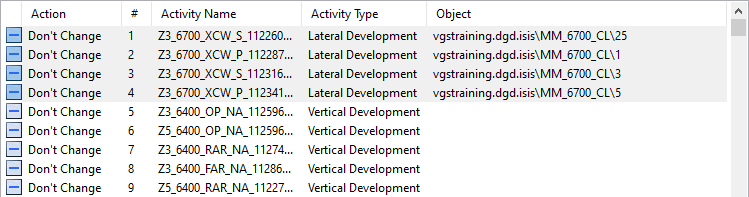
The objects you select will be shown in the table with the object path.
-
-
Highlight the object in the list that you want to update.
-
Use the Set Activity Type and Set Action drop-down lists to choose the type of change you want to make.
Note: If the activity type is not to be changed then you can leave Set Activity Type blank.
-
Select the replacement object. Click the Select Object button to select the object from the screen, or click the Browse By button to select from a list of layers.

-
Continue by selecting the next object in list to update, or click OK to close panel and complete operation.
