

Open Specifications
This topic includes information about the Open Specifications branch of the Implicit Modelling Editor.
Instructions
On the Geology menu, point to Implicit Modelling, and then click Implicit Modelling Editor to display the Implicit Modelling Editor panel.
Select the Open Specifications branch from the menu on the left.
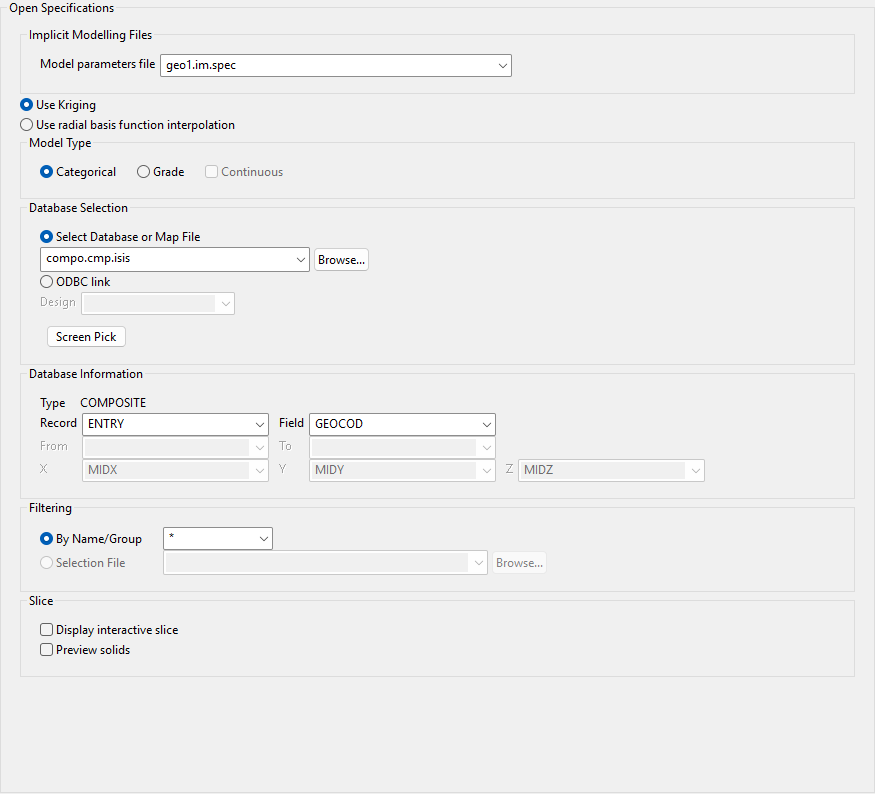
Implicit Modelling Files
Model parameters file
If you have a model parameters file that you want to use, select the file name from the Model parameters file list. The panel will automatically be populated with the information from the parameters file.
Distance function
Select either kriging or radial basis function as the distance function to use between samples.
Model Type
Select Categorical or Grade to specify the model type you want to use.
Categorical
Select this option to model the regions based on a discrete geology code or domain.
Grade
Select this option to use predefined cut-off grades which are treated similarly to a geology domain. If you select this option, you can select the Continuous check box to use a continuous grade.
Continuous
Select this check box if you selected Grade as the model type and you want to model the region using a continuous grade field where the definition of the cutoff will be done as a post-processing step of obtaining solids at user-defined levels. If this check box is not selected, the region will be modelled using a standard grade estimation with post-generation of grade shells.
Database Selection
Select Isis File, ODBC Link, or Screen Pick to specify the database you want to use. You may select a drillhole database or a composite samples database. If you select a composite database, there will be no further processing of the composites, except for the possibility of excluding small intervals. If you select a drillhole database, sample intervals will be created automatically.
Select Database or Map File
To use an Isis database or a map file, select Select Database or Map File and then select the name of the file from list, or click Browse to select a file from a location other than the working directory. To create a new file, enter a name in the box.
ODBC Link
To use an ODBC database, select ODBC Link, then select a design from the Design list.
Screen Pick
To interactively select a database that is already open, click Screen Pick and click on a drillhole on the screen to use the database in which the object is stored. To exit the Screen Pick option without selecting an object, right-click to return to the main Implicit Modelling Editor panel.
Database Information
This section is populated automatically based on the information in the selected database. Depending on the type of database and the values in the database, you can specify different values from the Record, Field, From, To, X, Y, and/or Z lists, if desired.
Filtering
Select By Name/Group or Selection File to specify the filtering method. You can refine your sample selection by filtering the data using a name/group or selection file. If a filter is specified, only the samples in the parameters of the filter will be used in the implicit modelling process.
By Name/Group
Select or enter the name or group by which you would like to filter your sample selection. You can specify an ID by selecting it from the list, or you can use '%' or '*' as wildcards.
Note: Wildcards include '%' (percent sign) and '*' (asterisk). The '*' wildcard is used to match a single character, whereas the '%' wildcard is used to match multiple characters.
Example: ABC* would include ABC1, but not ABC12 or ABC123. to specify a group of IDs.
Selection File
If you are using a drillhole database, you can filter the drillhole selection using a selection file (.sel). Select the name of the selection file from the list, or click Browse to select a file from a location other than your working directory.
Slice
Display interactive slice
Select this check box to display an interactive slice of the block model section based on the parameters you have specified. Use this option to view the display dynamically while making edits.
Preview solids
Select this check box to generate a preview of the block model solids based on the parameters you have specified. Use this option to view the display dynamically while making edits.
