

Export Data to VRML - Grids
Select the Grids option to export selected grids to a .wrz (comclicked) or.wrl (uncomclicked) file.
Instructions
On the File menu, click Export to display the Export panel.
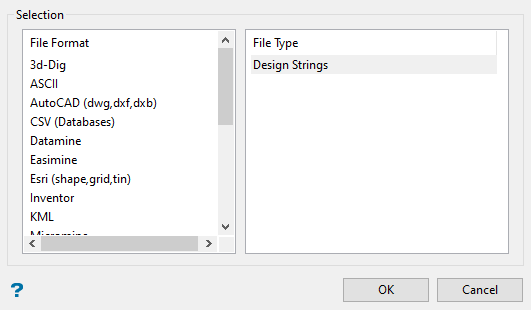
Click VRML in the File Format column on the left.
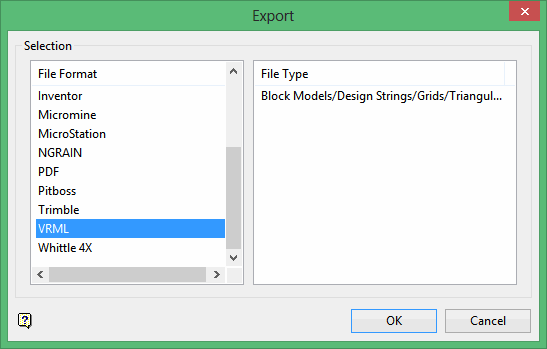
Select Block Models (Model) from the File Type field on the right side of the panel.
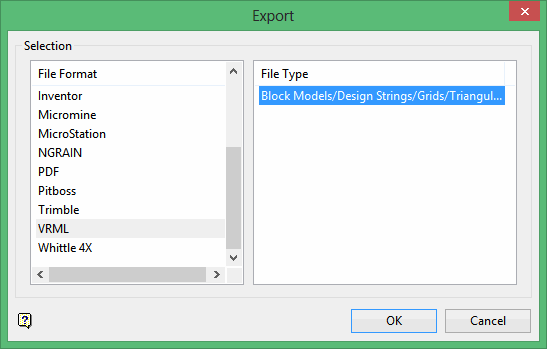
Click OK to display the Export to VRML panel.
Click Grids.
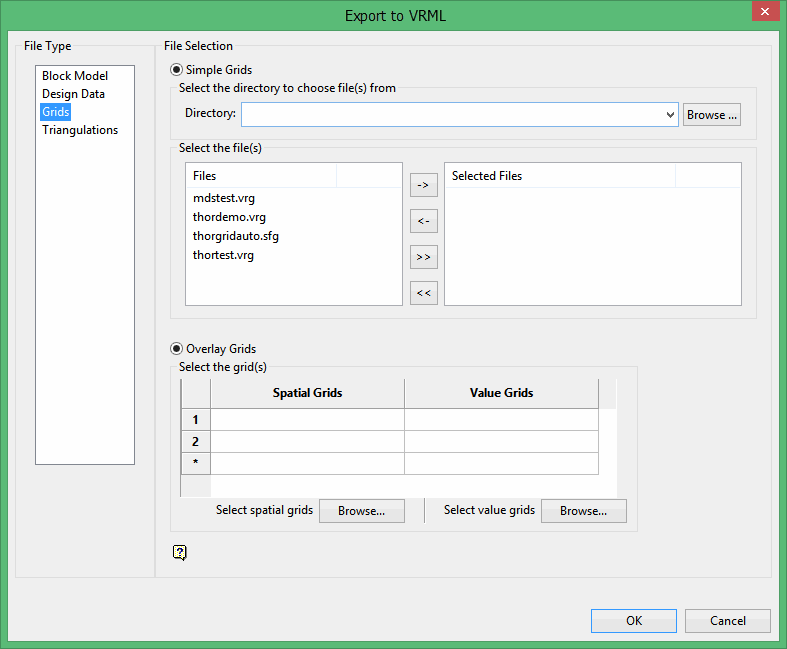
File Selection
Browse for files using the Browse button, or use the interface showing the available grid files in the current working directory.
Click on the name of the file(s) you want to select. Use the  icons to go to the last folder visited, go up one level, or change the way details are viewed in the window.
- To highlight multiple files that are adjacent to each other in the list, hold down the Shift key and click the first and last file names in that section of the list.
- To highlight multiple files that are adjacent to each other in the list, hold down the Shift key and click the first and last file names in that section of the list.
Move the items to the selection list on the right side of the panel.
- Click the
 button to move the highlighted items to the selection list on the right.
 - Click the
 button to remove the highlighted items from the selection list on the right.
 - Click the
 button to move all items to the selection list on the right.
 - Click the
 button to remove all items from the selection list on the right.
Wildcard
Enter any characters used as wildcards. Wildcard characters can be an * as well as r
egular characters. For example, if the topo_* were used as a wildcard, the result might be topo _area2_aerial, topo _min, or topo _with_pit.
You may select either the Simple Grids or the Overlay Grids option.
-
Simple Grids will use a single grid to position and colour the resulting image.
-
Overlay Grids will allow you to use two separate grids; one for position and one for colour. The look will be similar to that of a solid triangulation image.
Overlay Grids
Select this option to use one grid ( Spatial Grid ) for z value and another grid ( Value Grid ) for the colouring of points.
Select the grid(s)
Spatial Grids
Use the Spatial Grids area to define the z values of the points. Use the Browse button to launch a new window and select one or more grids from one or more other locations.
Value Grids
Use the Value Grids area to define the colours to be used for the points. Use the Browse button to launch a new window and select one or more grids from one or more other locations.
When working with the Spatial and Value grids:
- A Spatial Grid cannot be exported twice in the same operation.
- A Spatial Grid cannot be exported twice in the same operation.
- A Spatial Grid cannot be exported twice in the same operation.
- A Spatial Grid cannot be exported twice in the same operation.
Value Grids without a matching Spatial Grid will not be displayed.
Alternately, or additionally, choose the directory from which you want to select grids. Click Browse to select a file from another location. From the resulting list, choose an entry or entries in the Files column and move them to the Selected Files columns in the panel.
Use the Browse button to navigate to other directories in search of additional grids to export. When all desired files have been selected, click OK to begin the export.
The Convert to VRML panel displays.
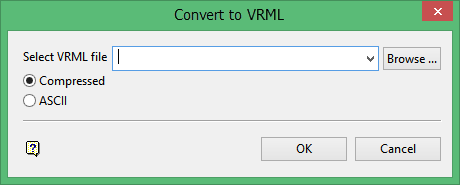
Select VRML file
Enter or select the file name to be used to store the exported data. The drop-down list contains all VRML (.wrz or .wr;) files found within your current working directory. Click Browse to select a file from another location. To create a new file, enter the file name and file extension.
Compressed
Select this option to export the VRML file in a compressed format. The resulting file will have a .wrz extension.
ASCII
Select this option to export the VRML file in an ASCII format. The resulting file will have a .wrl extension. This format is only recommended for users that want to work directly with the exported VRML file.
Click OK.
The export will continue and the resulting file will be stored in the current working directory.
Once the selected grid(s) have been successfully exported, the resulting file can then be viewed with any VRML viewer, for example the Cortona3D Viewer. Additionally, using a VRML plug-in you can insert the file into a variety of applications such as Microsoft Word or PowerPoint.
For design data exports that fall outside of the VRML viewing range (coordinates above/below +/- 32 million) the data will be shifted and/or shrunk as necessary to fit within the available space.
