

Select and Reverse
Use this option to validate and change mining directions for multiple centrelines or crosscut string designs at the same time.
Instructions
On the Gantt menu, point to Mining Direction, then click Select and Reverse.
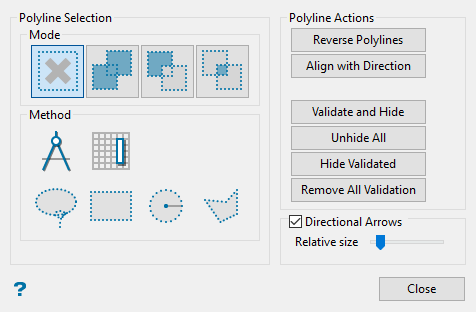
Follow these steps:
-
Click the Add or Intersection icon from the Mode section.
These two icons will allow you to select and add polystrings. To remove polystrings from your selection, use the Remove or Reset icons.
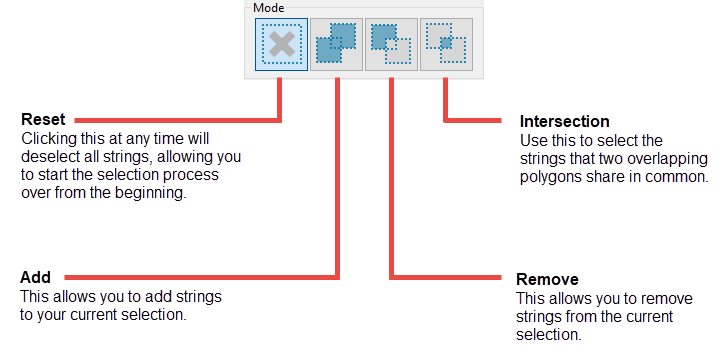
You may select any number of polystrings, using as many methods as you want, for as long as the main panel stays open.
Example: You can select some polystrings using the Laso methods, then select more using the Attribute method, then select even more using the Bearing and Dip method. As long as the panel stays open, your selections will remain valid. If the panel closes, then all the selections will be undone.
-
Select a Method of selection.
There are six methods of selection. You can select by Bearing and Dip, by Attributes, and four types of laso methods.
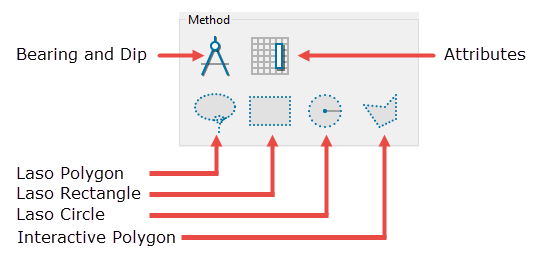
Figure 1: Methods for selecting polystrings.
 Bearing and Dip
To use the Bearing and Dip method, click the Bearing and Dip icon to display the Bearing and Dip Selection panel.
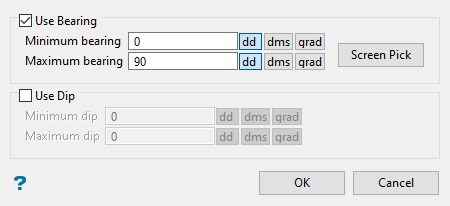
Figure 2: Bearing and Dip Selection panel.
You can use the Bearing, use the Dip, or use both.
The bearing can be entered into the minimum and maximum boxes by typing the values, or by using the interactive Screen Pick button.
When selecting the minimum and maximum bearing using the Screen Pick button, be sure to pick the angles in a clockwise order.
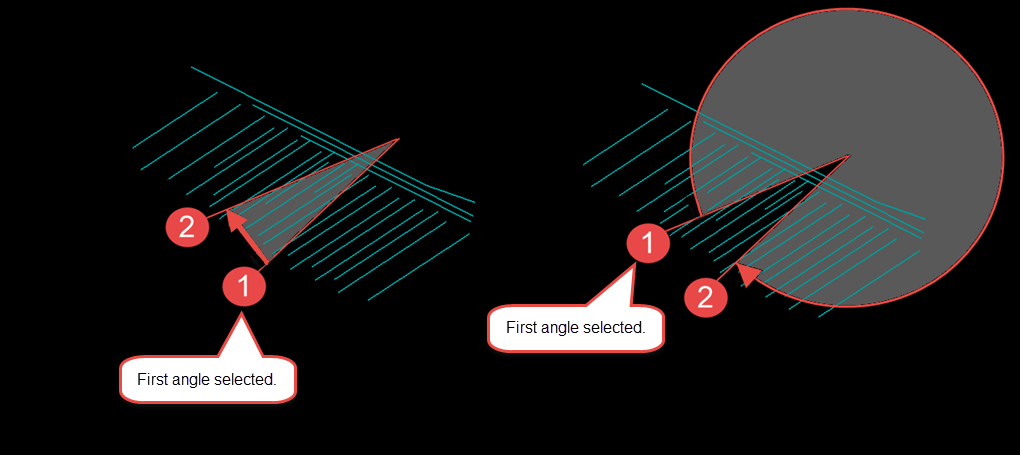
Figure 3: All angles will be included between the first angle selected and the second, in a clockwise direction.
Attributes
Use the Attribute icon to enter an expression to select the polystrings. You can enter the expression into the panel directly, or use the Build button to display an expression builder.
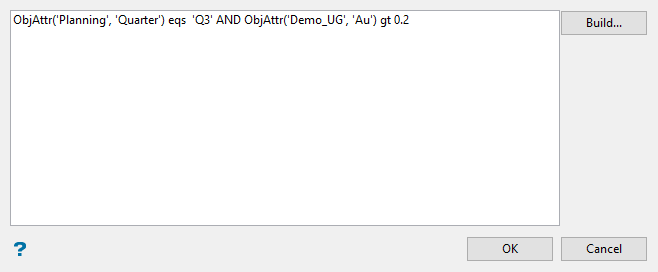
Figure 4: Use this panel to enter an expression directly.
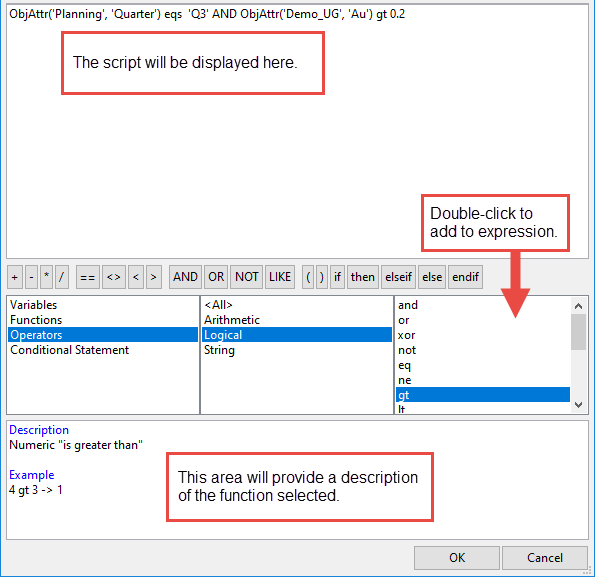
Figure 5: Use the Expression Builder panel to build the expression.
Refer to the appendix on Operators and Functions for more information on expression functions.
Laso methods
Use the laso methods to draw polygons around the desired areas.

Laso Polygon
Use this method to create a polygon around the desired polystrings using Draw by Hand mode.

Laso Rectangle
Use this method to draw a rectangle around the desired polystrings.

Laso Circle
Use this method to draw a circle around the desired polystrings.

Interactive Polygon
Use this method to draw a polygon around the desired polystrings using the standard method.
-
Select a Polyline Action.
Use the following functions to either edit the direction or validate the selected polystrings.
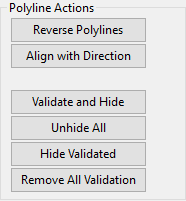
Reverse Polylines Reverse the mining direction of each selected line. Align with Direction Set mining direction by clicking a starting and ending point. Validate and Hide Flag all selected lines as valid, then hide from view. Unhide All Makes all lines visible. Hide Validated Hides all lines flagged as valid. Remove All Validation Removes all validation flags from the selected lines. -
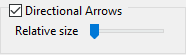
Apply Directional arrows to the selected lines.
Increase the size of the arrows by moving the slider to the right, or reduce the arrow size by moving the slider to the left.
-
Click Close.
