

Types
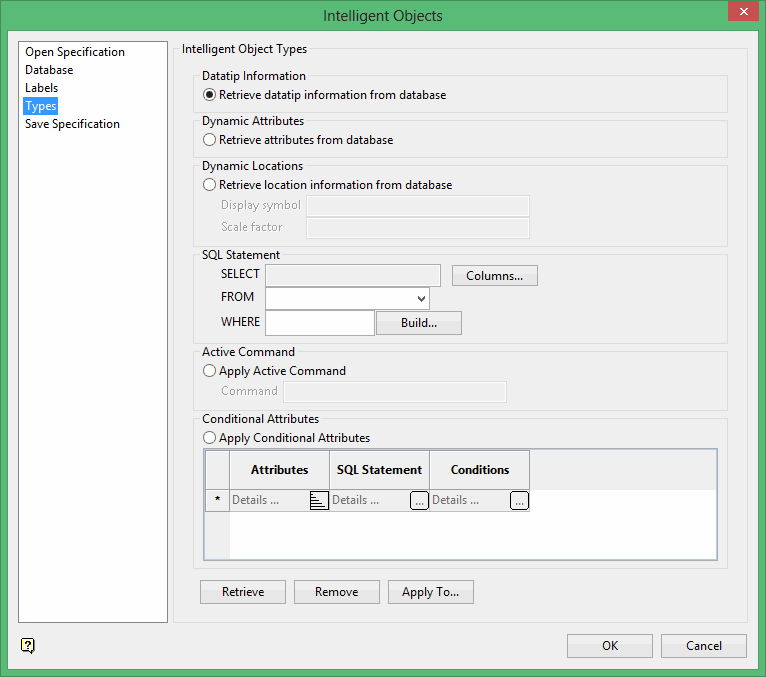
Datatip Information
Retrieve datatip information from database
Select this option to retrieve datatip information from an external database via a SQL statement.
Example: Select * from table where name= '$NAME'
Dynamic Attributes
Retrieve attributes from database
Select this option to dynamically edit Vulcan design object attributes from an external database via a SQL statement.
Example: Select field1 AS colour, field2 AS line, field3 AS value from table where name = '$NAME'
The following table lists the attributes that can be dynamically altered:
| Object Attribute | Description | Value Type |
|---|---|---|
| Name | Refers to the name of the object. A default object name, for example 'LINE_13', is assigned when an object is initially created. | Text |
| Description | Refers to the description that has been assigned to the object. A default object description, for example "LINE digitising 15-Apr-2005 15:02:19", is assigned when an object is initially created. |
Text |
| Value | Refers to the object's object value. A default object value is assigned when an object is initially created. | Numerical |
| Group | Refers to the object's group code. | Text |
| Colour | Refers to the colour used to colour the object. | Numerical |
| Line | Refers to the line style used to draw the object. | Numerical |
| Pattern | Refers to the object's fill pattern. | Numerical |
| Closure | Refers to whether an object is closed or open. A value of '0' represents False, i.e. the object is open, while a value of '1' represents True, i.e. the object is closed. | Numerical |
| X | Refers to the object's X coordinate. | Numerical |
| Y | Refers to the object's Y coordinate. | Numerical |
| Z | Refers to the object's Z coordinate. | Numerical |
Dynamic Locations
Retrieve location information from database
Select this option to create moving objects on screen, based on updating values in an external database linked via a SQL statement.
Example: Select X, Y, Z from table where name = '$NAME'
SQL Statement
The Intelligent Objects Editor interface uses Vulcan's SQL Expression Builder tool to construct the SQL statement required by the Retrieve Datatip Information From Database, Dynamic Attributes, or Dynamic Locations options. The SQL statement will vary based on the option it is querying for.
The Select statement is used to query a table in the external database and retrieve the data that matches a specified criteria.
Example: Select Column_1, Column_2, Column_3 etc. from TableName
The column names (Column_1, Column_2, etc.) that follow the Select keyword determine which columns will be returned in the results. You can either enter the names of each desired column or you can use the multi-character wildcard (*) to select all columns.
The where clause, which is optional, allows you to specify which data values or rows to return/display based on the criteria described.
Example: Select Column_1, Column_2, etc. from TableName where FieldName Condition
Using Vulcan Basenames
Using basenames, Intelligent Objects can query design objects for their values in an attribute to insert into an SQL statement. The following basenames are supported in Vulcan:
| Vulcan Basename | Description |
|---|---|
| $COLOUR | Object/triangulation colour. |
| $DESC | Object description. |
| $FEATURE | Object feature. |
| $GROUP | Group code. |
| $LAYER | Layer the object belongs to. |
| $LINE_TYPE | Object line type. |
| $NAME | Object/triangulation name. |
| $PATTERN | Object pattern. |
| $PRIMIT | Object primitive. |
| $VALUE | Object value. |
Active Command
Apply Active Command
Select this option to attach a Vulcan command or an existing Lava Script file a design object.
Example: If you want to swap to a different window after double-clicking on a nominated object, then use the VIEW_WINDOW_SELECT:<Window Name> command. Commands or tags are displayed in the Status Bar (lower right corner of the Workbench). To determine a option's tag, select the option and view the tag displayed.
To activate an Lava Script file through using the USER_LAVA!<script_name.lava> command.
Conditional Attributes
Apply Conditional Attributes
Select this option to dynamically edit Vulcan object attributes by applying conditions to external database values via a SQL statement.
Attributes
Select the attributes that you want to dynamically update.
SQL Statement
Enter the SQL statement that will be used to retrieve the fields from the external database.
Conditions
Enter the conditions that will be applied to the retrieved fields. The conditions specified here are the same as the conditions specified through the  Find Objects option (under the Analyse > Details submenu).
You will be required to the specify the values for the attributes that match the conditions. Select the Highlight check box to highlight all objects that have attributes updated. We recommend that you do not select the Highlight check box when dynamically updating objects using a timed update.
Retrieve
Select this button to retrieve data from intelligent objects found in the Vulcan Window. Upon selection, the Intelligent Objects Editor will be minimised and the Retrieve Data dialog box will be displayed allowing you to select the data type from one of the following options:
Datatip Information
Select this option to retrieve the datatip information SQL statement from the chosen design object.
Dynamic Attributes
Select this option to retrieve the dynamic attribute SQL statement from the chosen design object.
Conditional Attributes
Select this option to retrieve the conditional attribute SQL statement from the chosen design object.
Dynamic Locations
Select this option to retrieve the dynamic location information SQL statement from the chosen design object.
Active Command
Select this option to retrieve the active command information SQL statement from the chosen design object.
If you haven't saved any recently made changes, then you will be prompted to do so in order for the changes to take effect.
Related topics
Intelligent Objects Editor panels
Tutorials
