

Load To Stickplot
Load Structural Data to a Stickplot
The Load To Stickplot option to load data from the structural database and display it in a stick plot, and load the resulting stickplot graph according to the default display settings defined using the Set Up Stickplot Display option.
Prerequisites
- Generate a Geotech section using the Geotech > Section > Create Section option.
Instructions
- Select Geotech menu
- Select Display submenu
- Select Load To Stickplot option
If a structural database has not been opened prior to selecting this option, the Open Structural Database panel displays first.
Once the structural database has been opened, the following panel is displayed
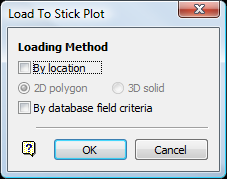
Load to Stick Plot panel
Select OK.
At this point, the next panel to display will depend on whether the By database field criteria check box was selected.
The loading process is then started. Press [ ESC ] to cancel.
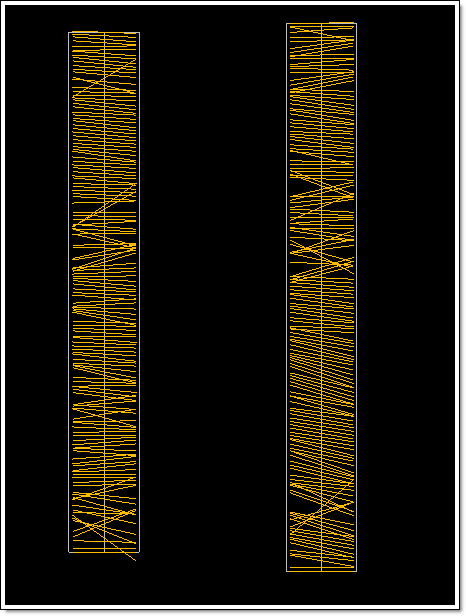
Below is an example of loaded stick plot structural data. Information about this data displays in the Vulcan Report Window.
Figure 1: Stick Plots
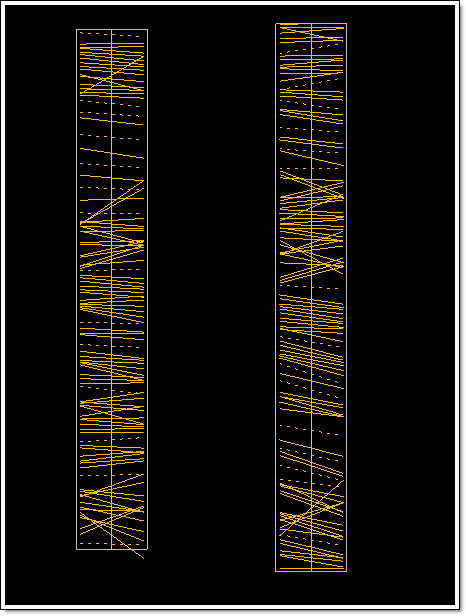
Below is the same example of loaded stickplots with hashed (averaged) entries.
Figure 2: Stickplots with Averaged Representatives
If your mouse is equipped with a mouse wheel, then you can use this to scroll through the contents of the Report Window. Select the applicable console tab, for example Vulcan Console, or click in the Report Window area and use the mouse wheel to scroll through the contents.
Use the tools  to print,
  to save the report and
  to clear the report.
