

Save and Report
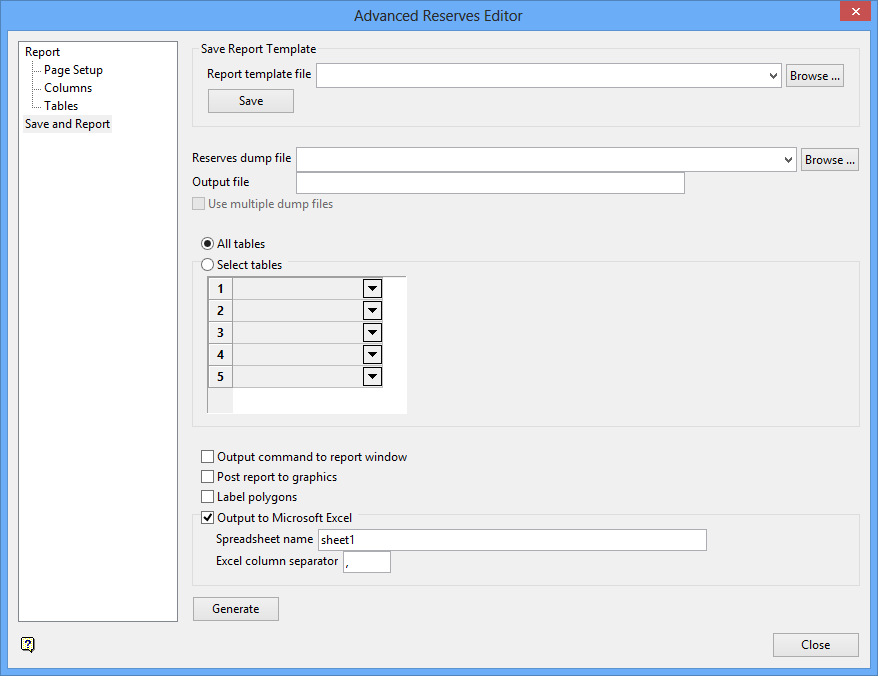
This section allows you to save the current report template file as well as generate a report file.
Report template file
The name of the currently open report template file will be displayed.
The drop-down list contains all
.tab
files found within your current working directory. Click Browse to select a file from another location.
To create a new file, enter the file name and file extension. By default, the resulting file will be stored in the current working directory. Use the Browse button to select a different file location.
Select the Save button to save the report template.Reserves dump file
Specify the name of the dump file containing the required calculation results.
The drop-down list contains all
.dmp
files found within your current working directory. Click Browse to select a file from another location. dd>
To create a new file, enter the file name and file extension. By default, the resulting file will be stored in the current working directory. Use the Browse button to select a different file location.
Output file
Enter the name for the resulting report file (the default is
report.rep). To create a new file, enter the file name and file extension. By default, the resulting file will be stored within your current working directory. The column border character (specified through the Page Setup section) will be used to separate the values within the resulting file.
Use multiple dump files
Select this check box if you want to use multiple dump files. This checkbox will be automatically ticked if the nominated reserves specification file contains regions from multiple block models.
All tables
Select this option if you want to include all of the tables in the resulting report. When the report is displayed, the tables will appear in the same order as the table list.
Select tables
Select this option if you only want to include specific tables in the resulting report. When the report is displayed, the tables will appear in the order that they were selected. The drop-down list displays all of the tables listed within the nominated reserves specification file (.res).
Output command to report window
Select this check box if you want to display the applicable block model executable commands within the Report Window.
Tip The output commands can be copied and pasted into your customised scripts.
Post report to graphics
Select this check box if you want to post the report into a Vulcan graphics window. The resulting report is also displayed in the Report Window regardless of whether or not this check box has been enabled.
Output to Excel spreadsheet
Select this check box if you want to send the resulting reserves report to an Excel spreadsheet.
Spreadsheet name
Enter the name of the worksheet that will be used to store the resulting report. The worksheet name, which can be up to 30 alphanumeric characters in length, will be displayed in a new spreadsheet file.
Excel column separator
Enter the character that will be used to separate the values within the Excel spreadsheet. A single comma (,) will be used by default.
Note You will need to save the spreadsheet file through the Microsoft Excel program.
Select the Generate button to generate the reserves report. If you haven't saved any recently made changes prior to selecting the Generate button, then you will be prompted to do so in order for the changes to take effect. You will also be prompted to save your recent changes when trying to exit the Advanced Reserves Editor.Related topics
- Report
- Page Setup
- Columns
- Tables
- Save and Report
