

Load To Rose
Load structural data onto a Rose Diagram
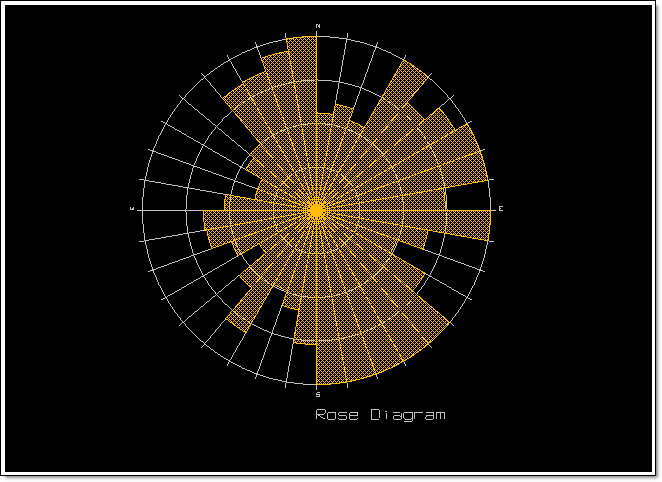
The Load To Rose option to load and display data from a structural database, Primary or Stereonets Window onto a Rose Diagram in the Rose Diagram Window.
Figure 1: Rose Diagram
Instructions
- Select Geotech menu
- Select Display submenu
- Select Load To Rose option
The following panel displays. If a structural database has not been opened prior to selecting this option, then the Open Structural Database panel displays first.
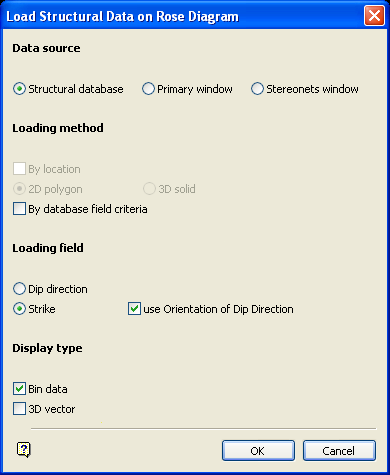
Load Structural Data on Rose Diagram panel
Data source
Structural database
Select this option if you want the structural data to be loaded directly from the structural database onto the Rose Diagram.
Primary Window
Select this option to transfer the data from the Primary Window into the Rose Diagram Window.
Stereonets window
Select this option if you want the structural data to be loaded from the Stereonets Window.
Loading field
Either dip direction or strike can be selected. If using strike, you may optionally check use Orientation of Dip Direction, which displays the data according to which side the structure is dipping (i.e. for a north-south strike, the structure dipping east or west).
 Note
Note
The Orientation of Dip Direction field must be set to either NE, SE, SW, or NW. It cannot be set to N, E, S or W.
Display type
The data to be loaded can be displayed as bin data and as a 3D vector. A bin is a simple, "standard" 2D method of displaying data in a Rose diagram where the data appears as a radiating fan of polygons. A 3D vector is a line, drawn in 3D, that represents the individual vectors of each geotech record being displayed. The 3D vector display type is used with the lower hemisphere to gain a better appreciation of the distribution of the data in terms of both dip and dip direction.
Select OK.
The Limited Selection Criteria panel is then displayed. However, if the By database field criteria checkbox was ticked, then the Selection Criteria Entry panel displays instead. Refer to the Load To 3D option for descriptions on both of these panels.
Once these panels have been completed, the loading process is started. Press [Esc] to exit.
If you are loading from a Primary or Stereonet Window, then you are moved to the Primary or Stereonet Window (if not already there) and prompted to select a layer to select the structural data from.
Information about the loaded structural data displays in the Report Window of Vulcan. Each bin object has the number of entries (frequency) as its object value.
Note
The Rose diagram may be redisplayed with different attributes using the Set Up Rose Diagram option, however, the structural data must be reloaded if the bin size is changed.
