

Preferences - Dragline
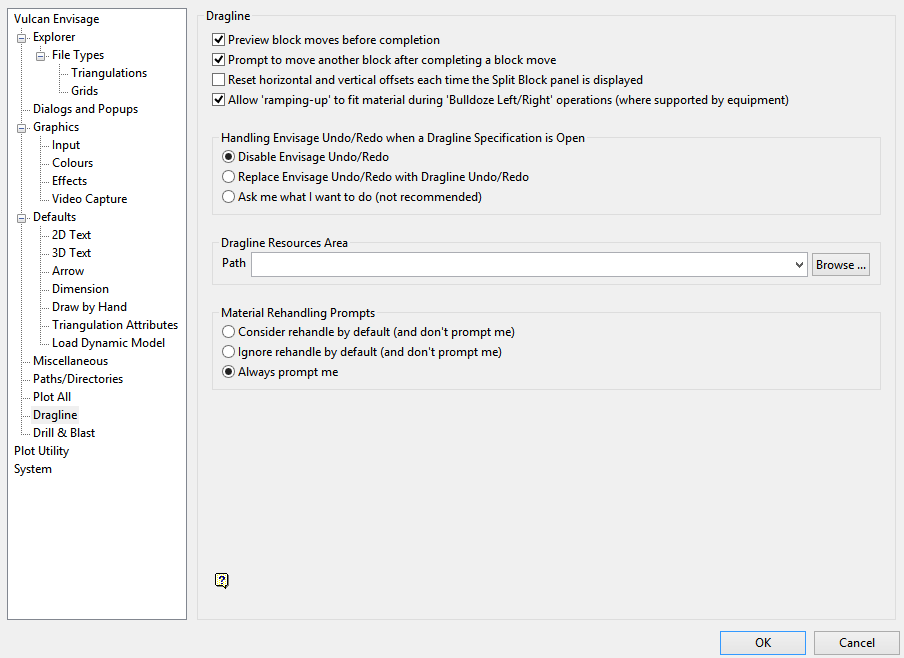
Preview block moves before completion
Select this check box to display a greyed-out preview of a block's location before accepting its final position. The following options under the Dragline > Move Blocks submenu are affected by this preference:
-
Dragline - Right Toe
-
Dragline - Centre
-
Dragline - Left Toe
-
Bulldoze - Left
-
Bulldoze - Right
-
Bulldoze - Uphill
-
Bulldoze to Bench
Prompt to move another block after completing a block move
Select this check box to display a prompt after successfully completing an operation. The displayed prompt will ask you whether or not to continue performing the same operation on a different block.
For example, if you have chosen to split a block, then you will be prompted whether or not to split another block after successfully splitting the first block. Upon confirmation, you will then be asked to select another block.
If this check box is not selected, you will instead be returned to the Select menu option prompt after successfully splitting the first block. The following options under the Dragline > Move Blocks submenu are affected by this preference:
-
Dragline - Right Toe
-
Dragline - Centre
-
Dragline - Left Toe
-
Bulldoze - Left
-
Bulldoze - Right
-
Bulldoze - Uphill
-
Bulldoze to Bench
-
Area Balance
-
Area Reshape
-
Area Cut & Fill
-
Split Block
-
Merge Blocks
-
Create Block
-
Remove Block
-
Export Block
-
Nullify Block
Note: This preference, which also affects the icons displayed through the Dragline - Move Blocks toolbar, is enabled by default when Vulcan is initially installed.
Reset horizontal and vertical offsets each time the Split Blocks panel displays
Select this check box to automatically reset the vertical and horizontal offset fields to '0.0' whenever the Split Block panel displays. If this check box is not checked, then the previously specified values (for the current Vulcan session) displays. This preference affects the Dragline > Move Blocks > Split Block option.
Allow 'ramping-up' to fit material during 'Bulldoze Left/Right' operations (where supported by equipment)
Works in conjunction with the Bulldoze Left/Right options. If a solution cannot be found to doze all material flat at the digitised level, then an option will be presented to keep as much material flat as possible and then come up at the maximum doze angle at the far edge to heap as much material as possible.
Handling Vulcan Undo/Redo when a Dragline Specification is Open
There are three options with regards to how to handle the undo/redo functions in Dragline and how they interact with the undo/redo functionality of Vulcan:
-
Disable Vulcan Undo/Redo
-
Replace Vulcan Undo/Redo with Dragline Undo/Redo
-
Ask me what I want to do (not recommended)
Dragline Resources Area
The resource area is where Ancillary database (.req) and Dragline equipment database (.rdr) files can be stored and that multiple users can link a path to. This preference affects the Dragline > Files > Dragline Equipment and Dragline > Files > Ancillary Equipment options.
This helps to guarantee all users are using the same equipment specifications when utilizing the dragline module. By establishing a Dragline resources area, you will be to maintain a single version of files which in turn will save you from copying files between working directories as well as ensuring consistency between working areas. If the available field is left blank, then the current working directory will be used instead.
Note: If a resources area is specified, then Vulcan will only list files found in the nominated Dragline resources area when using the Dragline Equipment and Ancillary Equipment options. If you are using these options and want to select a file from a different location, that is, a directory other than your Dragline resources area, then you will need to turn off this preference before using the applicable option.
Material Rehandling Prompts
Depending on the type of work being performed, it can be advantageous to not have to select a prompt each time a Move Block function is performed. There are three options to choose from:
-
Consider rehandle by default (and don't prompt me)
-
Ignore rehandle by default (and don't prompt me)
-
Always prompt me
