Import Datamine Block Models (Reblocked)
Instructions
On the File menu, click Import to display the Import panel.
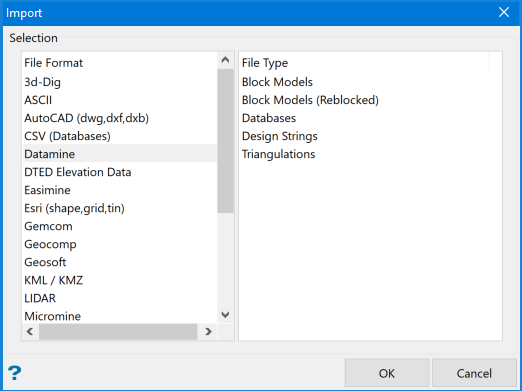
Click Datamine in the File Format column on the left.
Select Block Models (Reblocked) from the File Type field on the right side of the panel.
Click OK to display the Datamine Reblocking Model Import panel.
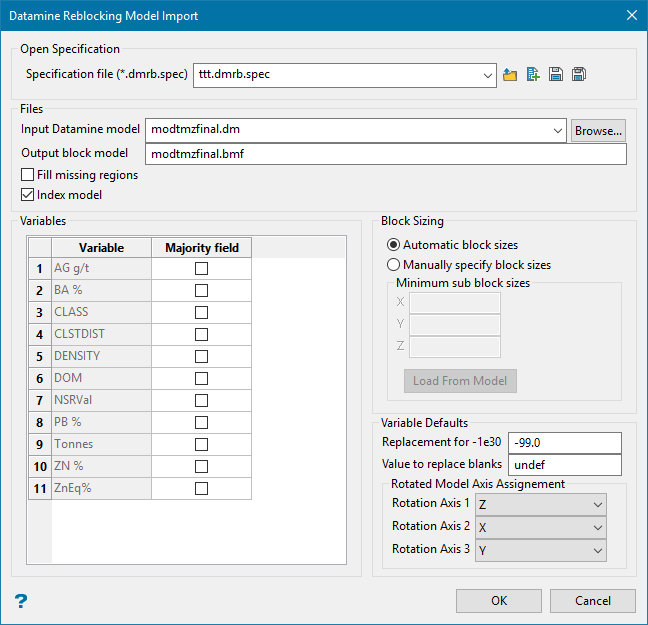
Open Specification
Specification file (*.dmrb.spec)
Use the drop-down list to select the specification file if it is in the current working directory, or browse for it in another location by clicking the Browse button. You may also create a new file by typing the name of the new file in the textbox.
-
 Browse
 -
 New
New -
 Save as
 -
 Save Spec File
Files
Input Datamine model
Select your Datamine model file to be imported. Datamine block model files have an extension of (.dm).
Output block model
This field will automatically be filled in when a Datamine block model has been selected. However, you may enter a name for the block model file that will be used to store the imported data.
Fill missing regions
Missing regions are areas where Datamine provided no blocks in the input data. The base import (without this checked) will create a model that is missing blocks so that it will resemble the Datamine model. The option to Fill missing regions forces the entire model to have blocks once generated. Model extents, etc. will all reflect the original Datamine source and are not editable by the user (at least on import) since it would add too many odd cases to handle.
It can be useful to leave this option off if the parent block sizes are too small and the model covers a large area, which could result in a very large model depending on the numbers.
Index model
Select this option to create a spatial index to reference a block model. The spatial index decreases the access time to the blocks and therefore is particularly useful as models increase in size.
This option will be checked by default. If the block model is 4Mb in size, then you will need to have a minimum of 4Mb free disk space in order to perform the index procedure.
Variables
Variable
This column will be automatically populated with the variables found in the Datamine block model. The maximum number of fields in a Vulcan block model is 275. However, the import can only handle 70, of which 10 are reserved for variables such as X centre. This means that only 60 fields can be imported at a time, thus the panel does not allow more than 60 fields.
Majority field
A Majority field is any alpha fields or a numeric category. Any Non-majority fields will have the values averaged (by volume), but majority data will pick the largest representative value (by volume). It will auto populate for alpha data, and only numeric categories will need it.
Block Sizing
Automatic block sizes
This option will read the model and calculate a block size that is correctly divisible into the largest parent block. The smallest sub-block size will be just under the smallest Datamine block size, with a minimum of 0.001.
Manually specify block sizes
Enter the resolution size to which Datamine blocks will be rounded. For example, if you specify '1.0' and a Datamine block is '0.7', then it will be imported as '1.0'. Smaller blocks may be ignored.
Minimum sub block sizes
Vulcan block models store sub blocks using a 3D matrix index based upon the minimum block size in each direction (X, Y, Z). For example, if blocks are 10x10x10 with minimum sizes 0.1, 0.1, 0.1, then the index is 100x100x100-1,000,000. The maximum size of this index is 4 billion.
Ensure that the minimum sub blocking sizes are not set to 0 (zero).
Datamine block models often have totally variable sub block sizes in one or more directions. When importing into Vulcan this may cause problems if suitable minimum sizes (resolutions) cannot be found to which to round the Datamine blocks. You should therefore try to make sure that most blocks in the Datamine model are multiples of the minimum block sizes in Vulcan. You can use a Datamine process that will round all block sizes to a resolution prior to importing into Vulcan.
Load from Model (button)
This option will read the values and populate the panel with the smallest block sizes found, allowing you to adjust them. These values will be altered to be divisible into the largest block size since that is a requirement for a Vulcan block model.
Variable Defaults
Replacement for -1e30
Enter the value with which you want to replace the default values in the Datamine block model file. The default value is -99.0.
Value to replace blanks
Use this for replacing empty strings from Datamine in the import data. It can be the default, but does not have to. Datamine allows empty strings as values, whereas Vulcan requires a value to be set. The variable created will have the Datamine default as its default i.e. undef.
Rotated Model Axis Assignment
When importing rotated models, you can assign the appropriate axis for rotation with defaults from selected model if needed.
Click OK.
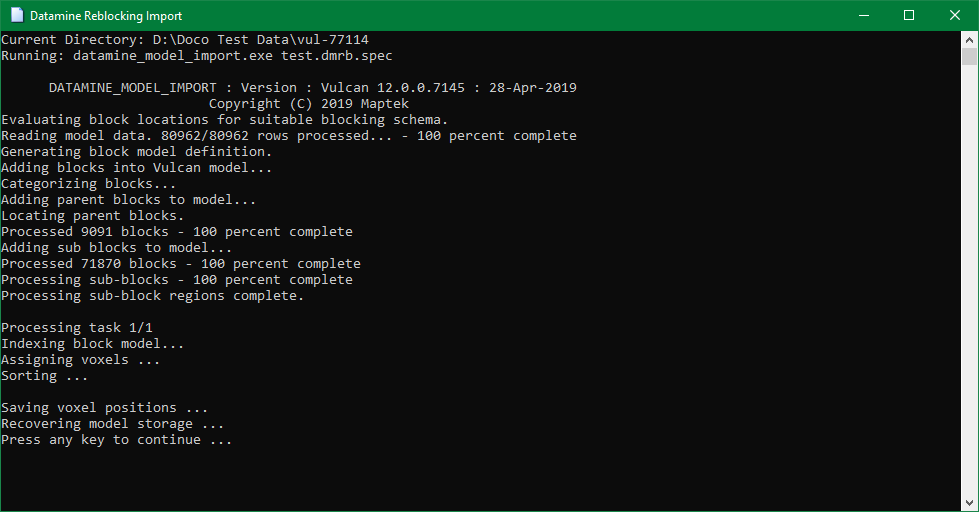
A command line prompt displays the import progress. Once the data has been imported, you can see a report of the total number of blocks in the Datamine block model, the number of blocks and sub blocks imported into the Vulcan block model, and other processes involved in the import.