

Export Block Model to Whittle 4X (Opti Cut)
This option to export blocks from a regular or sub-blocked VULCAN block model to a nominated Whittle Opti Cut file (.stx).
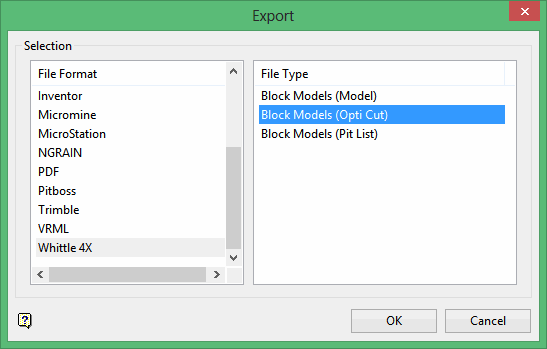
After selecting Whittle 4X, in the File Type section, select Block Models (Opti Cut). The following panel displays. If a block model is not currently open, you will be prompted to open one first.
I nstructions
On the File menu, click Export to display the Export panel.
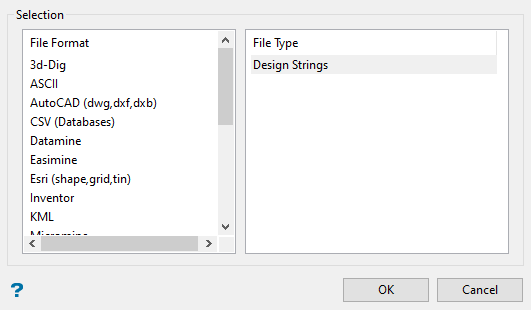
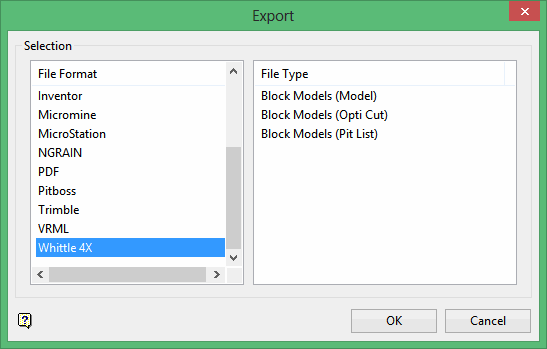
Click Whittle 4X in the File Format column on the left.
Select Block Models (Opti Cut) from the File Type field on the right side of the panel.
Click OK to display the Elements panel.
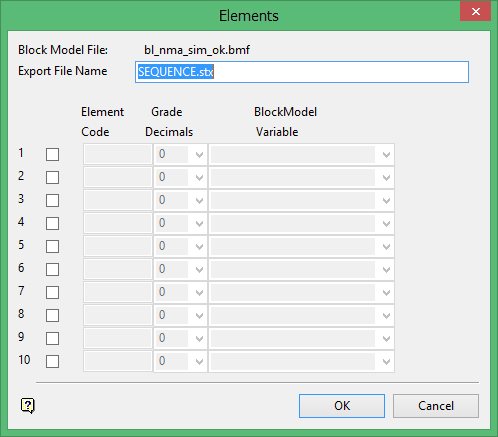
Block Model File
The currently open block model displays.
Export File Name
Enter the name of the file that is the result of this export function. This will be in Whittle 4X Opti Cut format with an .stx extension.
1 - 10
Select the box to define codes and their corresponding values.
Element Code
Enter the Whittle 4X code (using up to 6 characters) that corresponds to the code for the selected variable.
Grade Decimals
Select, from 0 to 4, how many decimals to carry.
Block Model Variable
Select the variables in the block model that corresponds to the element code specified.
Click OK to display the Rock Types panel.
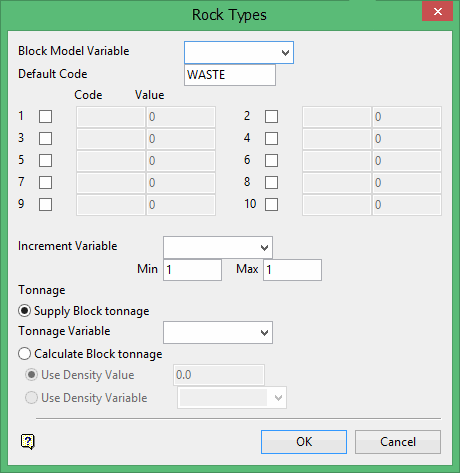
Block Model Variable
Select the variable that corresponds to the rock type.
Default Code
Enter the code for blocks that don't have a value defined for the selected variable. The default is WASTE.
1 - 10
Select each desired box to define up to 10 different codes. You will also need to enter a corresponding code and block model value.
Increment Variable
Select the variable that contains the mining sequence.
Min
Enter the minimum block value for this export. The default is 1.
Max
Enter the maximum block value for this export. The default is 1.
Tonnage
Supply block tonnage
Select this option if you will be supplying the tonnage for the block. You will also need to enter, or select the tonnage variable from the drop-down listing of variables for the currently nominated block model.
Calculate block tonnage
Select this option to define a density value, or select a density variable (from the drop-down listing of variables for the currently nominated block model), that are to be used when calculating the block tonnage.
Click OK to display the Relations panel.
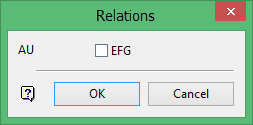
Number 1-12
Select the box and click OK to confirm and continue. Alternately, click Cancel to abort the export function.
Click OK to display the Grade Cutoffs panel.
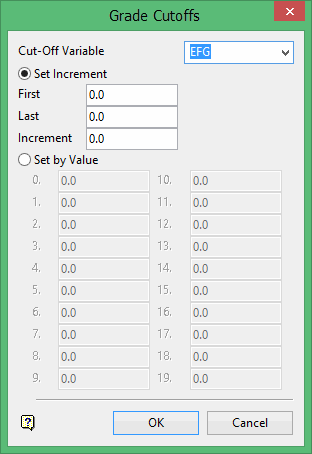
Cut-Off Variable
Select the variable to define the cut-off.
Set Increment
Select this option to define the cut-off variable using specific increments. You will need to define the first and last increments for the grade cutoff, as well as the specific amount that each increment will increase.
Set by Value
Select this option to specify a value for the grade cutoff. You will need to use the 0 - 19 sections to define the values.
Click OK.
The export will occur.
When complete, the .stx file will appear in your current working directory.
