

Exporting Charts
Use this option to export chart images as PNG, CSV, or Excel files. You can also export domain scripts.
Follow these steps:
-
Select which file type you want to export. There are four choices: PNG, CSV, Excel, and Domain Scripts.
You can make your selection using two methods:
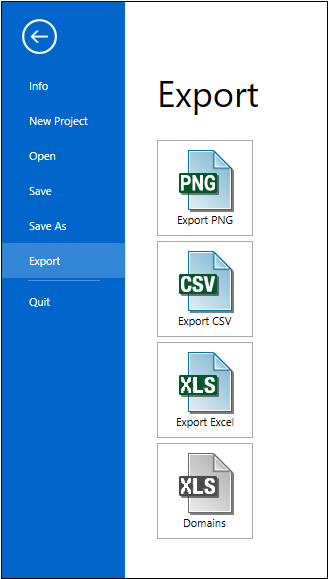
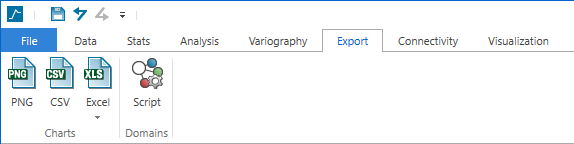
Exporting a PNG file
-
Click the PNG icon. An interactive chart panel will be displayed showing all charts that are currently active in the Vulcan Data Analyser Chart Window.
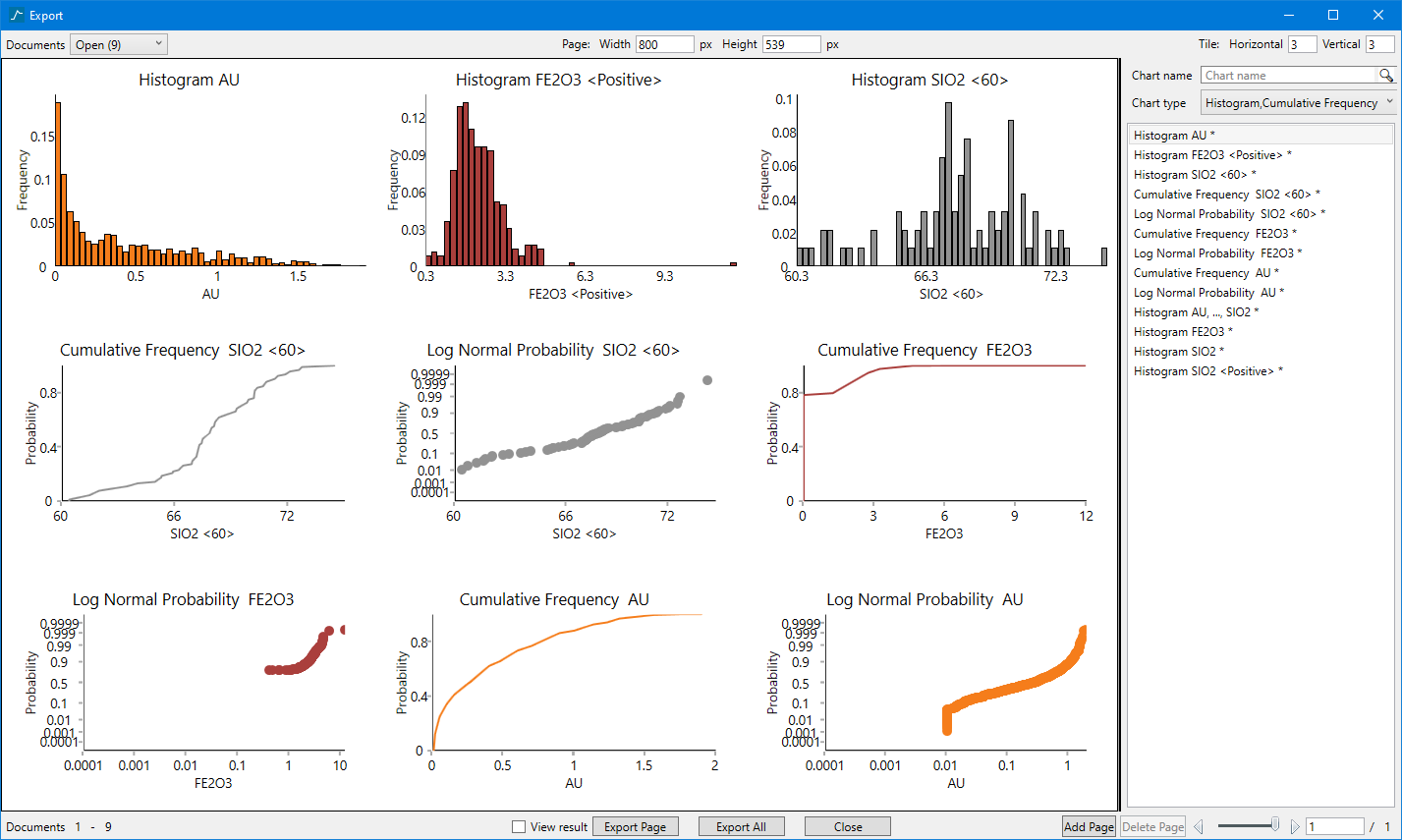
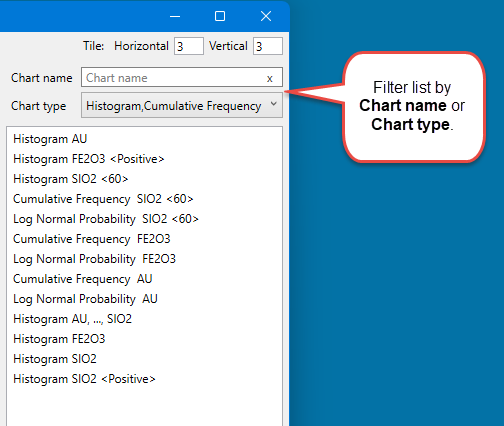
A list of all available charts, whether they are open or not, will be listed in the column on the right. To add a chart from this list to the export window just drag and drop.
Tip: Click and drag on a chart to change its position on the page.
-
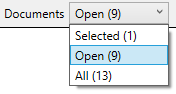
Select which documents you want to export. Using the Documents drop-down list located in the upper-right corner of the panel, select which of the three options you want to use.
You can also select one or more charts from the Chart List on the right side of the panel.
-
Page Width / Height

-
Determine the page format of tiles using the Tile controls in the upper-right corner of the chart area.

-
Add or delete a page by using the Add Page or Delete Page buttons located at the bottom-right of the panel.
-
Advance back and forth through the pages by using the arrows or the slider found in the lower-right corner of the panel.

-
Use the export buttons to complete the operation.

View result Allows you to preview a page after exporting. Export Page Export only the current page. Export All Export all pages. Close Cancel the operation and close the panel.
Exporting a CSV file
Use this option to save the data making up the chart as a CSV spreadsheet.
-
Make sure the chart you want to export is displayed in the Vulcan Data Analyser Chart window.
-
Click the CSV icon on the Export menu tab or by opening the File tab.
-
Provide a name for the file at the prompt.
-
Click OK to save.
Exporting an Excel file
Use this option to save the data used to make up the chart, and the chart itself to an Excel spreadsheet.
-
Make sure the chart you want to export is displayed in the Vulcan Data Analyser Chart window.
-
Click the CSV icon on the Export menu tab or by opening the File tab.
-
Provide a name for the file at the prompt.
-
Click OK to save.
Exporting a Domain script
-
Create the domain in Domain Manager as usual.
-
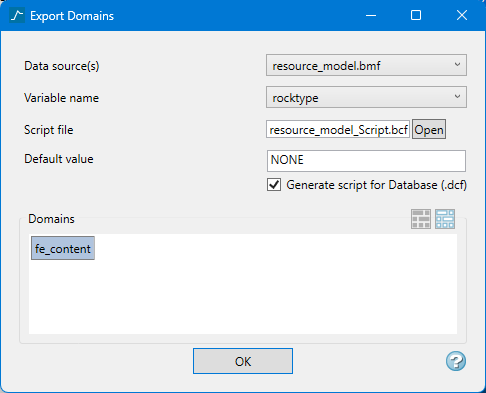
On the Export tab, click Script. The Export Domains panel will display.
-
Select the Data source(s) from the drop-down list.
-
Select the Variable name to write the domain results into.
-
Enter a name for the Script file.
Important: Any existing file with the same name will be overwritten.
-
Enable Generate script for Database if you want to export both a bcf and a dcf file for the domain selected.
-
Select the Domains by clicking on one or more of the icons listed in the Domains window.
-
Click OK. The values will be written to the block model variable.
