

Flip Directions
Use the Flip Directions option to change the existing mining direction.
Instructions
On the Gantt menu, point to Mining Direction, then click Flip Directions.
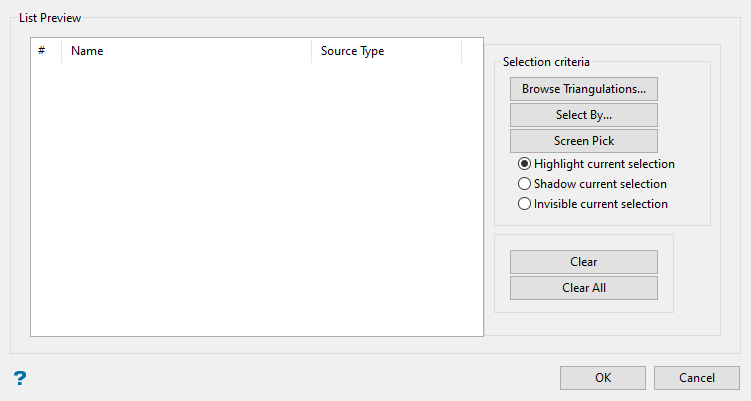
Selection Criteria
Select the objects for which you want to flip mining directions using one of the methods below. Once you have completed your selections, the List Preview section of the panel shows the Name and Source Type.
Browse Triangulations
To browse to the triangulation files you want to use, click Browse Triangulations, then browse to the folder with the triangulations. Select the triangulations using the right and left arrow icons. When finished selecting, click OK to return to the Flip Mining Directions panel.
Select By
To select objects using the Select By menu, click Select By, select an option from the list, and then select objects from the screen using your selected method.
Screen Pick
To select objects directly from the screen, click Screen Pick and then click on the objects in the Vulcan window. When you are finished selecting, right-click to exit selection mode and return to the Flip Mining Directions panel.
Highlight current selection
Select this option to highlight the objects in the Vulcan window that you select.
Shadow current selection
Select this option to make the objects in the Vulcan window that you select shadowed.
Make current selection invisible
Select this option to make the objects in the Vulcan window that you select invisible.
Clear
Highlight an item in the list and click Clear to remove it from the list.
Clear All
Click Clear to remove all items from the list.
Click OK. The Flip Directions menu displays allowing you to select between the following choices:
90 Degrees
Select this option to flip the mining direction 90 degrees from its existing direction.
180 Degrees
Select this option to flip the mining direction 180 degrees from its existing direction.
270 Degrees
Select this option to flip the mining direction 270 degrees from its existing direction.
Indicate
Select this option to define a mining direction interactively by indicating two points in the Vulcan window.
Away From
Select this option to flip the mining direction that is away from a specified point. After you select this option, you will be prompted to indicate an origin point. Vectors will point away from this point.
