

Drafting Sheet Editor: Text Field
Instructions
On the File menu, point to Drafting Sheets, then click Drafting Sheet Editor to display the following interface.
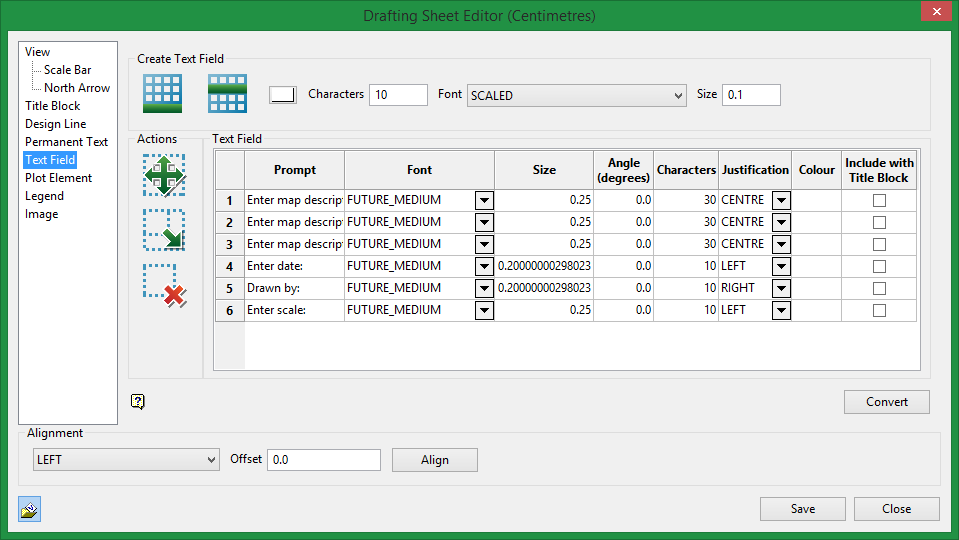
Create Text Field

|
Append. Click this icon to create a text placeholder within the design sheet. The new object will be shown in the Internal Box table. Each new object will appear at the bottom of the list. |

|
Insert Above. To insert an object into the table list above an object already listed, highlight the table row, then click this icon. |
Characters
Enter the number of characters the text field will hold. The default is 10 characters, and the maximum is 132.
Font
Select the desired font.
Size
Select the font size.
Actions

|
Click on the Move icon to move a text placeholder on a sheet. |

|
Click on the Resize icon to change the size of a text placeholder on a sheet. |

|
Click on the Delete icon to delete a text placeholder on a sheet. |
Text Field table
Prompt
Type the actual text that will appear on the sheet.
Font
Select the font type.
Size
Select the font size.
Angle
Make any adjustments in angle.
Characters
This is the number of characters for the text field.
Justification
Select between left, right, or centre justification.
Colour
Select the font colour.
Include with Title Block
Select this option if you want the permanent text to be included as part of the title block template that can be saved and imported into other drafting sheets.
Related Topics
Was this page helpful?
