

Digitise
Digitise new observation locations
The Digitise option to digitise new observation locations and enter data for each.
Instructions
- Select Geotech menu
- Select Utilities submenu
- Select Digitise option
Digitise either a single point object, a two point line object, a three point plane or a three (or more) point polygon object.
- Single Point
Indicate the point (use Snap to Points mode to ensure accurate selection) and right-click to cancel. The symbol is centred over the selected point.
 - Two Point
Indicate the two points (using either Snap to Points or  Snap to Objects modes to ensure accurate selection) and right-click to cancel. The vector between the first point and the second point determines the dip direction. The symbol is centred over either the first, second or the midpoint of the line (depending upon your settings in the Data Entry Setup option).
 - Three points defining a plane
Indicate the three points (using either Snap to Points or Snap to Objects modes to ensure accurate selection) and right-click to cancel. The vector between the first point and the second point determines the dip direction. The symbol is placed on the segment between the first two points, but with a third point to indicate orientation. - Three (or more) point polygon
Indicate the points (using either Snap to Points or Snap to Objects modes to ensure accurate selection) and right-click to cancel. A unique plane is fitted over the points and the dip and dip direction are determined from this plane. The symbol is centred over the average of the points.
- If you pick all three points at the same elevation, the calculated dip and dip direction will be '0'.
- To digitise more than three points, you must enable the Allow digitisation of more than three points checkbox in the Data Entry Setup option.
Note: The dip and dip direction are displayed as a circle and arrow in the Primary window. The following panel is then displayed.
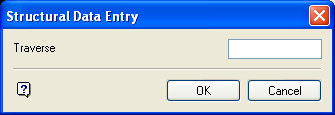
Structural Data Entry panel
Enter, or select from the drop-down list, the site identifier for the location you digitised. If you chose to increment the site identifier (through the Data Entry Setup option), then the numeric part of the site id will be incremented by one for each of the specified locations.
Select OK.
The following panel is then displayed.
The field values for the specified record will be updated or appended. If you have chosen to update records and a record with a matching site identifier field value is not found, then you will be prompted to append a new record. The new structural data displays using the display method (point, structure object or orientation halo) that you specified in the Data Entry Setup option.
