

Reset to Defaults
Use this option to reset individual or all variables contained in a nominated block model back to their default settings.
Instructions
On the Block menu, point to Manipulation, and then click Reset to Defaults.
Follow these steps:
-
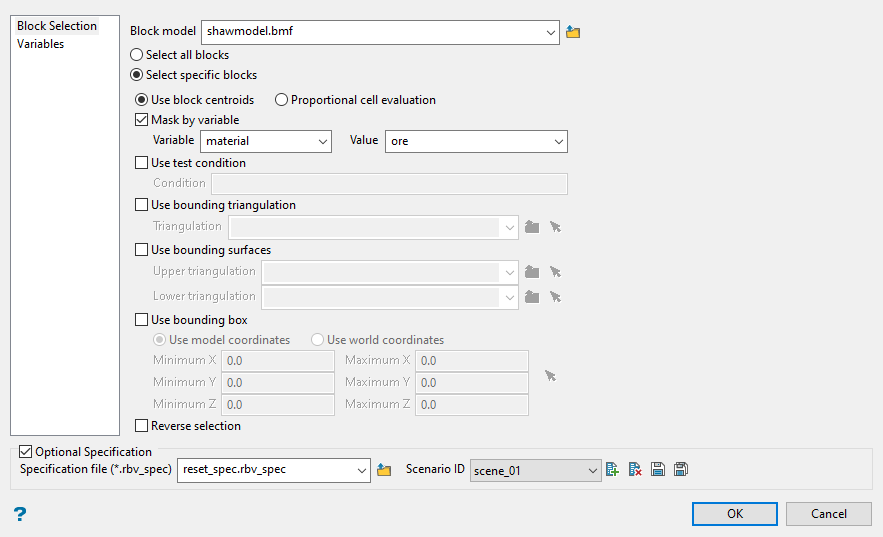
Select the block model.
-
Select the blocks you want to reset.
Choose Select all blocks to reset all blocks to their default value.
Choose Select specific blocks if you want to limit which blocks are used. Use the options below to determine which blocks will be selected.
Important: Block selection is cumulative. Therefore, all arguments defined on this panel must be satisfied for a block to be included.
 Proportional cell evaluation and Use block centroids
This is especially important when using options such as Bounding triangulations, Bounding box, or Bounding surfaces.
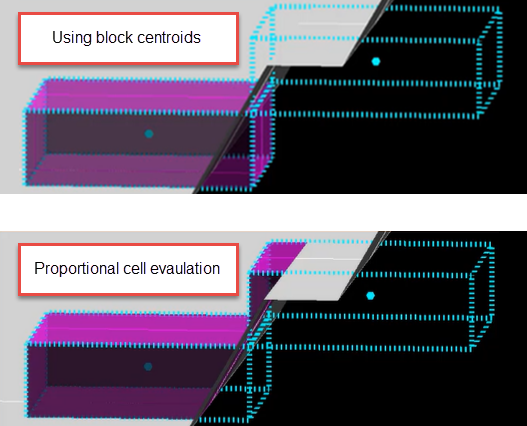
If a block centroid is not within the boundary area, the block will not be selected.
Mask by Variable
You will need to specify the variable, as well as a particular value.
Example: If you have a variable called Material in your block model and want to restrict blocks to those where Material equals Ore, select
materialas the variable and enteroreas the value. However, if you require all blocks that do not have this specified value, then enable the Reverse selection check box.Use test condition
Example: To select blocks where iron has a value greater than 10.0, the condition would be
Fe GT 10.0The maximum length for a condition is 256 alphanumeric characters. Refer to Appendix B of the Core Appendices for a full list of available operators and functions.
Use bounding triangulation
This is useful when you want to evaluate reserves in a particular solid triangulation, such as a stope.
Use bounding surfaces
Select this to use two limiting surfaces.
Note: The options displayed on the panel will change depending on the selection made.
Select the Upper triangulation and Lower triangulation from the drop-down list, or click Browse to select a triangulation from a location other than your working directory. Only blocks that lie in the overlapping sections of the surfaces, as viewed in plan view, are selected.
Use bounding box
If you select this option, you must enter the minimum and maximum coordinates for X, Y, and Z in the block model coordinates (X. Y, Z CENTRE). If the block model origin is set at 0,0,0, then real world coordinates should be entered in the X, Y, and Z minimum and maximum coordinates. If the block model origin is set at real world coordinates, then enter coordinates for the bounding box that are offset a certain distance from the origin. The distance of offset will be determined by the dimensions of your bounding box. It will be the distance to the minimum and the distance to the maximum X, Y and Z from the origin of the block model.
Reverse selection
Select this option to exclude the selected blocks. This option works in combination with the other options on this panel. For example, if you set up Variable to display all blocks that have a gold grade of (-99.0), selecting the Reverse matching option will prevent any block with a gold grade of (-99.0) from being displayed. Or as another example, if you set up a bounding box to limit Z values between 2300m and 5500m, selecting the Reverse matching option will prevent blocks with Z values between those elevations from being displayed and show blocks with all other Z values.
-
Enable Optional Specification if you want to save the parameter settings in a specification file. This will allow you to reuse all the settings again without the need to setup the panel again.
To create a new specification file, enter a name into the space provided.
For an existing specification file, use the drop-down list to select the specification file if it is in the current working directory, or browse for it in another location by clicking the Browse button.
Use the drop-down list to select the Scenario ID file, or create a new one by clicking the New icon.
-
 New
New -
 Delete
 -
 Save
Save -
 Save as
-
-
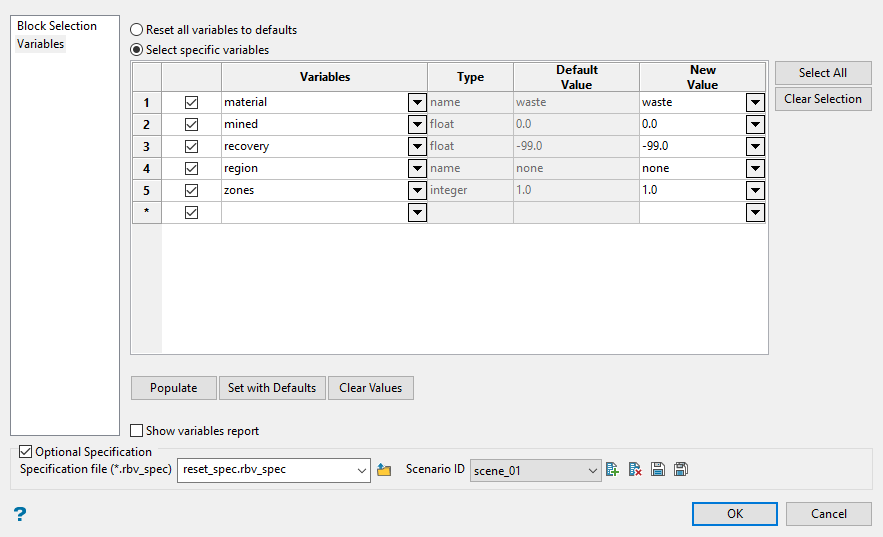
Select the variables to reset.
-
Choose either Reset all variables to defaults or Select specific variables.
Select Reset all variables to defaults to reset all variables to their default values.
Select Select specific variables to reset only selected variables to their default values.
-
Selecting specific variables:
-
Select the variable using the drop-down list in the Variables column of the table.
-
Enter the default value by using the drop-down list in the New Value column, or by typing a value in the space provided.
Tip: Any value can be used as a default value. It does not need to be the value defined in the Default Value column.
Note: The Type and Default Value columns cannot be edited. These are shown as information columns only.
Buttons
Action Select All Enables all check boxes in the first column of the table. Only variables selected in this way will be reset. Clear Selection Clears all check boxes in the first column of the table. Populate Populates the table will all user-defined variables found in the chosen block model.
Note: Automatic variables created when the block model is created are not included.
Set with Defaults Automatically fills in the default values as defined in the block model. Clear Values Clears all values in the table. -
-
-
Click the check box labelled Show variables report located below the Populate button if you want to see the changes made to the selected variables.
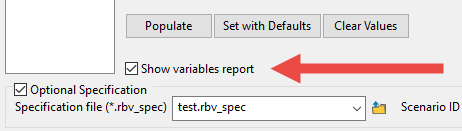
The report will be displayed in the commandline window after the option has run and the audit information will be written to the block model.
Note: The audit information can be viewed by using Block > History List.
-
Click OK.
