

Reload
Use the Reload option to cancel any edits made to a layer, and reload it at the state when it was last saved.
This option can also be selected through the Vulcan Explorer application. Alternatively, you can use the Remove option to clear layers, followed by the Open option (under the Design > Files submenu) to re-open them.
Instructions
On the File menu, point to Layers, and then click Reload to display the Reload Layers panel.
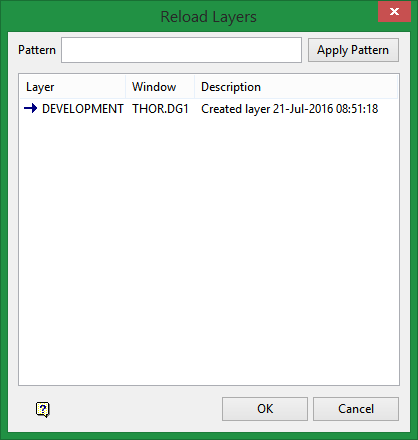
Click on the layer that you want to load and select OK. To reload multiple layers, use the left mouse button in combination with the Shift key to highlight the layers (this is for layers that are adjacent in the list, for non-adjacent layers use the Ctrl key and the left mouse button).
Click OK.
It is also possible to use the Pattern field, the Apply Pattern button and wildcards (* multi-character and ? single character) to highlight the layers that begin or end with certain characters.
For example, if you wanted to highlight all layers that begin with 'S', then type 'S*' into the pattern field and select the Apply Pattern button. Once selected, all matching layers are highlighted.
For each selected layer, you will need to confirm that you want to reload the data and discard the edits.
