

Open Design
Use the Open Design option to open an existing design. It is possible to create a new design in this way by saving the edited design with a new name. Create the new name using 3 characters.
Note: Any changes to a library design will be reflected in previously created databases. For non-library databases to reflect the changes, the databases need to be reloaded. Also, if you do not want to edit the design, but are interested in the design, table and field properties of a particular database, open the database and then use the View menu to toggle between the design and database views.
Instructions
On the File menu, click Open Design to display the Open Database Design panel.
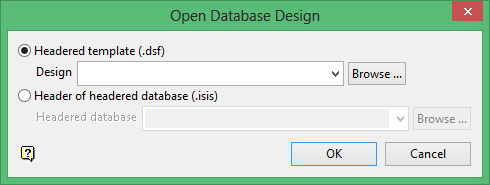
Headered template (.dsf)
Select this option to open a Headered template design. These are the designs from which you can create Isis File and ODBC Link databases. Enter the desired design name or select from the drop-down list. Click Browse to select a file from another location.
Note: If you want to open a .dsf file what was created in version 3.5x, remove the environment code fro the file name. For example: krjdhd.dsf must be renamed to dhd.dsf.
Header of headered database (.isis)
Select this option to open the design of a particular Isis File. Enter the desired headered database name or select from the drop-down list.
Click OK.
The Design window is opened. Refer to New Design for more information.
