

Select Using Solid Triangulations
This topic includes information about the Select Using Solid Triangulations branch of the Implicit Modelling Editor.
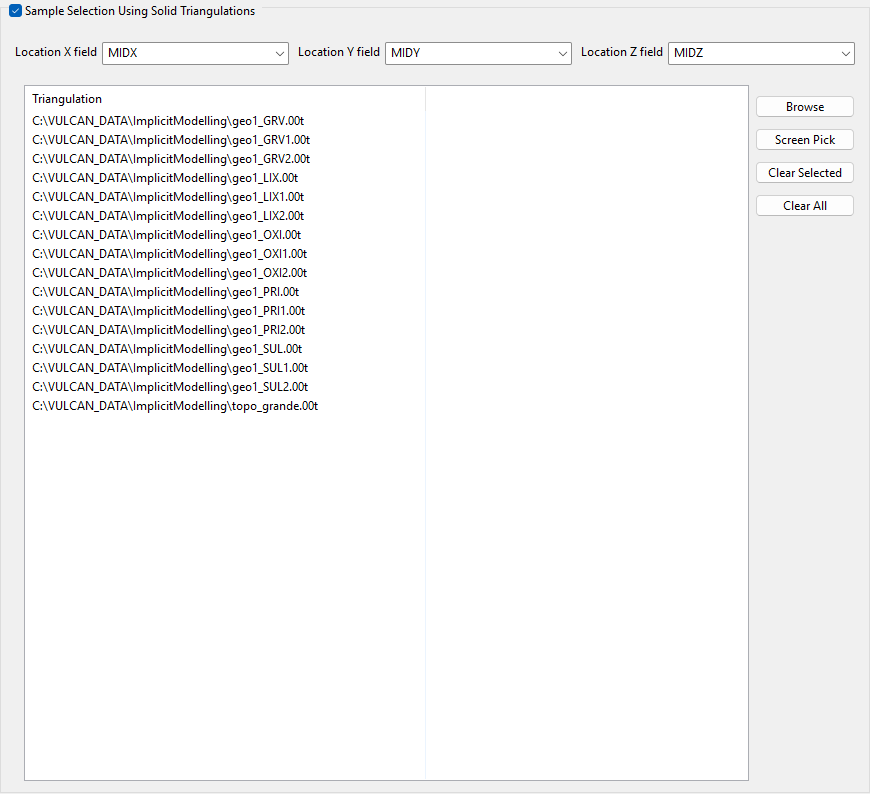
Click Sample Selection Using Solid Triangulations to activate options.
-
Select the triangulations.
Click the Browse button to search for any triangulation not found in your current working directory.
Click Screen Pick to select from triangulations currently loaded into Envisage.
Click Clear Selected to remove any items from the list that are highlighted. To highlight multiple files that are adjacent to each other in the list, hold down the Shift key and click the first and last file names in that section of the list.
To highlight multiple non-adjacent files, hold down the CTRL key while you click the file names.
Move the items to the selection list on the right side of the panel.
- Click the
 button to move the highlighted items to the selection list on the right.
 - Click the
 button to remove the highlighted items from the selection list on the right.
 - Click the
 button to move all items to the selection list on the right.
 - Click the
 button to remove all items from the selection list on the right.
- Click the
-
Wildcard characters can be used to limit what appears on the list. Use an * for multiple characters or a % to replace a single character.
