

Open Window
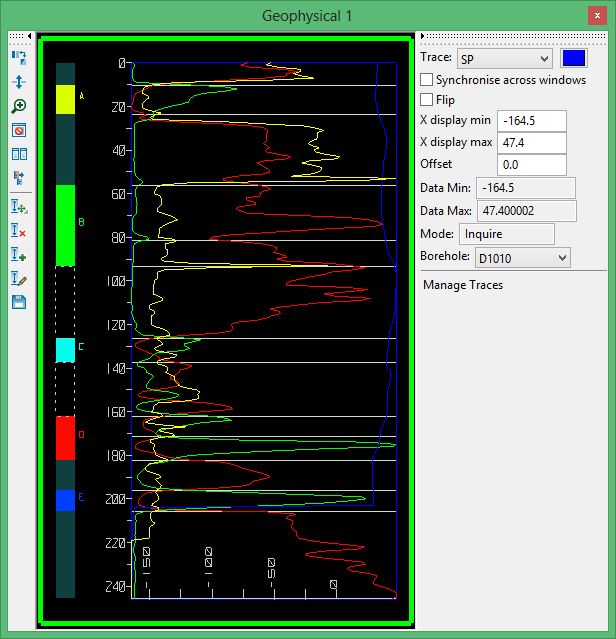
Toolbar

|
Toggle between Adjacent or Overlay. |

|
Scroll - scroll up and down -- can also use the middle wheel on the mouse. |

|
Zoom In - click on any interval to zoom into it -- you can also use Ctrl + mouse wheel -- the lithology is also affected. |

|
Reset - use this option if you have been resizing the window and the view is out ofsync. |

|
Tile Windows - use this option to stretch and align all geophysical display windows across the current monitor. |

|
Adjust Trace Offset - use this option to adjust the trace offset. If the traces are overlaid, they will all be moved concurrently. This is useful if you need to align the traces. |

|
Move Interval - click this option, the select an interval and move it. Left-mouse click and hold to display additional controls for Move Floor, Move Roof, and Shift Lithology. -- you can also move the roof or floor independently. This option will recall your last pick. |

|
Delete Interval - pick an interval from the lithology and delete it. |

|
Insert Interval - insert a default interval. |

|
Edit Interval - The edit window can be reloaded if you don't like the changes that you made. |

|
Save - when you are ready to push your modifications to the database, select Save. |
Manage Traces
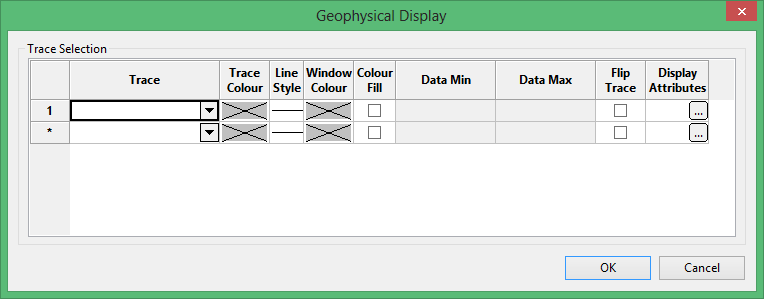
Select this option to add more traces. this is the same at the Trace Selection panel.
Was this page helpful?
