

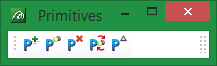
Primitives toolbar
|
Icon |
Tooltip |
Description |
|
|
Create/Edit Primitives |
Allows you to create and edit primitives, as well as apply them to nominated objects. Once selected, the Primitives interface displays. Refer to the Design > Attribute Edit > Create/Edit Primitives option for more information. |
|
|
Primitive Visibility |
Allows you set the visibility of a selected primitive. Once selected, the Primitive Visibility panel displays. Refer to the Design > Attribute Edit > Primitive Visibility option for more information. |
|
|
Remove Primitive |
Allows you to remove an assigned primitive from a nominated object. Once selected, the Multiple Selection box displays. From this box, choose your method of selecting the primitives and select the primitives. Cancel when you have finished removing assigned primitives. |
|
|
Toggle Primitive |
Unlike the Primitive Visibility button, which requires you to specify whether a nominated primitive is to be shown or hidden, the Toggle Primitive button reverses the visibility setting of a chosen primitive. Once selected, the Multiple Selection box displays. From this box, choose your method of selecting the primitives and select the primitives. The visibility settings for the chosen primitives are then reversed. |
|
|
Triangulate Primitive |
Allows you to convert an object, which has been assigned a primitive, to a triangulation. Once selected, the Multiple Selection box displays. From this box, choose your method of selecting the primitive and select the primitive. Cancel when you have finished selecting primitives. The Triangulation panel is then displayed. Refer to the Model > Primitives > Triangulate option for more information. |


