

Group
Use this option to group structural data under the same fault name or flagging field.
Important: Grouping structural data may make loading easier, however, you must be very careful as changes made to the structural database through the Group option cannot be selectively undone.
Structural data groupings can also be assigned via the Vulcan right-click context menu. Simply right-click on highlighted structural elements and select the Geotech > Group option from the displayed context menu.
Note: Rubber band selection in stereonets is only possible in plan view, i.e. rubber band selection will be disabled if the stereonets have been rotated. Use the  Reset View button (on the Graphics toolbar) to return to plan view.
Instructions
On the Geotech menu, point to Analysis, then click Group.
The following panel displays.
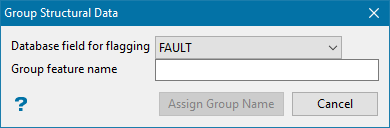
Group Structural Data panel
Database field for flagging
Select the database field that you want to use to group the selected structural data. Unlike previous versions of Vulcan, which only allowed you to use the FAULT field, additional fields can now be used to group the data. These additional text fields need to be named FLAG<n> where <n> is a number between 1 and 99, for example FLAG01, FLAG02, FLAG03, etc.
Group feature name
Enter the group code that will be applied to the selected structural data. Once a group code has been assigned, all consecutive groupings via the chosen database field will be additions to the same group, i.e. one group code per database field.
Select Assign group name.
The Multiple Selection box is then displayed. This allows you to select the structural data by category. When selecting structural data (symbol), the entire symbol will be selected, i.e. strike line and dip line.
All of the selected objects will be grouped under the same fault name in the structural database. Use the Identify option to check the results.
