

Database
Importing databases
Use the Database option to import row data into a databases. The imported data can be stored in a new database or in an existing database. In the latter case, if any of the objects have the same name you will be asked whether you want to replace, keep or merge the objects.
The data that you want to import does not need to be stored in your current working directory. However, the database (excluding headered databases) in which the imported data will be stored does need to be in your current working directory.
Instructions
On the Utilities menu, point to Import, and then click Database to display the Database Import panel.
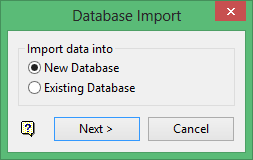
This panel to specify whether to import the data into a new database or into an existing database.
A warning message displays when importing the data into an existing database that is currently being used by another user. The displayed message will inform you that the database has been locked and you will be asked if you would like to unlock and open the database. To maintain the database's integrity, only one user should be able to write to it.
Click Next.
The prompts and panels displayed depend upon the import method chosen through the Database Import panel.
If you chose the New Database option, then the New Database panel displays.
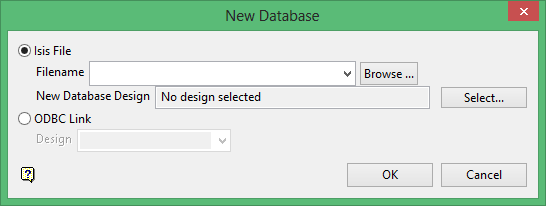
Isis File
Select this option to create an Isis database. Enter the file name, or you can select it from the drop-down list of all files in your working directory or you can browse to a location other than your working directory, in the latter two cases you are asked to confirm the overwriting of this database.
The file may be called anything.
When a new database is created, the format will be as follows: <id>.<dsn>.Isis where <id> is the identifier and <dsn> is the design name. The design name must be three characters. Note that the identifier can be comprised of the project prefix with an optional additional identifier (<id> = <proj><odi>), as was the case in previous versions of Vulcan.
Select the design from which to create the database and then click Select to display the Select Design from which to Create Database panel is displayed.
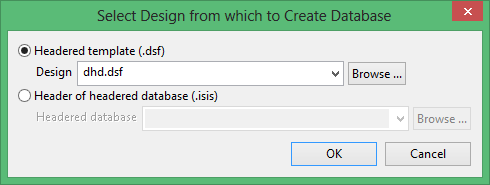
ODBC Link
Select this option to create an ODBC link database. Enter, or select from the drop-down list, a design.
However, if you selected the Existing database option, then the Select Database panel displays instead.
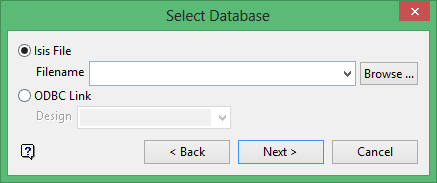
Isis File
Select this option to nominate an Isis database. The available drop-down list displays all Isis database files found within your current working directory. Click Browse to select a file from another location.
ODBC Link
Select this option to nominate an ODBC link database. Select the design name from the drop-down list.
Click Next.
Once selected, the following panel displays.
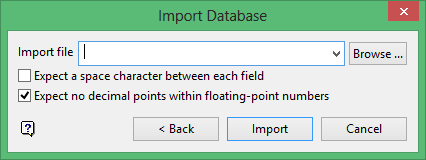
This panel to select the data to import.
Import file
Enter the name of the database that you want to import. Click Browse to select a file from another location.
Expect a space character between each field
Select this check box if the fields in the data file to be imported are separated by a space character.
Expect no decimal points in floating-point numbers
Select this check box if in the data file to be imported there are no decimal points in floating-point numbers.
Standard Database Listing files (.dbl) from previous of Vulcan have no spaces between each field and no decimal points in floating-point numbers.
Click Import to import the database.
If the existing database contains objects with the same name as the imported database, then you will be prompted to choose whether to replace the object, keep the object or merge the objects. You can also choose one of these methods to use in all instances of duplication.
The database is then imported. To view the imported data, you need to open the database.
