

Drafting Sheet Editor: Post Element
Instructions
On the File menu, point to Drafting Sheets, then click Drafting Sheet Editor to display the following interface.
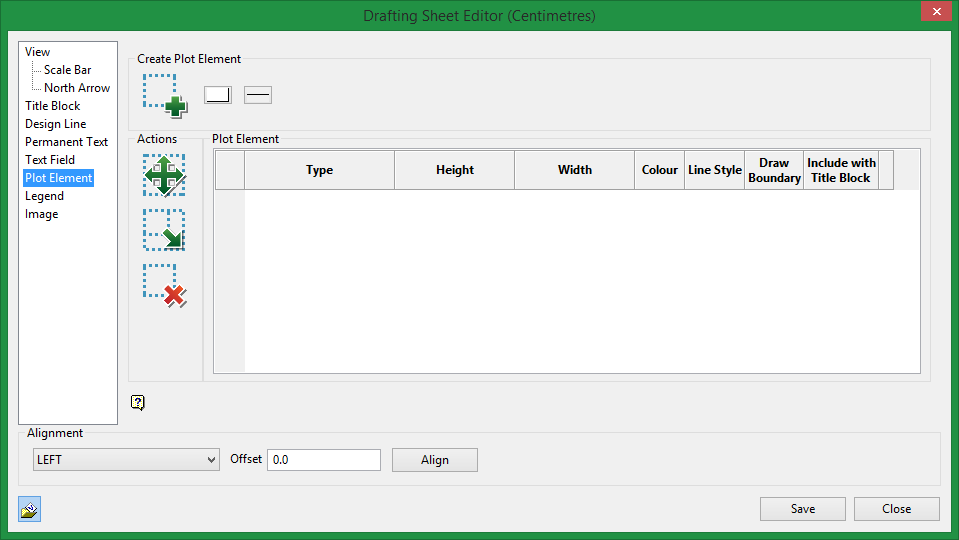
Create Plot Element

|
Create Plotting Element. Click this icon to create a clipping element in the design sheet. |
You can adjust the colour and line style of each item created.
Actions

|
Click on the Move icon to move a text placeholder on a sheet. |

|
Click on the Resize icon to change the size of a text placeholder on a sheet. |

|
Click on the Delete icon to delete a text placeholder on a sheet. |
Plot Element table
Type
There are six types of elements to select from:
-
Rectangle
-
Clipping (Default setting)
-
Plotting Notes
-
Dynamic Title Block
-
Explosives Report
-
Drilling Report
Height / Width
Make adjustments to height and width.
Colour / Line style
Make adjustments to colour and line style.
Draw Boundary
This option is available only if the type selected is a clipping box. Select this option if you want to see the boundary to be plotted.
Include with Title Block
Select this option if you want the permanent text to be included as part of the title block template that can be saved and imported into other drafting sheets.
Related Topics
Was this page helpful?
