

Feature Editor
On the Design menu, point to Feature Edit, and then click Feature Editor to display the Feature Editor panel.
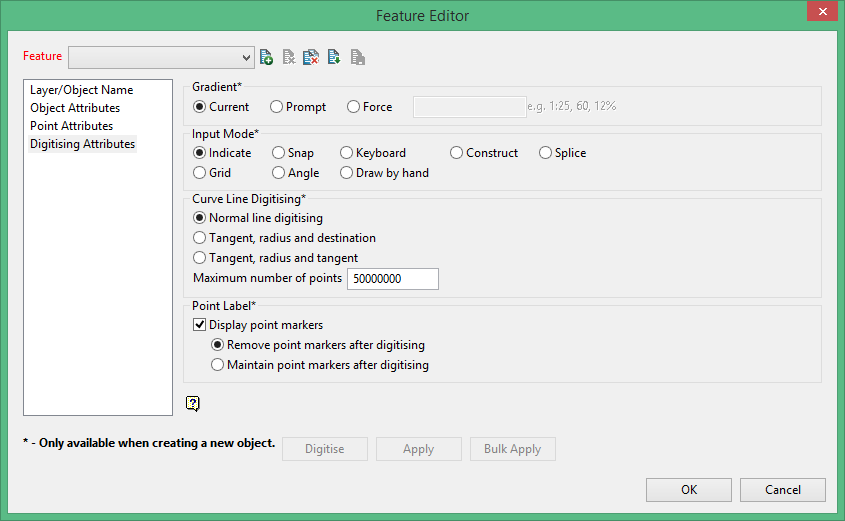
Gradient
The gradient can be the current gradient (the gradient when the object was created) a forced gradient (in ratio, inclination or percentage) or a prompted gradient. In the latter case you will be prompted for the gradient when the object is being created.
Input Mode
This allows you to set the default mode for digitising an object with this feature. Refer to the Digitising section for details on the available design entry modes.
Curve line digitising
Lines can be digitised in the normal digitising mode (point by point) or by one of the following two curve modes:
-
tangent, radius and destination
-
tangent, radius and tangent.
Maximum number of points
This needs only be entered to start a new object once the specified maximum number of points has been reached.
Point Label
Click OK to create the feature.
To apply the feature, use either the Features option (under the Design > Create submenu) or the Feature option (under the Design > Attribute Edit submenu).
Digitise
Select this option to interactively digitise the feature selected in the editor.
Apply
Select this option to apply the feature selected in the editor to CAD data.
Bulk Apply
Select this option to update the CAD with the modified feature parameters. When you select bulk apply, the following panel will display.
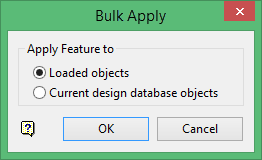
Loaded objects
Select this option to apply the feature to any of the CAD objects loaded in the Vulcan screen.
Current design database objects
Select this option to apply the updates to any of the CAD objects in the design database.
