

Preferences
Use the Preferences option to specify how the databases display.
Note: Changes made through the Preference option do not affect databases that are currently open. As a result, you will need to close and reopen the database in order for the changes to take effect.
Instructions
On the Edit menu, click Preferences to display the Preferences panel.
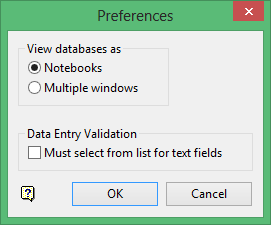
View databases as
This section of the panel to specify how the databases are to be displayed. If you choose Notebooks, then the database tables displays in a single window with tabs to toggle between the available tables.
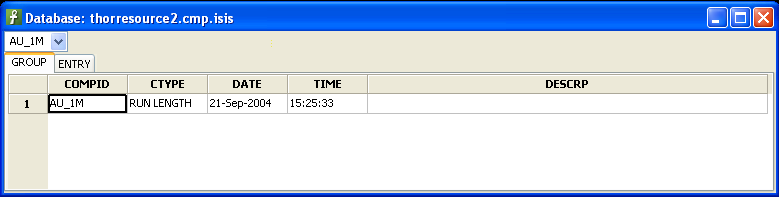
Figure 1: Notebook Format
If you choose Multiple windows, then the database tables displays through separate windows - one window for each table as well as a controlling window containing a list of all of the tables. When you first open database in this view no tables are displayed. To display a table you must select it from the list. If you have more than one table displayed, then you can click on the title bars of the tables to move between them or use Ctrl + Tab to cycle through all of the windows.
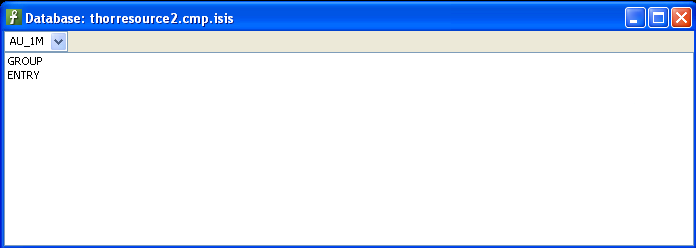
Figure 2: Multiple Windows Format
Data Entry Validation
Select the Must select from list for text fields check box if you want disable manual data entry for text type fields. When using this preference you will only be able to select values displayed in the drop-down list.
Note: Type Attributes must be selected in the Design Database to use this option.
Click OK.
