

Export Data
Triangulations tab
Use Export Data to export Grade Control data contained in the currently loaded blasts to create editable Vulcan objects.
Instructions
On the Grade Control menu, click Export Data to display the Export Data panel.
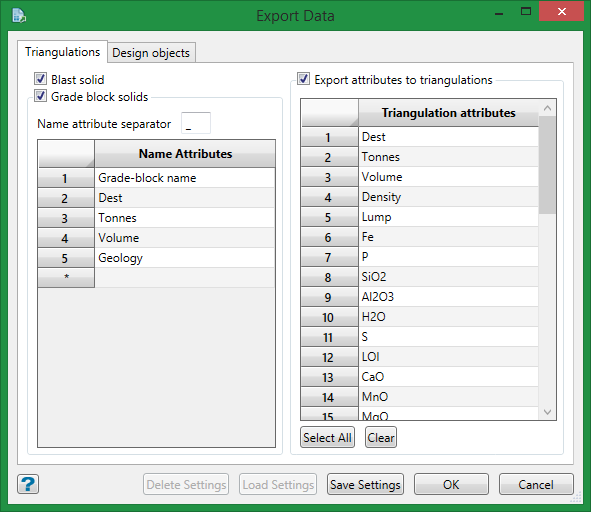
Blast solid
Select this option to export the blast solid(s). A separate triangulation will be created for each exported component.
Grade block solids
Select this option to export the grade block solid(s). If selected, you will need to specify the field delimiting string that will be used to name the resulting triangulations. The delimiting string refers to the character that will be used to separate the blast keys fields.
The triangulations will be named as follows when exporting the blast solids:
<key field_1><delimiting string><key field_2><delimiting string><key field_3><delimiting string><key field_4>.00t
for example TP_NEPE_825_61.00t where TP = the mine code, NEPE = the pit name, 825 = the bench height and 61 = the blast number.
The triangulations will be named as follows when exporting grade block solids:
<key field_1><delimiting string><key field_2><delimiting string><key field_3><delimiting string><key field_4><grade block><variables>.00t
|
<key field_1> to <key field_4> |
Refers to the key fields that have been used to define the blast, i.e. mine code, pit name, bench height and blast number. |
|
<delimiting string> |
Refers to the delimiting string. |
|
<grade block> |
Refers to the name of the grade block. |
|
<variables> |
Refers to the variables chosen through the Extra Grade Block Name section. |
Export attributes to triangulations
Select this option if you want to attach attributes to the exported triangulations. Use the drop-down list to select the attributes individually, or use the Select All button below the table to automatically populate the table.
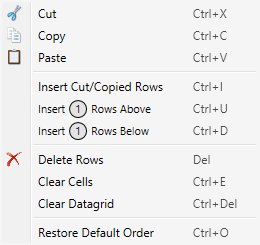
Rick-clicking in the number column will bring up a context menu with the following additional commands:
Saving the export parameter settings
| Delete Settings | This button is disabled until a parameter file has been saved using the Save Settings button. This deletes the saved settings parameter file. A dialog panel will confirm the choice to delete before deleting the file. This will not reset the panel to a blank state. |
| Load Settings | This button is disabled until a parameter file has been saved using the Save Settings button. Generates a dialog panel with a drop-down list where from which a parameter file can be selected. |
| Save Settings | Allows you to save the current settings of the Export Data panel to a parameter file. |
| OK | Export the data based on the settings in the Export Data panel, then closes the panel. |
| Cancel | Closes the panel without saving any edits. |
Related topics:
Export Data: Design Objects tab
