

Export Block Model to Whittle 4X (Model)
Use the Export Block Model to Whittle 4X (Model) option to export blocks from a regular or sub-blocked Vulcan block model to a Whittle 4X block model file. The Whittle model is exported with the same origin as the Vulcan model.
After selecting Whittle 4X in the File Type section, select Block Models (Model). The Whittle Export panel displays.
Instructions
On the File menu, click Export to display the Export panel.
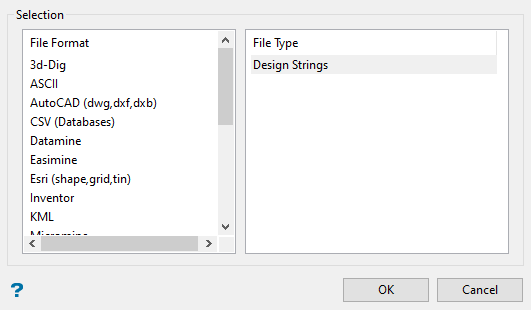
Click Whittle 4X in the File Format column on the left.
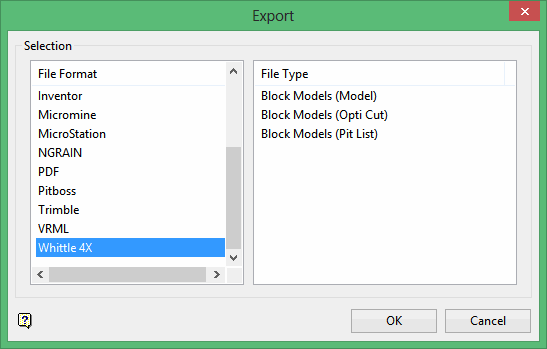
Select Block Models (Model) from the File Type field on the right side of the panel.
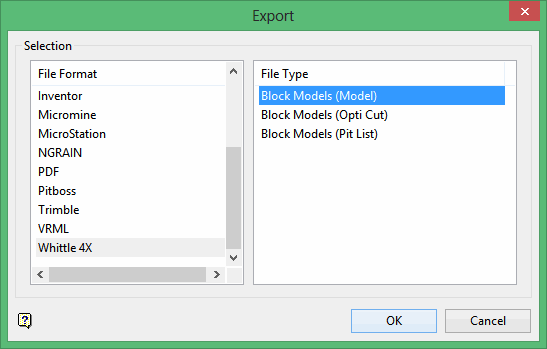
Click OK to display the Whittle Export panel.
Open Specification
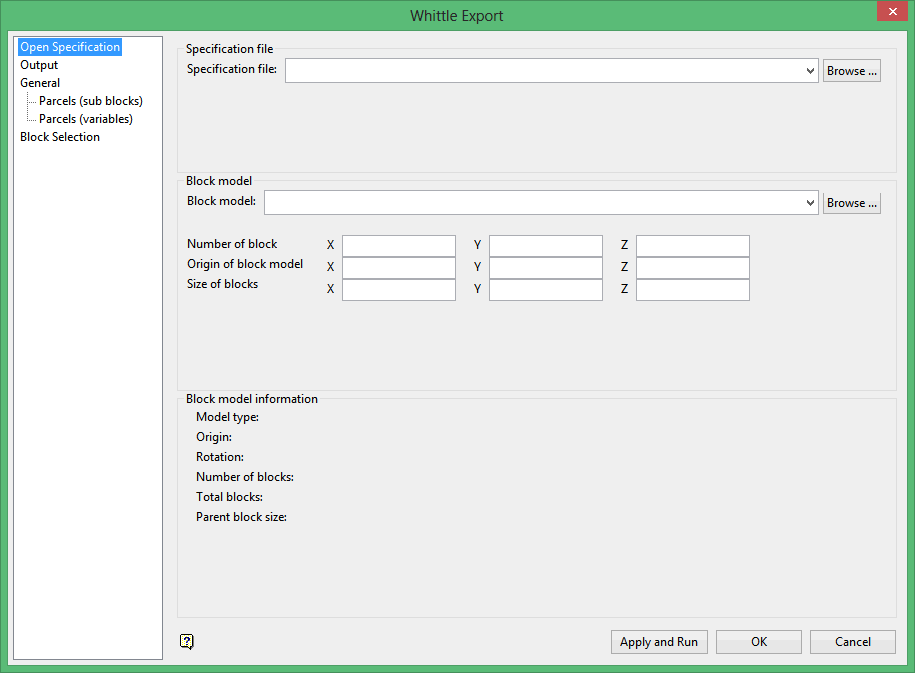
Specification file
Select the specification file.
Block model
Enter, or select from the drop-down list, the name of the resulting Whittle block model. The maximum size of the file name, including the .mod or.csv file extensions, is thirty alphanumeric characters. The resulting Whittle block model will be placed in your current working directory.
-
Number of blocks: Enter the number of block in the X, Y, and Z directions.
-
Origin of block model: Enter the origin of the block model.
-
Size of blocks: Enter the size of the blocks in the X, Y, and Z directions. The default values for the number, origin, and size of the blocks are derived from the block model header.
Block model information
This section displays the information about the selected block model, including model type, origin, rotation, number of blocks, total blocks, and parent block size.
Output
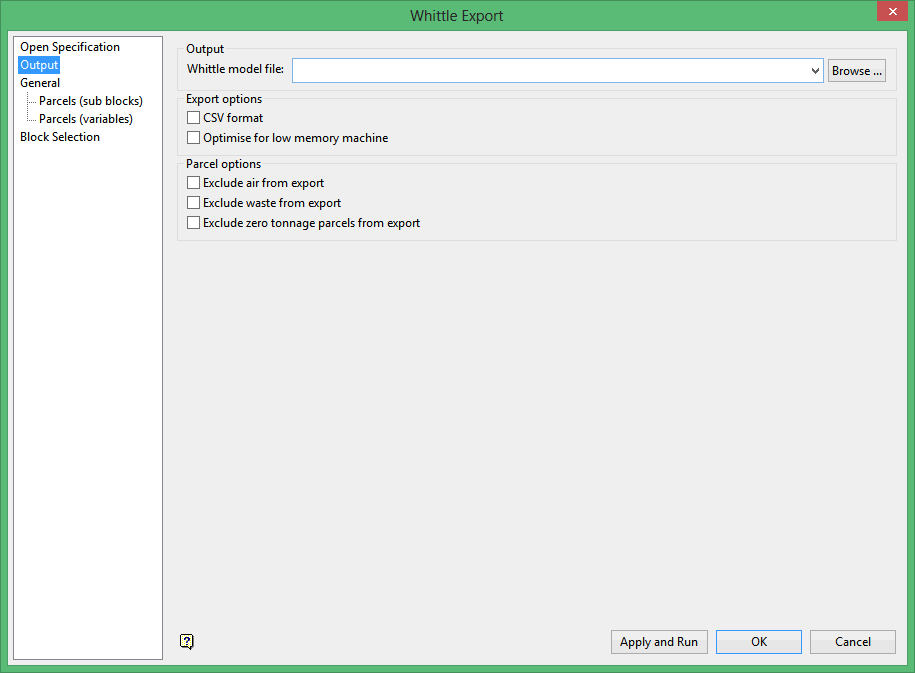
Whittle model
Select the output file.
CSV format
Select this check box to export the block model blocks to a CSV file. We recommend that you select this Select this check box to reduce the size of the exported file.
Optimise for low memory machine
Select this check box to optimise the performance of the export process. If this check box is selected, then each block slice will be individually processed instead of several slices at once.
Exclude air from export
Select this check box if you do not want to export air parcels. If this check box is selected, then the blocks with value AIR in the specified rock type variable will not be included in the export.
Exclude waste from export
Select this check box if you do not want to export waste parcels. If this check box is selected, then the blocks with the value WASTE in the specified rock type variable will not be included in the export.
Exclude zero tonnage parcels from export
Select this check box if you do not want to export zero tonnage parcels.
General
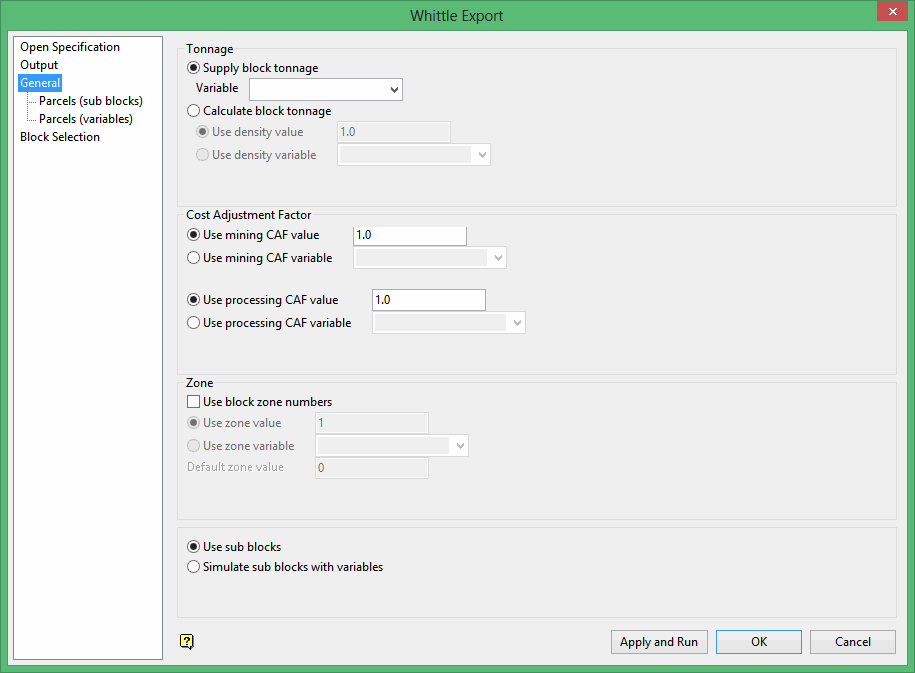
Tonnage
Supply block tonnage
Select this option if you will be supplying the tonnage for the block. You will also need to enter or select the tonnage variable from the drop-down list of variables for the currently nominated block model.
Calculate block tonnage
Select this option to define a density value, or select a density variable from the drop-down list of variables for the currently nominated block model to be used when calculating the block tonnage.
Cost Adjustment Factor
Use mining CAF value / variable
Select whether to define a mining CAF value or select a mining CAF variable from the drop-down list of variables for the currently nominated block model.
Use processing CAF value/variable
Select whether to define a processing CAF value or select a processing CAF variable from the drop-down list of variables for the currently nominated block model.
Zone
Use block zone numbers
Select this check box to output zone numbers with the blocks. You will need to specify the zone value or the zone variable that contains the zone number. The zone numbers may be used by the Whittle 4X block printing program.
The Default zone value will be substituted for the whittle zone if the zone from the block model is negative.
Use sub blocks
Select this check box to use sub blocks.
Simulate sub blocks with variables
Select this check box to simulate sub blocks with variables.
Parcels (sub blocks)
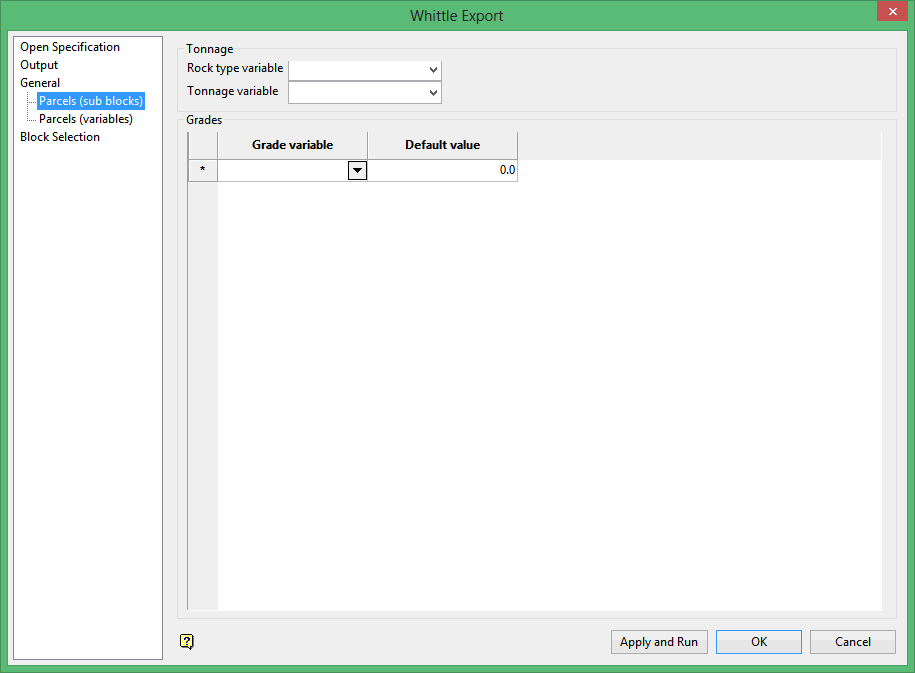
Note: The option Use sub blocks (located at the bottom of the General pane) must be selected before this pane is enabled.
Rock type variable
Enter, or select from the drop-down list, the variable containing the rock type codes defined in the block model. Blocks in the Vulcan block model are treated as Whittle ore parcels and are exported with the rock type code defined by this name variable.
Tonnage variable
Enter, or select from the drop-down list, the block tonnage variable.
Grade variable
Enter, or select from the drop-down list, the variable that contains the ore parcel's grade. The ore parcel units are calculated during the export as (tonnage x grade).
Default value
Enter the default value of the grade variable, which can be substituted for another value.
Note: Quite often if there is no grade value, a default value of '-99.0' is assigned to a block. Entering a different default, for example '0.0' or -0.01', on this panel will replace the '-99.0' value. If you do not substitute the '-99.0' value, then you will get negative metal contents for those blocks that have a default value of '-99'.
Parcels (variables)
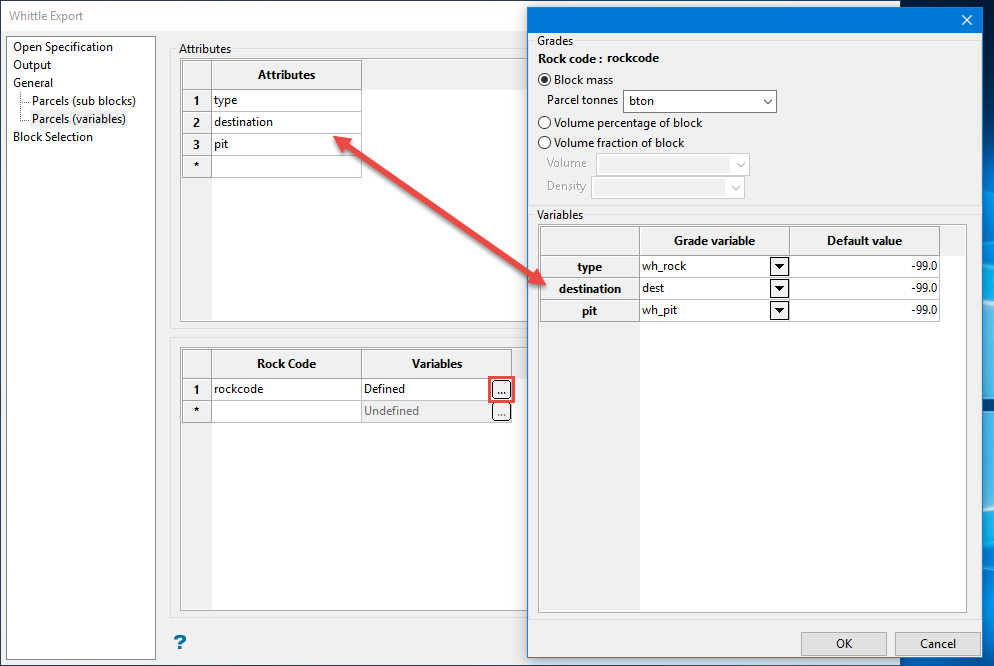
Note: The option Simulate sub blocks with variables (located at the bottom of the General pane) must be selected before this pane is enabled.
Attributes
These will become the names of new variables in the exported block model. You may have up to 30.
Rock Code/Variables
Match the new variables being created with the existing variables from the block model being exported.
Block Selection
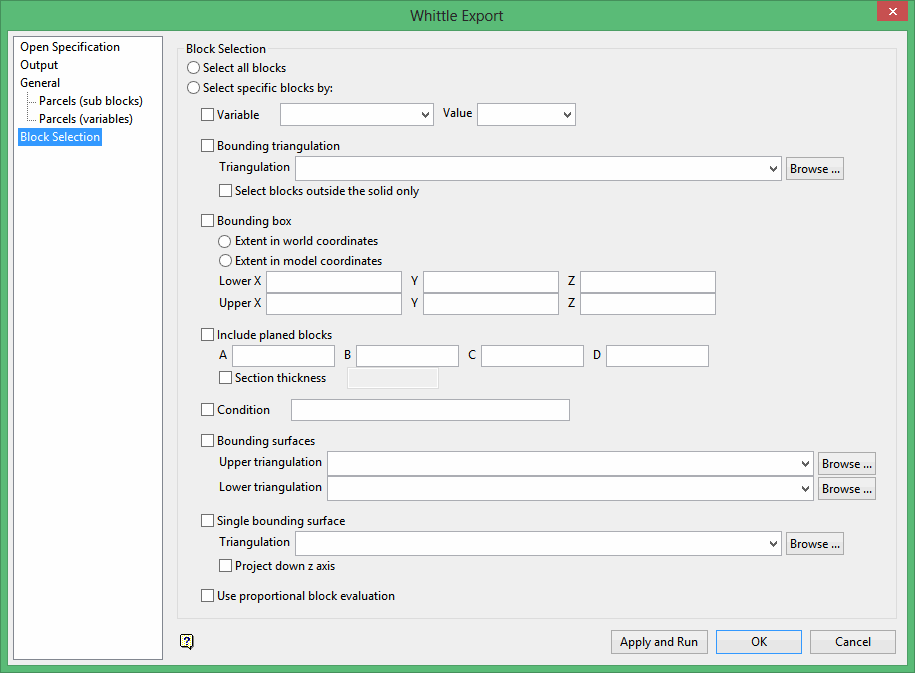
Block Selection
Either all blocks or specific blocks can be selected. If you select Select specific blocks by, then you must enter one or more of the following selection criteria:
Variable
Select this check box to restrict the blocks by a block model variable. You will need to specify the variable as well as a particular value.
Example: To restrict blocks to those where Material equals Ore, select Material as the variable (from the drop-down list) and enter Ore as the value. However, if you require all blocks that do not have this specified value, then enable the Reverse matching check box. The block model variable may be numeric (for example the grade variable Au) or character (for example Geology) variables.
Bounding triangulation
Select this check box to restrict the blocks by a triangulation. This is useful when you want to evaluate reserves within a particular solid triangulation such as a stope.
To select blocks outside of the bounding triangulation, select the Select blocks outside the solid only option.
You may also select the Use proportional block evaluation check box and use it with this restriction.
Note: This option is not applicable to open or 2D triangulations.
Bounding box
Select this check box to restrict the blocks by a box. The bounding box is defined in Interactive or Coordinate mode. The required mode is selected from the Box Thickness panel, which is displayed once the Block Selection panel has been completed. You may also select the Use block centres check box and use it with this restriction.
Include planed blocks
Select this check box to restrict the blocks by a section plane. You will need to enter its associated thickness. The blocks that are within this thickness will be selected.
The section plane can be selected by line, points, or grid coordinates. This information is entered through the Section Plane panel, which is displayed once the Block Selection panel has been completed.
You may also select the Use proportional block evaluation check box and use it with this restriction.
Condition
Select this check box to use a further constraint upon a numeric block model variable, for example Fe GT 10.0 (iron value greater than 10.0). The maximum size of the condition is 132 alphanumeric characters. A list of available operators/functions to use when defining this condition is provided in Appendix D.
Bounding surfaces
Select this check box to restrict the blocks by bounding surfaces. Once the Block Selection panel has been completed, you will be required to select the top and bottom surface triangulations on the screen. Only blocks that lie within the overlapping sections, as viewed in plan view, of the surfaces are selected.
You may also select the Use proportional block evaluation check box and use it with this restriction.
This check box will be disabled when the Cut and fill surfaces check box is in use.
Single bounding surface
Select this check box if you want to restrict the blocks by a single bounding surface. Select the Project down z axis check box if you want to project down the Z-axis, that is select the blocks that fall below the nominated surface. If this check box is not selected, then all blocks that fall above the nominated surface will be selected instead.
Use proportional block evaluation
Select this check box if you want to use the full cell evaluation method. If this check box is not selected, then the proportional cell evaluation method will be used instead.
-
Full cell evaluation: Include blocks if the block centroid is within the region. The entire block will be included.
-
Proportional cell evaluation: Include those blocks that touch the region, and evaluate reserves according to the proportion of the block's volume that lies within the region. Proportional cell evaluation calculates and reports the exact proportion of a block within a solid triangulation. When selecting blocks, all blocks that touch the region are selected.
