

Mapfile
Load Drillholes from a Mapfile
Use the Mapfile option to load databases or ASCII mapfiles containing drillhole locations as a layer into the current Vulcan window.
Note: The Mapfile option is only intended to work with composited mapfiles and composited databases.
Instructions
On the Geology menu, point to Drilling, and then click Mapfile.
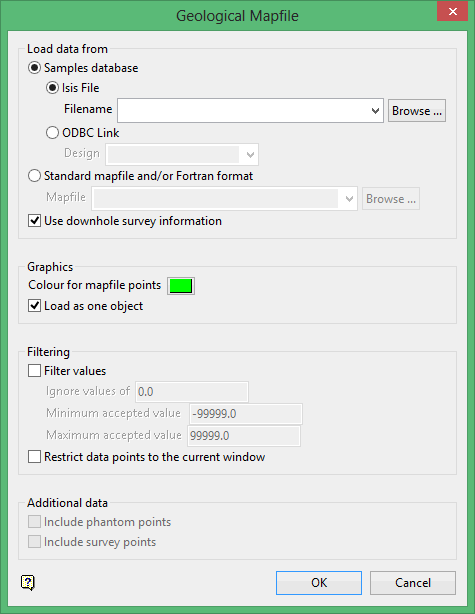
Note: Mapfile records with blanks in one or more of the field values (X, Y, and a user nominated Z) will be skipped.
Samples database
Select this option to load a samples database. Specify the design (datasheet <dsn>) name and, optionally, the database identifier. The latter is only required if more than one database is created from the design.
Standard mapfile and/or Fortran format
Select this option to load a mapfile. The drop-down list displays all mapfiles found within your current working directory. Click Browse to select a file from another location.
Use downhole survey information
Select this check box if you want to use downhole survey information from the mapfile rather than using the collar location. The TOP(X,Y) will be used for locating the seam roof, BOT(X,Y) for the seam floor and MID(X,Y) for all other variables.
Colour for mapfile points
Select the colour for the mapfile points.
Load as one object
Select this check box if you want to load all the points as one object.
Filter values
Select this check box if you want to limit the values to be loaded. You will need to specify the range of the values that will be loaded, plus the value within that range that should be ignored.
Restrict data points to the current window
Select this check box to restrict mapfile points to the current window.
The following options are only applicable to ASCII mapfiles.
Include phantom points
Phantom points are points that you can invent to add interpretation to the grid modelling that cannot be derived directly by any computational methods. For example, the points are the geologist's feel or historical knowledge of the area. Any option in Vulcan can be used to create the points. The points must be put into a phantom file (.php). This is done by the Vulcan option to dump a mapfile from Vulcan in the required format.
Include survey points
Survey points are points derived from actual survey, such as top and floor of coal seams, and used to improve the accuracy of the model in areas that have been exposed. The points must be put into a survey points file (.svp), which is created by the same mapfile generation option as for phantom files. Although designed as a means of inputting survey data to the grid modelling methods, any data can be input this way.
Click OK.
Select the Cancel button if you want to return to the Geological Mapfile panel.
Note: At this point in the option, the remaining panels differ depending upon whether you are loading a database or a mapfile.
Samples Database
The Load Samples Database panel is displayed.
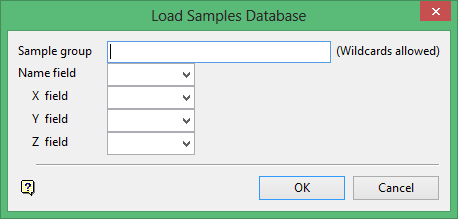
Sample group
Enter the name of the group(s) to be loaded. Wildcards (* multi-character wildcard and % single character wildcard) may be used to select multiple groups.
Name field
Enter, or select from the drop-down list, the name of the field containing the point.
X/Y/Z fields
Enter, or select from the drop-down list, the names of the fields containing the X, Y and Z coordinates.
Click OK.
The mapfile points are then loaded.
Mapfile
The Choose variable panel is displayed.
Fortran format statements indicate the position in the mapfile of the data to be loaded. Statements can be represented by a variable code or entered manually. Variable codes are set up in the scheme file (.scd). Standard variable codes are hard-coded and delivered with the system.
These are:
|
Variable Code |
Fortran Format Statement |
|---|---|
|
LC (location) |
(A8,T35,A5,T9,2F12.3,T41,F8.3) |
|
DR (depth to roof) |
(A8,T35,A5,T9,2F12.3,T49,F8.3) |
|
DF (depth to floor) |
(A8,T35,A5,T9,2F12.3,T57, F8.3) |
|
SR(structure roof) |
(A8,T35,A5,T9,2F12.3,T65, F8.2) |
|
SF (structure floor) |
(A8,T35,A5,T9,2F12.3,T73,F8.2) |
|
TK (thickness) |
(A8,T35,A5,T9,2F12.3,T81,F8.3) |
|
MD (mid burden) |
(A8,T35,A5,T9,2F12.3,T89,F8.3) |
|
PT (parting) |
(A8,T35,A5,T9,2F12.3,T97,F8.3) |
|
OB (overburden) |
(A8,T35,A5,T9,2F12.3,T105,F8.3) |
|
ST (structural thickness) |
(A8,T35,A5,T9,2F12.3,T113,F8.3) |
|
TP (topography) |
(A1,A3,3F16.3) |
When entering a variable code, the system first checks whether the code exists in the scheme file. If the code does not exist, then the system checks whether the code was delivered with the system. This means that if there is an LC code in the scheme file, it will take precedence over the one delivered with Vulcan.
Important: The variable codes delivered with the system are not necessarily the ones applicable to your mapfiles.
Click OK.
The mapfile points are then loaded.
The resulting layer won't be saved in the currently open design database unless you transfer it to another layer using the Design > Layer Edit > Transfer option.
When you clear the layer you will not be prompted to save even if you have made edits.
