

Design Visibility 
Set the Visibility for Objects
Use the Design Visibility option to apply a specific visibility setting (visible, invisible, shadow) to a group of design objects, such as strings, points etc. The Design Visibility option can also be used to freeze all design objects that are currently displayed onscreen.
This option can also be accessed by clicking the Design Visibility button on the Visibility toolbar.
The Design Visibility option cannot be used for setting the visibility of underlays. In those cases, we recommend using the Visible, Shadow and Invisible options. To apply visibility settings to triangulations and grids, we recommend using the Triangulation Visibility and Grid Visibility options.
Shadow is hardware dependent and may therefore not be visible on your screen.
Instructions
On the View menu, point to Visibility, and then click Design Visibility.
The Action dialog box displays.
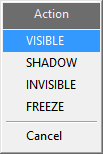
The objects that are currently invisible will also be shadowed so that they can be selected if needed. Through the Action dialog box, specify whether you want to apply a specific visibility setting (visible, invisible, shadow) or, if applicable, whether you want to freeze one or more design objects.
The Multiple Selection box displays.
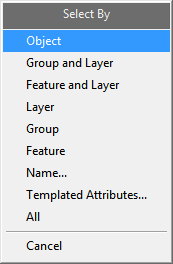
Use the Multiple Selection box to choose your method of selecting objects, then select the objects from the screen.
The chosen action is then applied.
