

Load Screen
Use the Load Screen option to load the data contained in a nominated screen file (<proj><name>_screen.dg_spec). Screen files, which are listed under the Specifications folder of the Vulcan Explorer, are created through the Save Screen option.
Instructions
On the File menu, click Load Screen.
A list of all available screen files displays. Click on the saved screen file that you want to load and click OK.
Once selected, the Load Screen panel displays.
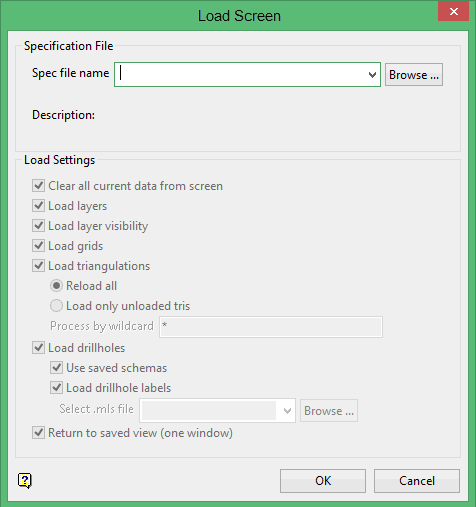
Load Settings
Clear all current data from screen
Select this check box to remove any data (design data, grids, triangulations, block models, underlays) loaded on-screen before loading the saved screen.
Select the check box for the items you want to load.
Process by wildcard
With triangulations you can choose to reload all of the triangulations in the saved screen or only those that are not loaded. You can also limit the triangulations that can be loaded by using wildcards.
If you enter 'T*' in the Process by Wildcard field, only triangulations that have names that begin with a 'T' will be loaded.
The Process by Wildcard field is case-sensitive. That is, if the triangulation is ' triangle.00t ', entering 'T*' will no t load it.
Use saved schemas
Select this check box to load the drillholes using the scheme that was used when the screen was saved.
Load drillhole labels
Select this option to save multi-label specification files (.mls) so that drillholes can then be loaded with labels.
Click OK.
The selected items are then loaded and displayed. If objects have been deleted since the screen was saved, then error messages informing you of the missing objects displays through the Report Window.
You can also load screens through the Vulcan Explorer application as well as through using the Open button  on the Standard toolbar. The Load Screen panel, however, won't be displayed when using either of these methods. This is because Vulcan assumes that you want to load everything contained in the screen file.
|
Icon |
Tooltip |
Description |
|
|
New |
Allows you to create a new design database. Refer to the File > New option for more information. |
|
|
Open |
Allows you to open files. Refer to the Open option for more information. |
|
|
List Databases |
If you click and hold down the mouse button, then the Open toolbar displays. From this toolbar, you can list Refer to the File > Design Files > List Files option for information on design databases, the File > Layers > List option for information on layers and the File > Open option for information on triangulations, grid models and block models. |
|
|
Remove Layer |
Allows you to remove any loaded layers from the screen. Refer to the File > Layers > Remove option for more information. |
|
|
Remove Underlay |
Allows you to remove data that is loaded as an underlay. Refer to the File > Underlays > Remove option for more information. |
|
|
Remove All Underlays |
Allows you to remove data that is loaded as an underlay. Unlike the Refer to the File > Underlays > Remove All Underlays option for more information. |
|
|
Undo |
Allows you to reverse the last action. Refer to the Design > Undo option for more information. |
|
|
Redo |
Allows you to reverse last Undo action. Refer to the Design > Redo option for more information. |
|
|
Save |
Allows you to save the open design file. Refer to the File > Save option for more information. |
|
|
|
Allows you to create a plot of all of the currently loaded objects. Refer to the File > Plot > Plot All option for more information. |
|
|
Create Section |
Allows you to create a cross-sectional 3D view with a specified dip and width of view. Refer to the View > Create Section option for more information. |
|
|
Delete Section View |
Allows you to delete a section. Refer to the View > Delete Section option for more information. |
|
|
Help |
Launches the Vulcan online help. Refer to the Using Vulcan Help section for more information. |


 layers,
  triangulations,
  block models and
  grid models. The button displayed in the Standard toolbar will be the button that was last used.


You can also drag and drop saved screen files from the Vulcan Explorer application onto a Vulcan window. To do this, click on the screen name and drag the mouse over the Vulcan window. Release the left mouse button to load the selected file.
