

Split Pit
On the Open Pit menu, point to Open Pit Solids, then click Split Pit to display the following panel.
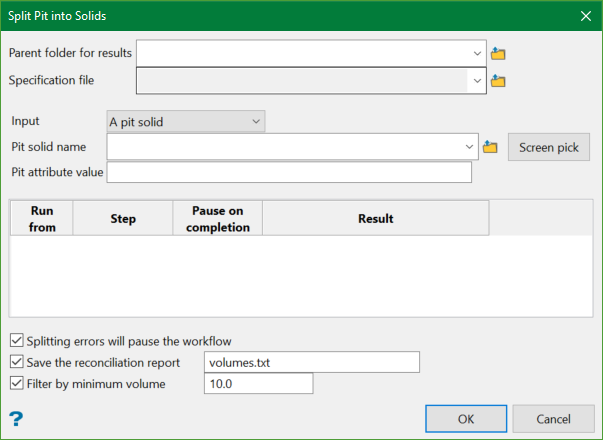
Parent folder for results
This folder will hold the resulting solid triangulations of the Split Pit option. Select a folder from the drop-down list or enter the name of new folder.
Note:
Be sure to include the file extension .tri when you provide the name of the Parent folder for results. This will ensure that the folder will be automatically located with the triangulations folders in the Explorer Panel. If you do not include the file extension the folder will still be created. However, it will not be visible in the Explorer Panel. It will be saved to your current working directory. To add it to the list of triangulation folders in the Explorer Panel, rename the folder by adding the .tri file extension, and then clicking the Refresh icon at the top of the Explorer Panel.
Specification file
Select the specification file from the drop-down list.
Input
You can choose to select an individual solid or select a folder containing multiple solids.
Pit solid name
Select the solid from the drop-down list, browse from another location, or use the Screen Pick button to select from the screen.
Pit attribute value
Enter the attribute value.
If you selected Solids in a folder as input, this is how the interface would look.

Folder name
Select the folder that contains a collection of solids you wish to split. Select from the drop-down list or browse to another location.
Refresh Attributes
refreshes the input solids attributes if they have changed.
Split solid naming
Use the solid filenmae, or attributes from a previous split, or other uniquely valued attributes to seed the naming for this splitting run.
Splitting errors will pause the workflow
Select this option to pause the workflow if any error is encountered during the splitting process.
Save the reconciliation report
Select this option to save the report after error is encountered. Enter a filename in the text box and this file will be saved in the parent directory.
Filter by minimum volume
Select this option and enter a minimum volume, and any solids below this volume will not be saved. Also, this filter will be applied to the solids that contain spatially separated parts.
Press OK to start the split run.
This will prompt to select highwall surface triangulations and start digitising the start and end of strip direction. Once the split is done, it will select all the triangulations that are cut and displays a panel with a list of the cut objects.
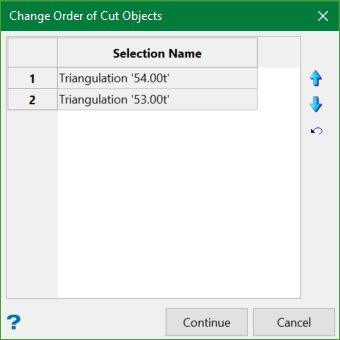
You can change the order of the objects using Up and Down arrows with the controls on the right.
