

Preferences - Effects
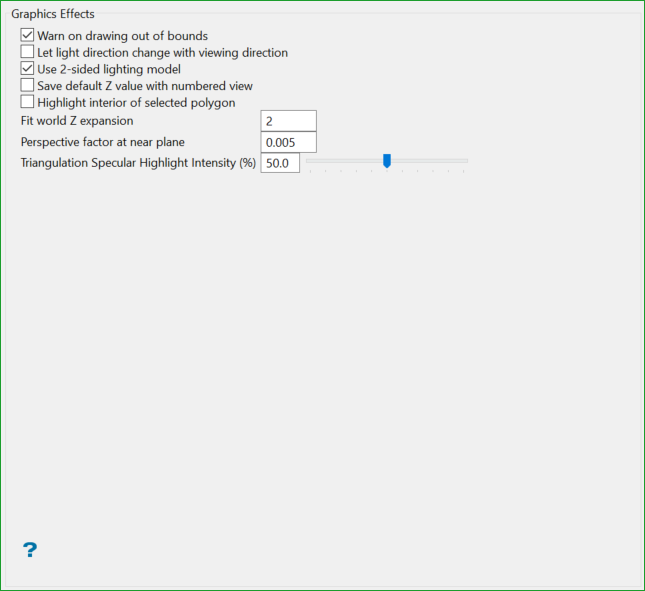
Warn on drawing out of bounds
Select this check box to display a warning whenever a layer is drawn out of bounds.
Let light direction change with viewing direction
Select this check box if you want the lighting effects to change with the orientation of the objects.
Use 2-sided lighting model
Select this check box to have two lighting sources. This was the standard lighting method in versions 3.5x. This method of lighting can be quite useful when viewing the back (or underside) of objects, or if a triangle's normals point inwards. If this check box is not checked, then one sided lighting will be used instead. One sided lighting is useful for displaying three dimensional (closed) objects.
Save default Z value with numbered view
Select this check box to save the default Z value with the view.
You can use the Shift + [1... 9] keys to save a view in a numbered buffer. When you return to the saved view, by pressing Shift and the corresponding number, the default Z value will be restored.
Highlight interior of selected polygon
Select this check box to highlight the interior of a selected patterned polygon.
Fit world Z expansion
Enter the expansion value that will be used to reduce front and back clipping when rotating an object. The value entered will be used to specify the 'container' around the view volume, For example: if 2 is entered, then the 'container' is twice as long as it is wide.
Perspective factor at near plane
Enter the perspective factor. The specified value will affect the appearance of a "fly-by" view at close to ground level.
If you enter a value less than 0.01 (the default), then the objects closer to the view will be included in the display, as seen in Diagram 2. This, however, may induce some undesirable depth buffering artefacts, as seen in Diagram 3, which has the texture removed and a wire-frame displayed. In general, we recommend that you try using settings between '0.01' and '0.001'.
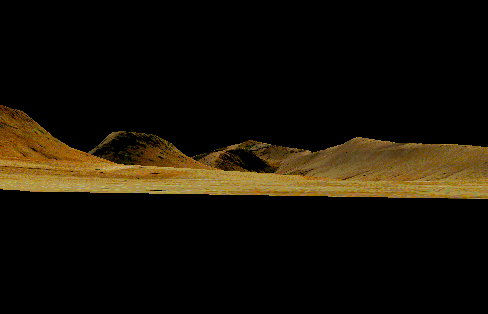
Figure 1: Perspective factor set at '0.01' (the default value)
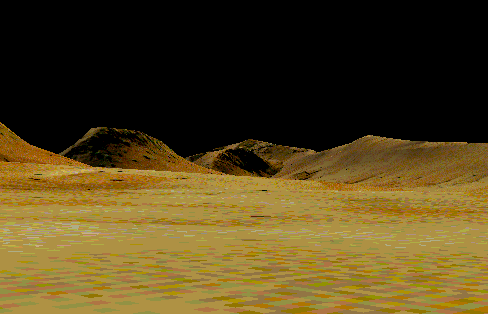
Figure 2: Perspective factor set at '0.001'
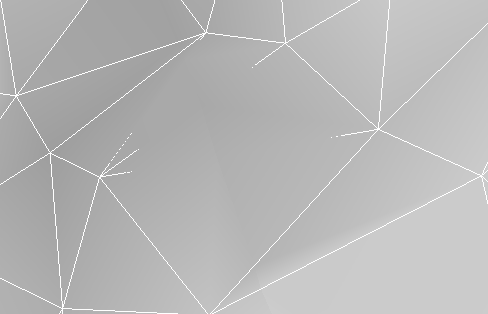
Figure 3: Perspective factor set at '0.001'
Triangulation Specular Highlight Intensity
Setting the value to 0% will act exactly as legacy Vulcan (no shine), and 100% will make triangulations appear very shiny.
