

Restore Backup
The Restore Backup option will allow the user to choose a previous version of the selected.dgd database for restoration. This option is used together with the Enable automatic design database backup upon open (once daily) check box in the Vulcan section of Tools > Preferences.
Note: By default, this backup option is on . You must go to Tools > Preferences > Vulcan to turn the option off.
Instructions
- In Vulcan Explorer, open the Design Database folder
- With the desired design database closed, right click to display the context menu.
- Select Restore Backup.
The following panel displays.
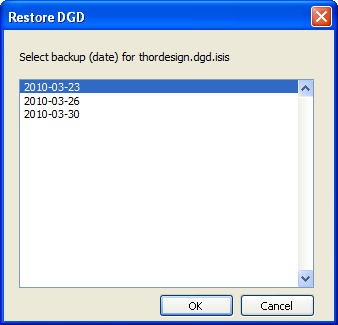
Restore DGD panel
Up to three of the previously backed up design database .dgd.isis files are displayed.
Select the desired entry and click OK.
The chosen backup file will be restored and will appear in the Design Database listing as databasename_backupdate.dgd.isis, with databasename being the original design database name and backupdate being the date the .dgd.isis was opened. Note the example below.
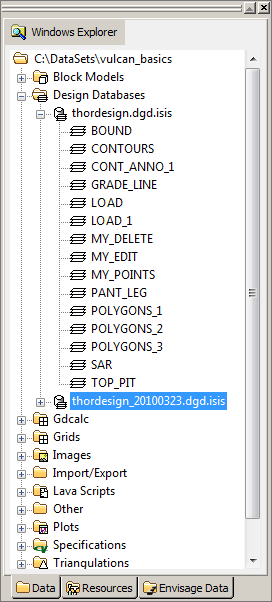
Windows Explorer with restored .dgd.isis backup file highlighted
