

Import Blast Holes
Source tab
Use Import Blast Holes to import values from a nominated CSV ( Comma Separated Values) file into the blastholes of the currently active blast.
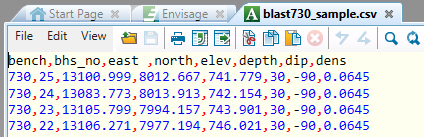
Diagram 1 CSV file format (as viewed through Vulcan Text Editor)
In the example shown above the first line of the CSV file is used to identify the case sensitive variable names, i.e. iron (fe) and silica (sio2), with the following entries containing field values and hole numbers. A single alphanumeric character, in this case a comma, has been used to separate each variable and its value.
Instructions
On the Grade Control menu, click Import Blast Holes.
Method One:
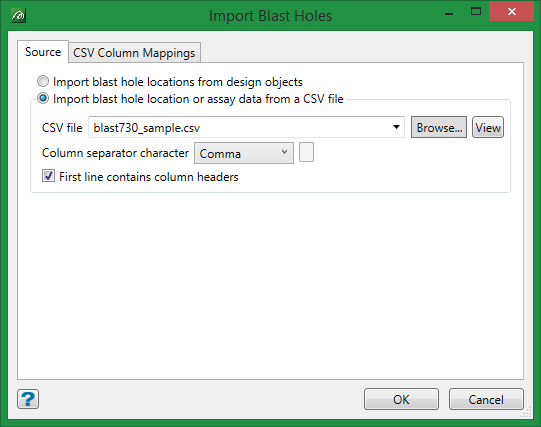
Import blast hole location from design objects
Choose this option to select the object from the screen.
After the selection has been made, click OK. The values are then imported into the blast.
Method Two:
Import blast hole location or assay data from a CSV File
Select the CSV file that contains the values that you want to import.The drop-down list contains all .csv files found in your current working directory.
Click Browse to select a file from another location.
View the selected file in the Vulcan CSV Editor or Vulcan Text Editor by clicking the View icon.
Column delimiter
Enter the column delimiter. This refers to the character that has been used to separate the values in the chosen CSV file. The default value is a single comma.
First line contains column headers
Select this option if the first row of the CSV file contains the column headers. (See example above.)
Click the tab heading CSV Column Mappings. You will be required to map the CSV columns to the blast hole identifier, such as blast hole name or number. and at least one other attribute.
