

Chart Explorer
The Chart Explorer panel displays all the charts in an organised manner.
Displaying data in the Chart Explorer panel
At the bottom of the Chart Explorer panel select the Chart tab.
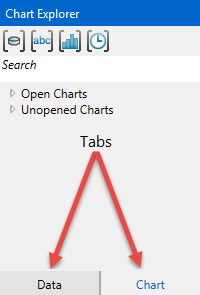
Open and Unopened Charts
In its initial state, the Chart Explorer shows two categories, open and unopened charts. You can open a chart by double-clicking on the name of the chart in the Chart Explorer pane.
Sorting data lists and charts
The lists of charts can be expanded by show all the charts that have been made. They can be sorted by clicking one of the four icons at the top of the panel. The icons will also sort any open chart showing in the chart window and arrange them accordingly.

|
Sort by data. |

|
Sort by name. |

|
Sort by type. |

|
Sort by last time modified. |
Tool tips and Context menus
When the mouse hovers over the name of a dataset, information is displayed in a tool tip about the dataset.
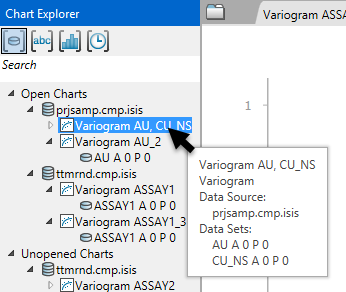
By right-clicking on a dataset, any available commands will be displayed in a context menu.
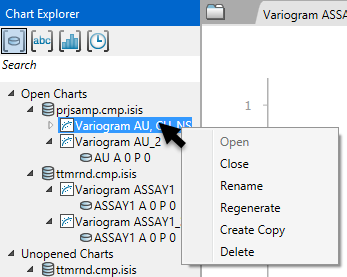
| Open | Open an existing chart. |
| Close | Close an open chart. |
| Rename | Rename a chart. |
| Regenerate | Regenerate a chart. If any edits have been made to the properties panel, they will be applied and a new chart generated. |
| Create Copy | Create a copy of chart. |
| Delete | Delete the chart. This operation cannot be undone. |
Searching for data within the Chart Explorer panel
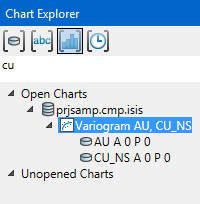
You can conduct searches by entering the name of the domain or group into the search box directly below the grouping icons. In this case, the data set was grouped by type as shown above, and the search criteria was cu. Note that the search entries are not case sensitive.
