

Assign Values
Use Assign Values to assign block variable values from one model to another. The values are assigned based on their common block overlap and the calculation method chosen.
Tip: You can also use the external program bassign to assign block values from one model to another.
Instructions
On the Block menu, point to Manipulation, then click Assign Values.
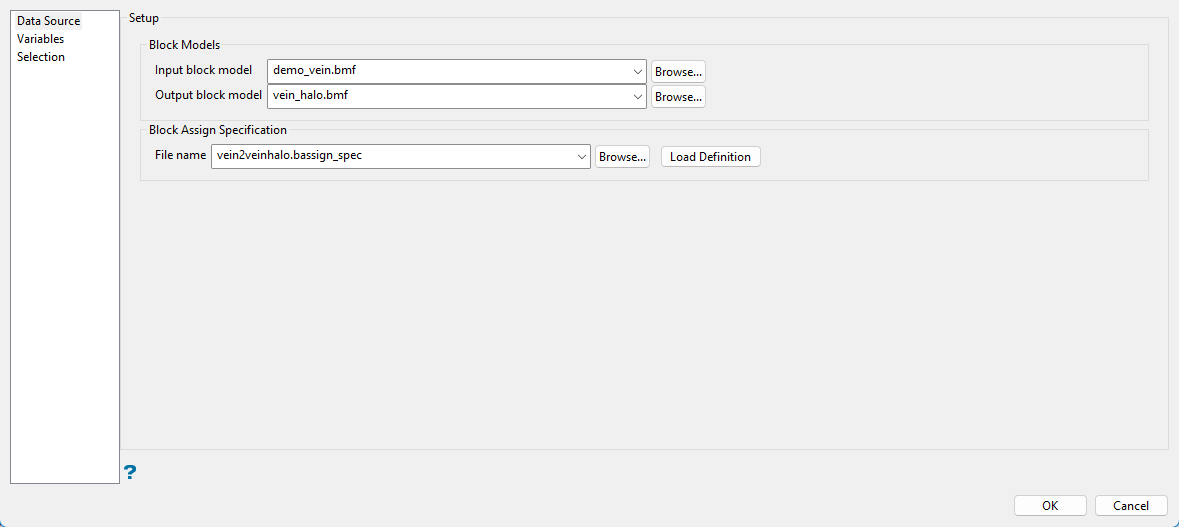
Follow these steps:
-
Select the Input block model from the drop-down list, or click Browse to select a file that is not in the top level or your working directory.
-
Select the Output block model from the drop-down list, or click Browse to select a file that is not in the top level or your working directory.
Note: The input and output models must have the same orientation (bearing, plunge and dip) and their parent block extents must overlap. If the output model extent is beyond the input model extent, then input blocks on the edge are assigned incorrect values due to the difference in volume.
-
Select a specification file from the File name drop-down list, or enter a name for a new one. When entering a new name, the file extension (*.bassign_spec) will automatically be added. As the variable details must match, an existing file should only be selected if it was created with the same input and output block model.
Note: Assignment definition files generated prior to version 3.4 have a file extension of (.bdf) instead of (.bassign_spec). The (.bdf) files can still be used but only from the command line program BASSIGN, not in Vulcan.
-
Click Variables in the menu tree to advance to the next pane.
Variables
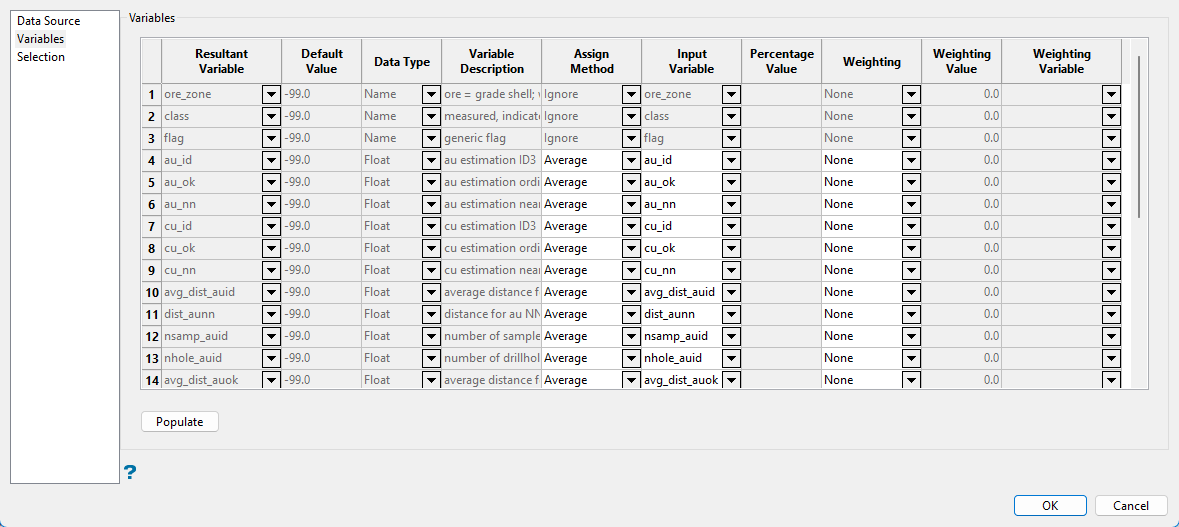
-
Click the Populate button to automatically load the table.
-
Specify the Assign Method for each output variable.
Name variable values in the output model are ignored, therefore, you will not be able to assign a value from the input model to the output model. For this reason, the Assign Method for this type of variable is disabled.
Default
This method uses the default value of the output variable (shown at the top of the pane).
Majority
This method to enter or select an input variable for which the majority value (that is, the value that occupies the most of the block's volume) is calculated and placed in the output variable.
Total
This method to enter or select an input variable for which the total is calculated and placed in the output variable.
Average
This method to enter or select an input variable for which the average is calculated and placed in the output variable.
Percentage
This method to enter or select an input variable and specify an ordinal value. The percentage of the variable values equal to the ordinal value is calculated and placed in the output variable. Refer to the Block > Transfer > Regularise Model option for more details on the calculation methods.
Ignore If this is selected, the variable will not be used. -
Click Selection in the menu tree to advance to the next pane.
Selection
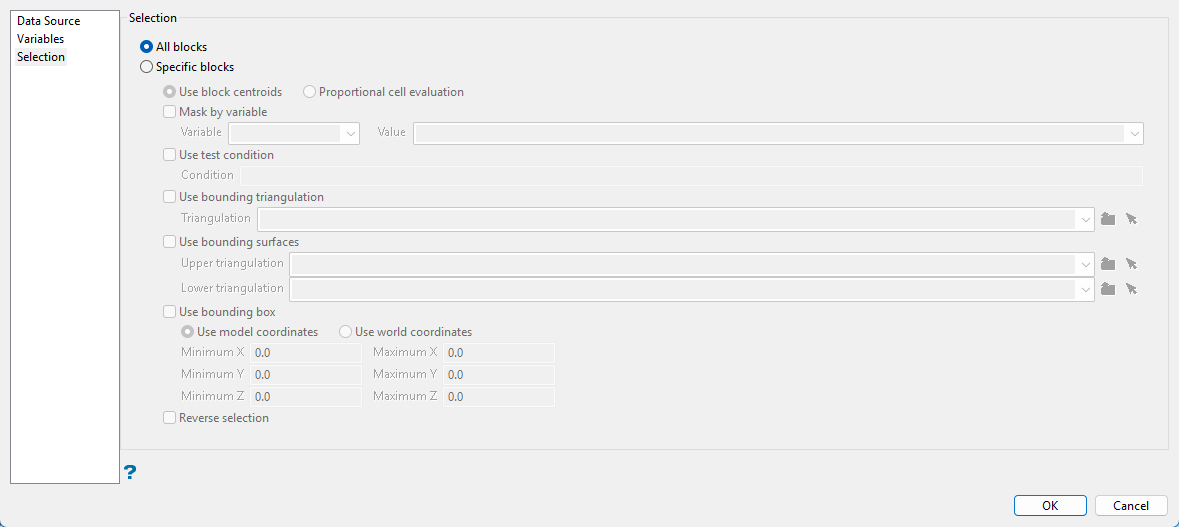
Use this pane to set up various block selection options.
-
Select either All blocks if you do not want to limit the blocks used, or Specific blocks to selects specific blocks based on selected criteria.
 Mask by Variable
You will need to specify the variable, as well as a particular value.
Example: If you have a variable called
Materialin your block model and want to restrict blocks to those where the material equals ore, selectMaterialas the variable and enteroreas the value. However, if you require all blocks that do not have this specified value, then enable the Reverse selection check box towards the bottom of the panel.Use test condition
You can limit the blocks by adding a condition on a numeric block model variable.
Example: To select blocks where iron has a value greater than 10.0, the condition would be
Fe GT 10.0The maximum size of the condition is 256 alphanumeric characters. Refer to Appendix B of the Core Appendices for a full list of available operators and functions.
Use bounding triangulation
This is useful when you want to evaluate reserves in a particular solid triangulation, such as a stope.
Select the triangulation from the drop-down list. or click the Browse icon to select one from a location other than the top level of your current working directory.
Tip: To use all blocks outside of the selected triangulation, select the Reverse selection option in addition to the bounding triangulation.
Use bounding surfaces
Use this to restrict blocks to those that lie between two limiting surfaces.
Select the Upper triangulation and Lower triangulation from the drop-down lists, or click Browse to select a triangulation from a location other than your current working directory. Only blocks that lie in the overlapping sections of the surfaces, as viewed in plan view, are selected.
Use bounding box.
If you select this option, you must enter the minimum and maximum coordinates for X, Y, and Z in the block model coordinates (X, Y, Z CENTRE). If the block model origin is set at 0,0,0, then real world coordinates should be entered in the X, Y, and Z minimum and maximum coordinates. If the block model origin is set at real world coordinates, then enter coordinates for the bounding box that are offset a certain distance from the origin. The distance of offset will be determined by the dimensions of your bounding box. It will be the distance to the minimum and the distance to the maximum X, Y, and Z from the origin of the block model.
Reverse selection
Select this to exclude the selected blocks. This option works in combination with the other options on the panel.
Example: If you set up Mask by variable to select all blocks that have a gold grade of (-99.0), then selecting Reverse selection will prevent any block with a gold grade of (-99.0) from being used.
Example: Or as another example, if you set up a bounding box to limit Z values between 2300m and 5500m, selecting Reverse selection will prevent blocks with Z values between those elevations from being used.
-
Click OK to run the option. Click Cancel to exit without saving.
