

Move By Distance 
Use the Move By Distance option to move a point a specified distance along a line. This line is the line joining the point that you want to move and a reference point (which doesn't need to exist prior to using this option).
Note: This option can also be accessed by selecting the Move by Distance button from the Move toolbar. The Move toolbar is a "sub toolbar" and can either be accessed through the Modify toolbar or through using the Toolbar Visibility option (under the Tools menu).
Instructions
On the Design menu, point to Point Edit, and then click Move By Distance.
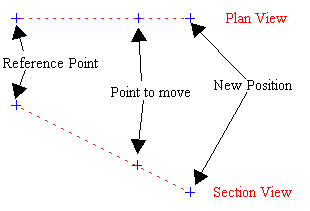
Figure 1: Moving a Point by a Distance. The coordinates of the point after it has been moved are calculated by extrapolating (or interpolating if the distance is negative) the line.
Follow these steps:
-
Indicate, using any of the design entry modes, the reference point.
-
Select the object that contains the point that you want to move.
Note: If the point is the object, then select it twice (once to represent the object and once to represent the point).
-
Select the point to move.
A line joining this point and the reference point displays on the screen. Use this line as a guide to determine the distance that you want to move the point.
-
Enter the required distance, in real world units, in the displayed panel. A positive number will move the point further away from the reference point (see Diagram 1) and a negative number will move the point closer to the reference point.
-
Confirm the new position of the point.
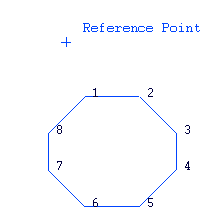
Figure 2: Example of Moving a Point
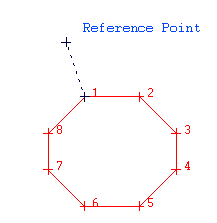
Figure 3: Line between reference point and selected point
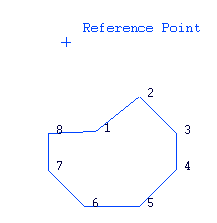
Figure 4: Object after Point 1 has been moved.
