

Create regular model from ASCII
Use the Create regular model from ASCII command to create a block model using the contents of nominated ASCII block model file. The ASCII block model file may have been created through another block modelling program or through using the Export ASCII option. All blocks contained in the chosen file must be the same size. Use the Create subblocked model from ASCII command if the blocks are different sizes.
Within the ASCII file the fields must be in a specific order with each line representing a cell. The format of the ASCII file must be: X Y Z Grade Model.
It should have an X centre, a Y centre, a Z centre, then the grade or model fields (which must be in the same order as defined in the definition file). The grade or model fields must be numeric. Hence any alphanumeric fields must be converted to numeric before importing.
See Appendix A for more details on the ASCII file format and the corresponding definition file. Refer also to the New option (under the Block > Construction submenu) for information on how to create the definition file.
The export of regular block models includes the block dimensions in the ASCII file. These need to be removed from the ASCII file before importing onto another workstation. This can be done with a "gawk" script. Details on this script can be found in the GAWK manual in the System Administration > Effective AWK Programming section.
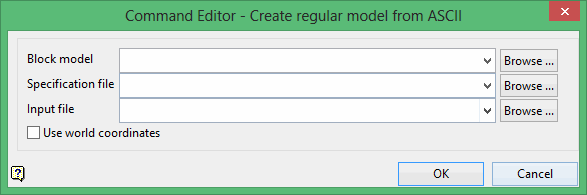
Block model
Enter the name for the resulting block model file. Selecting an existing file will prompt you to confirm that you want to overwrite the file's original contents.
The drop-down list contains all block models found within the current working directory. Click Browse to select a file from another location.
To create a new file, enter the file name and file extension.
Specification file
Select the block definition file (.bdf).
The drop-down list contains all .bdf files found within your current working directory. Click Browse to select a file from another location.
Input file
Select the ASCII file containing the information that will be used to create the resulting block model. The drop-down lists contains all files found in the current working directory.
Click Browse to select a file from another location.
Use world coordinates
Select this check box if the values contained withing the nominated ASCII file are defined in real world coordinates. If this check box is not selected, then Vulcan will treat the values in the ASCII file as being defined using block model coordinates.
